
Data Download
최신 업데이트:2025-11-13 18:20:51
When you need to obtain specific business logs for analysis, you can use the Data Download feature.
You can set parameters such as log display time zone, log retention time, merge granularity, and file split size according to your analysis preferences.
Supports specifying the target Domain (provided only with platform native data), selecting log fields and log formats, to achieve precise data downloads.
This article will introduce how to configure log data download consumption.
Steps
-
Go to the Log Service Platform.
-
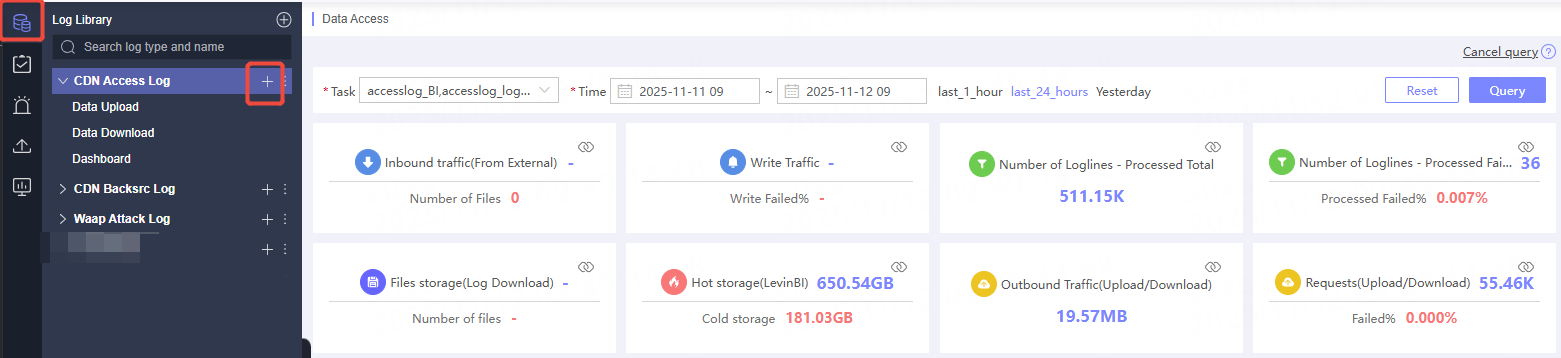
Click Log Library in the navigation bar.
-
On the Log Library List page, select the target log, and click the
 button on the right to enter the data consumption page.
-
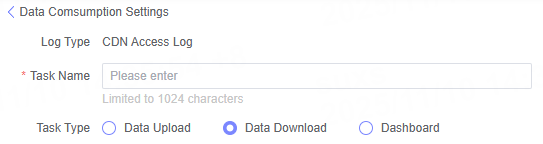
On the Create Data Consumption page, select Data Download as the consumption type.
Data Download
Step 1: Select Product/Domain
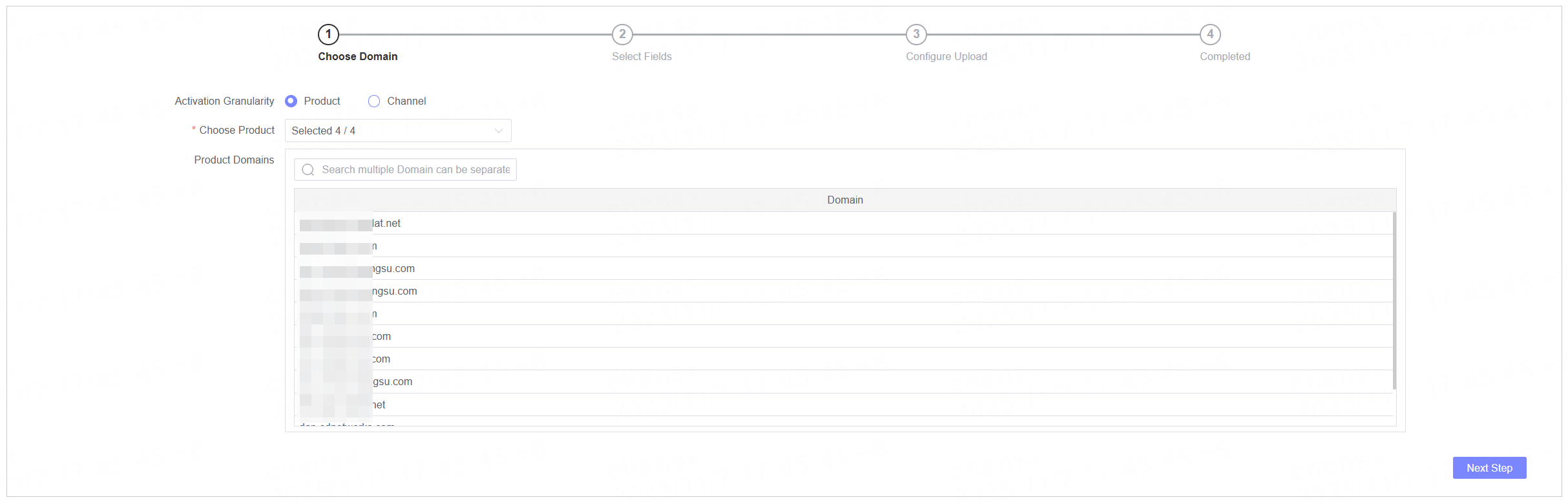
This step is required only for native platform data.
| Name | Description |
|---|---|
| Activation Granularity | Supports selecting domains by Product or Domain. When activated by Product, all domains under the selected product will be activated by default. When activated by Domain, you need to specify the domain, and you can filter domains by selecting products. |
| Select Product/Domain | Select the required product or domain. |
| Domain List | Displays the domains under the selected product or the domains already selected. |
Step 2: Select Fields and File Configuration
Select Fields
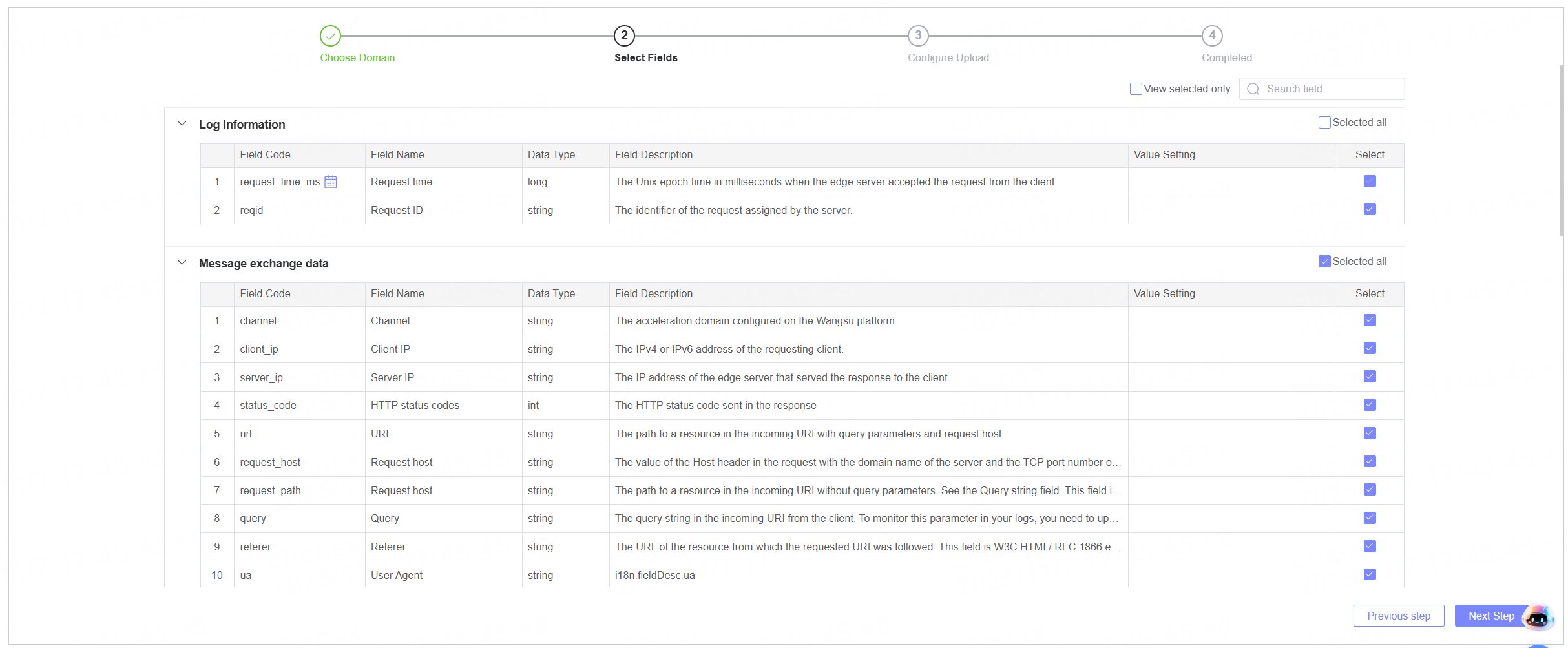
You can select log fields based on your requirements. The GUI will display log field categories (provided only for native platform data), field codes, field names, data types, and field descriptions.
The time field is mandatory. It is selected by default and cannot be deselected.
File Configuration
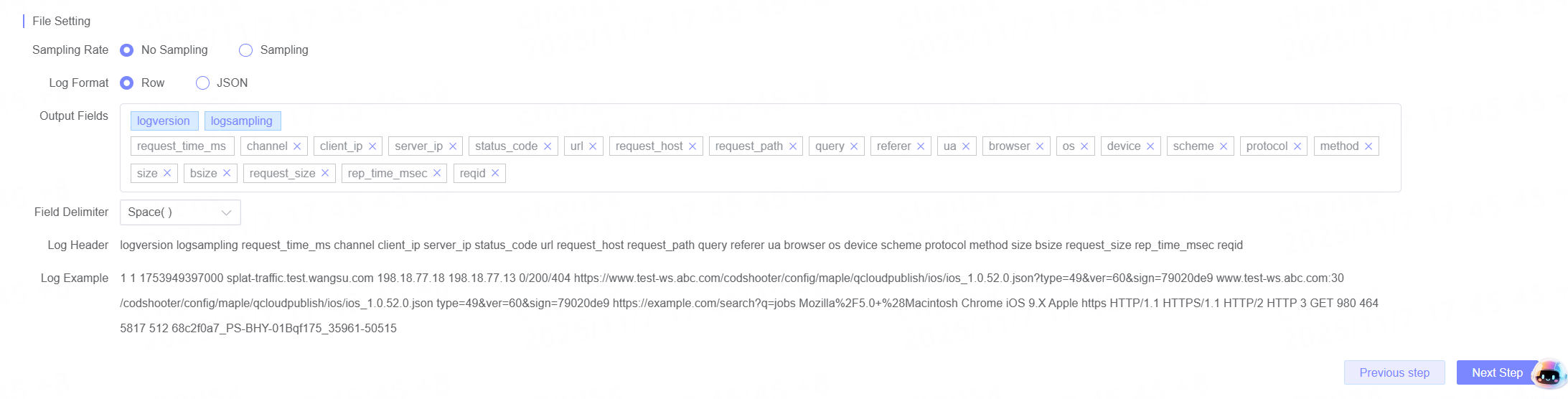
Set parameters related to downloading files.
| Name | Description |
|---|---|
| Sampling Rate | Set the sampling rate for downloading files. By default, all data is downloaded. You can customize the sampling rate as needed. |
| Log Format | Select the log format; both Log Line and JSON formats are supported. |
| Output Fields | When the log format is Log Line, you can adjust the order of the selected fields or remove selected fields. System fields such as logversion, logsampling, and time fields cannot be deleted or rearranged. |
| Field Separator | When the log format is set to Log Line, you can customize the field separator. |
| Log Header | When the log format is Log Line, displays the log header for the current field arrangement. |
| Log Sample | Displays sample data generated for the log file. |
Step 3: Download Configuration
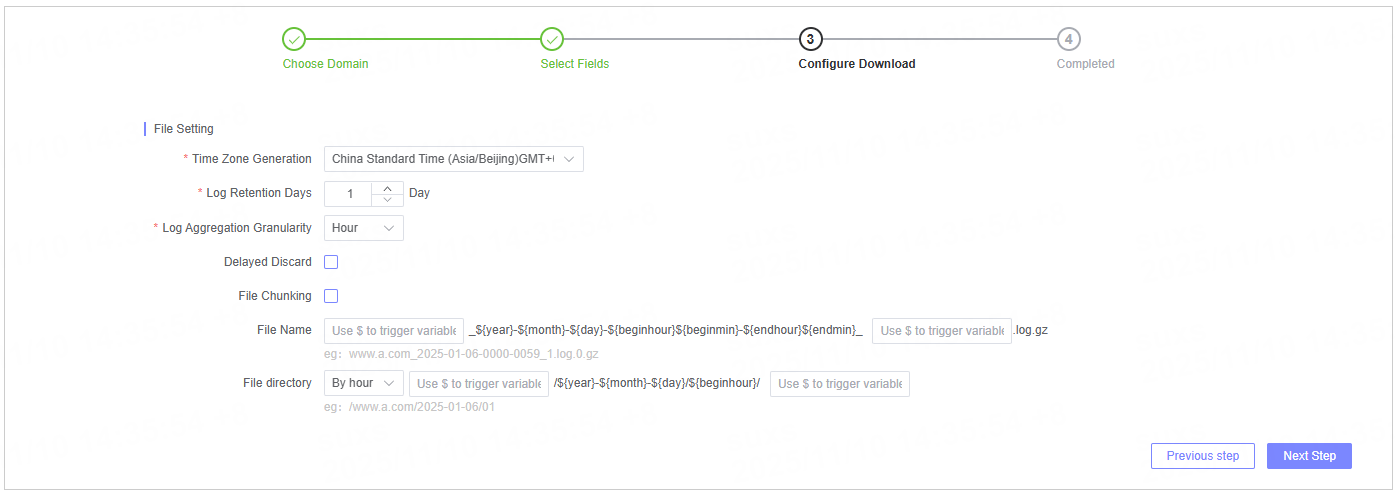
Configure parameters related to log download.
| Name | Description |
|---|---|
| Time Zone | Select the time zone for log display. |
| Log Retention Days | Configure the log retention time; expired logs will be discarded. |
| Log Merging Granularity | Log merging supports granularity of day, hour, 30 minutes, 15 minutes, and 5 minutes. Please select according to your requirements. |
| Discard on Delay | Disabled by default. When enabled, you can set a delay duration; files exceeding this timeout will be discarded. |
| File Packetization | Set the file packet size to prevent overly large file packets from affecting subsequent downloads or analysis. |
| File Name | The system has a default file name format. You can also add variables at specific positions, supporting the logversion and channel variables. |
| File Directory | The system uses a default file directory format. You can also add variables at specified locations, supporting the logversion and channel variables. |
Step 4: Submit the Job
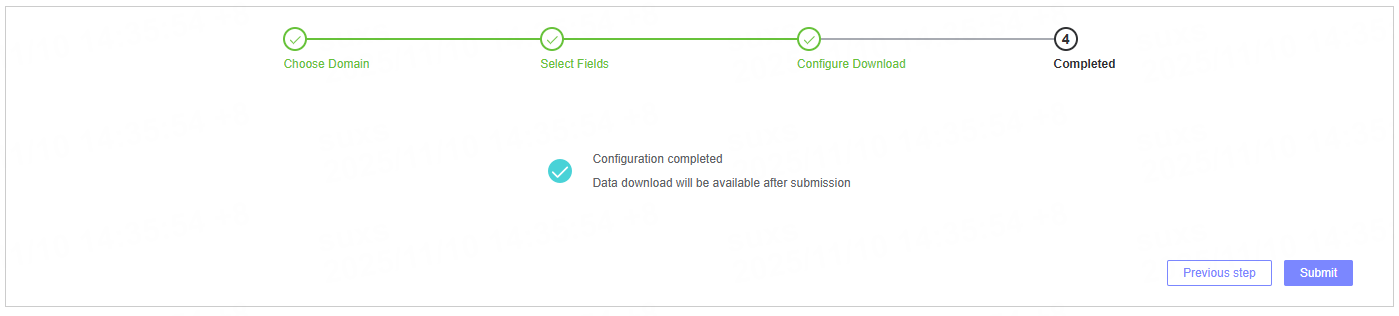
After completing all configurations, click the Submit button to submit the consumption job.
After the task is submitted successfully, the system will automatically redirect to the Log Library page, where you can download data.
Follow-up Actions
You can access Data Download in the corresponding Log Library to view or download log files in bulk for analysis.
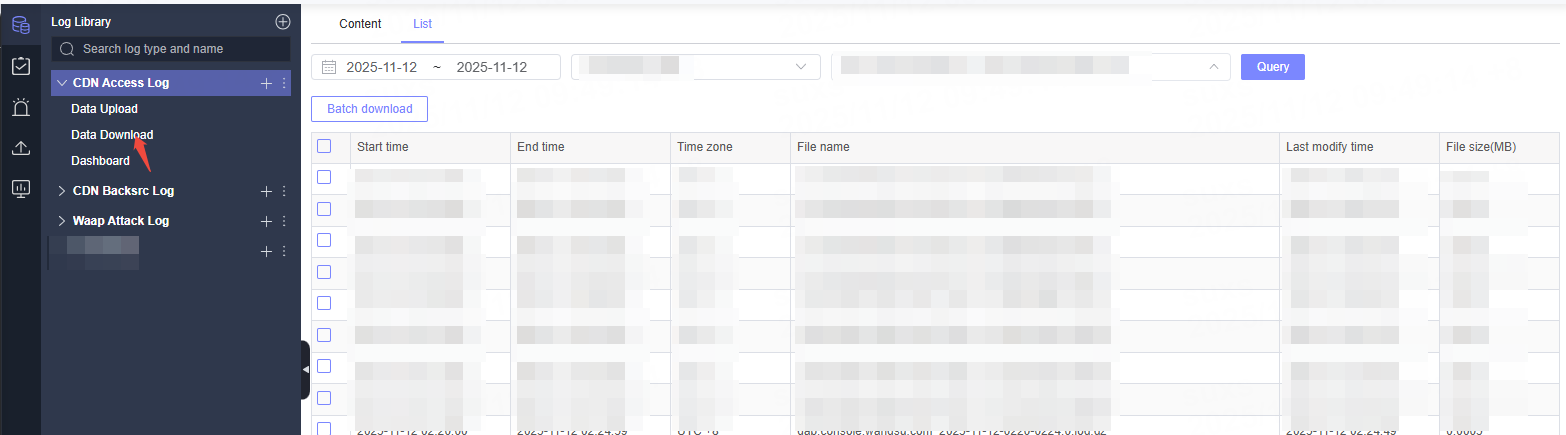
Consumption Task Management
In the Task Management list, you can view created consumption tasks and perform operations such as Edit, Pause, Monitor, and View Modification History.
For more details, please refer to Task Management.
Note: The actual operation interface may change with product iterations. Please refer to the current system page for accurate information.