Data Consumption
Last update:2026-01-04 10:08:33
This article provides instructions on how to manage data consumption tasks.
Prerequisites
You have already created consumption tasks. For details, see: Data Upload, Data Download, Dashboard.
Access the Consumption Task Management Page
- Go to the Log Service Platform.
- Click Task Management in the navigation bar and navigate to the Data Consumption tab.
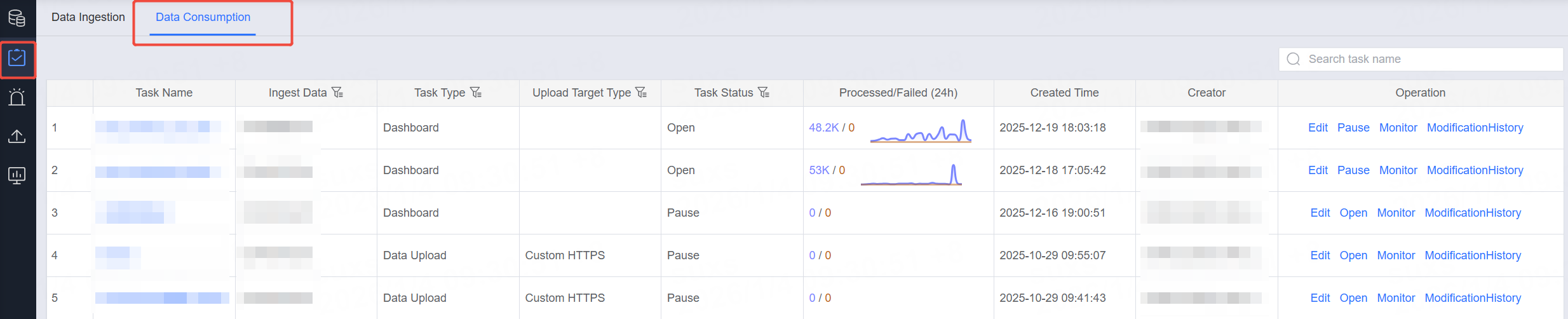
Consumption Task Management
The task list displays all created consumption tasks. You can find the desired task by using Search or column header filtering.
1. Edit
In the operation column of Access Task Management, select the Edit option.

After clicking, you will enter the consumption task editing page, where you can edit existing tasks.
For created tasks, certain fields cannot be edited. Please follow the on-screen instructions.
2. Pause
In the operation column of Access Task Management, select the Pause option.

After clicking, the system will prompt you about the consequences of pausing and ask for a second confirmation to pause the task.
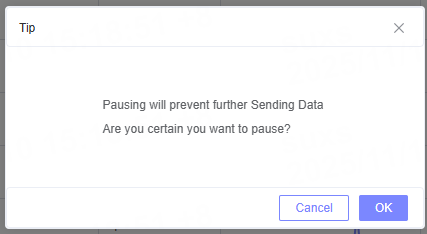
After the consumption task is paused, data upload tasks will stop uploading data, data download tasks will stop generating download files, and the dashboard data tables will no longer be updated.
3. Monitoring
In the operation column of Access Task Management, select the Monitoring option.

After clicking, you will be redirected to the monitoring page where you can view the corresponding report data. For more details, please refer to the Monitor documentation.
4. Modification History
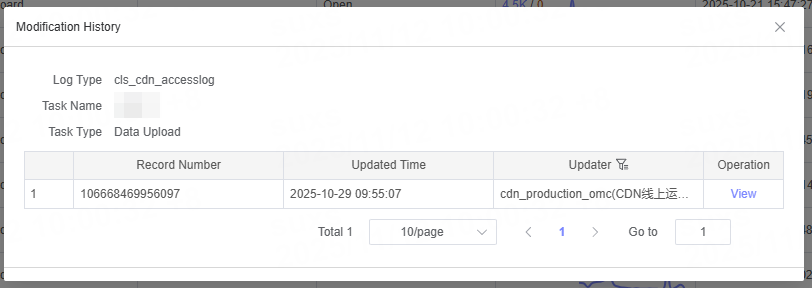
In the operation column of Access Task Management, select the Modification History option.

After clicking, you can view the modification history of the consumption task and view the details of each modification in the pop-up window.