
Quick Start
최신 업데이트:2026-03-19 16:44:03
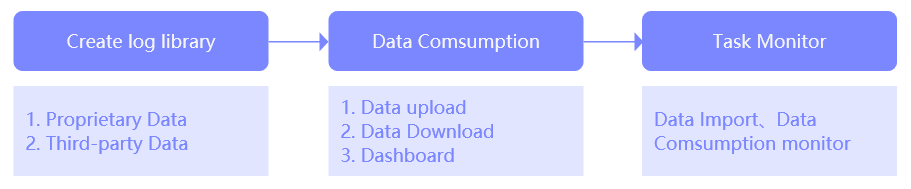
As the entry point of the log service platform, users must first ingest data into the platform. Once the data has been ingested, subsequent functionalities such as data upload, download, and visualized analysis become available.
Core Workflow
Feature Introduction
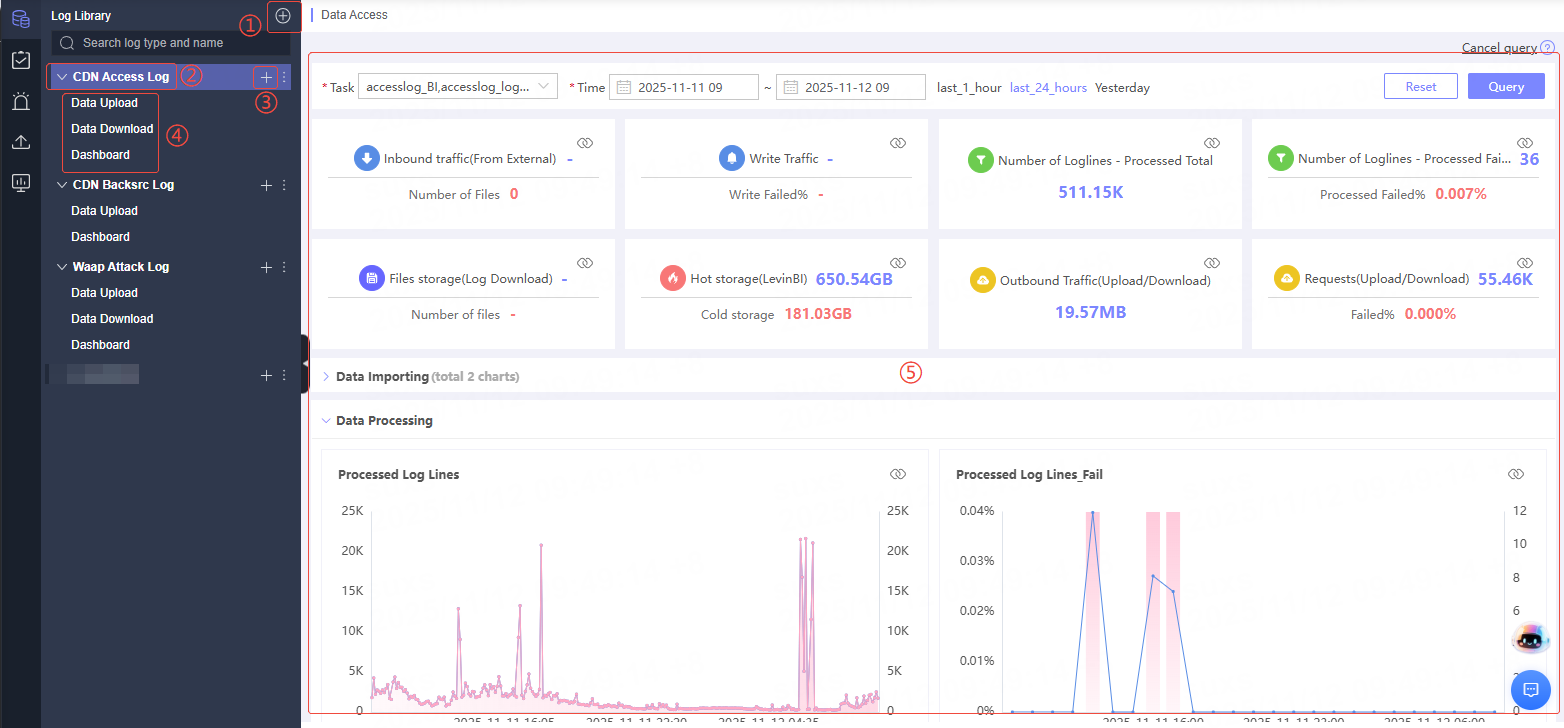
| No. | Functional Area | Description |
|---|---|---|
| ① | Create Log Library | Create a new log library. You can select either Platform Native Data or HTTP Access as the log type. For details, see: Create Log Library. |
| ② | View Log Access Status | Click on an accessed log to display the corresponding report in the right-side area, where you can view log access tasks, such as: file count, write traffic, write size, upload success rate, etc. |
| ③ | Create Consumer Task | Create a data consumer task. Three consumption types are supported: Data Upload, Data Download, and Dashboard. For details, see: Data Upload, Data Download, and Dashboard. |
| ④ | View Data Consumption Status | Click different consumption types to display the task report for that type on the right, making it easy to monitor task execution status and data consumption progress in real time. |
| ⑤ | Report Display Area | Dynamically displays monitoring reports for tasks based on the log library or consumer task type selected on the left, providing intuitive data visualization and analysis views. |
When configuring a log library and consumer task, please ensure all information is filled in accurately. Incorrect information may result in data ingestion or consumption failures.
Related Articles
이 문서의 내용이 도움이 되었습니까?
예
아니오