
Data Importing-HTTPS
최신 업데이트:2026-01-27 11:03:47
This article describes how to integrate 3rd party data into CLS via HTTPS.
Steps
-
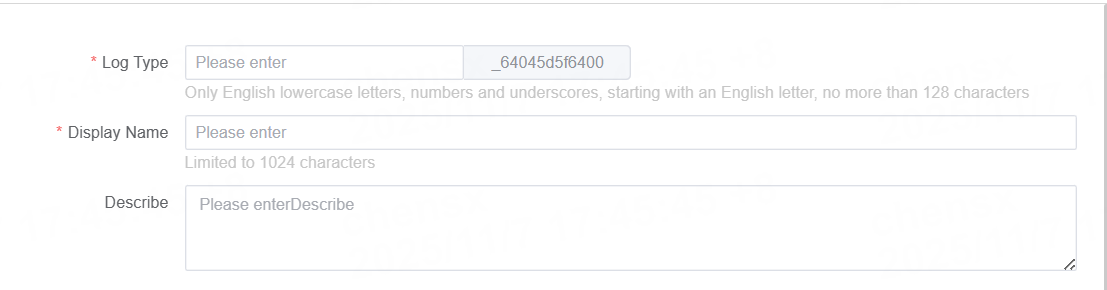
Enter an easily identifiable English name in Log Type, with a maximum length of 128 characters. This name will be used as the data source name, and if added to the Dashboard, it will be directly displayed as the corresponding data source name.
-
Enter a display name and task description in Display Name and Description respectively, each with a maximum length of 1024 characters. The Display Name will be shown in the log repository to facilitate subsequent management and operations.
-
Define the log format to be imported and select the log data format. Both log line and JSON types are supported. Details are as follows:
Log Format - Log Row
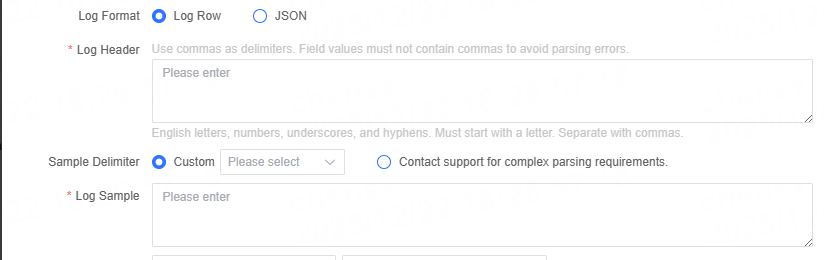
Name Description Log Header Provide a list of log field names, separated by commas. Please ensure that the field content does not contain commas to avoid parsing failures. Sample delimiter Specifies the delimiter used for log samples. Supported delimiters include **space, tab. For other delimiters, please contact technical support. Log sample Provide a sample that matches the current log format for validating parsing rules. Log Format - JSON format

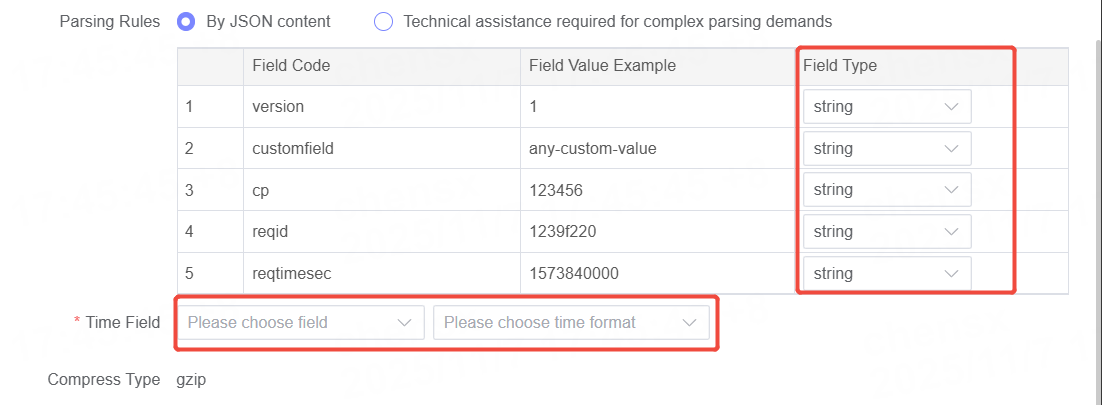
Name Description Log sample Provide a sample that matches the selected log format for validating parsing rules. Parsing Rules By default, parsing is performed in JSON format. If you have special requirements, please contact technical support. -
Based on the parsed log fields, specify the corresponding field types and the time field.
Next Steps
-
After the task is created successfully, the system will automatically generate the corresponding HTTP ingestion address. You can also obtain it on the Task Management - Data Ingestion page.

-
Push logs to the specified site. After successful integration, you can utilize data consumption in the Log Library. For more details, see: Data Upload, Data Download, and Dashboard.
-
You can monitor the data ingestion status on the Monitor page.