
Referer Access Rules
Last update:2026-05-15 10:21:40
When a client sends a request to a web server, it typically carries a Referer header that indicates the request’s origin page. This origin information enables the server to perform access control based on it. When a CDN edge server receives a client request, it checks the information in the Referer field of the HTTP request header, and then allows or denies user requests that comply with specific rules. This is suitable for scenarios where the content is only allowed to be accessed from specific pages, such as when users are only allowed to access resources by clicking on links from specific pages.
How to Set Up the Referer Access Rule
- Log in to the CDNetworks Console and select the appropriate product.
- Go to the Configuration, locate the domain you wish to configure, and click Edit Configuration
 .
. - Navigate to Access Control - Referer Access List in the left sidebar and click Add.
- Configure the settings as follows based on your needs.
Apply to
This defines the scope of requests that Referer access rules will apply to. You can choose from the following options:
| Setting | Description |
|---|---|
| All Requests | The access control rule applies to all types of requests. |
| Only Homepage | Applies only to the root directory of the domain, such as http://domain/ or https://domain/. |
| Specific File Type | Applies only to specific types of files. You can select from the predefined file types on the left or define custom file types. Separate multiple custom types with a semicolon ; (e.g., jpg;png). |
| Specific URL Path | Applies only to requests for content at a specific URL path. Two URL path matching options are available:Full URL Path: Complete URL path, including parameters (e.g., path/index.html?abc=123). Ignore Query String: URL path without query parameters (e.g., path/index.html). |
| Specific Directory | Applies to requests under specific directories. For example, /file/abc/ applies to all content under http://domain/file/abc/*.Note: Directories must start and end with /, and can only contain letters, numbers, and certain special characters (underscore, hyphen, percent sign, dot). Multiple directories are supposed to be separated with line breaks. |
| URL Pattern (Regex) | Uses regular expressions to define the scope of requests to which the rules will be applied. For example, the pattern *.jpg$ ensures that access control applies to all URLs ending with .jpg. |
Advanced Scope Conditions
You can further refine the rule’s Apply to scope using Advanced Scope Conditions. This will intersect with the basic Apply to rules for precise control. Select one or more parameters to form an AND relationship with the basic rules to target specific requests or responses.
| Parameter | Description |
|---|---|
| Regions or Exclude Regions | Supports direct search selection from the list of countries/regions provided by CDNetworks; For Mainland China, it is possible to select specific provinces or larger geographical areas, such as East Region and Southwest Region. |
| Exclude File Type | Excludes certain file types. Separate multiple types with ;. |
| Exclude Custom File Type | Excludes custom file types as needed. Separate multiple types with ;. |
| Exclude Directory | Excludes specific directory paths. Paths must start and end with /. Separate multiple directories with ;. |
| Exclude URL(Regex) | Excludes URLs using regex, e.g., .*\.jpg$. |
| Access-Control-Allow-Methods | Matches HTTP request methods. Separate multiple methods with ;, e.g., GET;POST. |
| Exclude Request Method | Excludes specific HTTP request methods. |
Rule Type
You can set either a Referer Blocklist or a Referer Allowlist.
| Setting | Description |
|---|---|
| Blocklist | Three options are available:Blocked Referers (Domain Only): Access is denied if the Referer contains the specified domain. For example, www.test.com. No need to add http:// or https:// at the beginning of the domain. Blocked Referers(Full URL): Access is denied if the Referer contains the specified URL. For example, http://www.test.com/index.html. Blocked Referers (Regex): Click Use Regular Expression to define one or multiple regex expression(s) for blocked list. |
| Allowlist | Three options are available:Allowed Referers (Domain Only): Access is allowed only if the Referer contains the specified domain. For example, www.test.com. No need to add http:// or https:// at the beginning of the domain.Allowed Referers (Full URL): Access is allowed only if the Referer contains the specified URL. For example, http://www.test.com/index.html. Allowed Referers(Regex): Click Use Regular Expression to define one or multiple regex expression(s) for allowed list. |
Tips
- Blocklists and Allowlists can include multiple domains or URLs, separated by line breaks.
- The system supports only one Allowlist rule. If multiple Referer values are needed, they must all be included within this single Allowlist.
- Wildcard domains are allowed in both the Blocklist and the Allowlist.
Action
When the Referer does not meet the set rules, and a request is denied by the CDN, choose whether to return an error code directly or redirect to another URL:
- Block Access: The CDN rejects the request with a 403 error.
- Redirect: The CDN redirects the requests to another URL.
Allow Empty Referer
Enabling this allows users to access your content directly by typing the URL in their browser’s address bar, even when there is no Referer.
Case-Insensitive Match
The default for this setting is Yes.
- The Yes option indicates that the matching for Apply to will be case-insensitive. Two requests with URLs that differ only in case will both match the rule you set. For example, if you configure
/domain/a.jpgfor Specific URL Path, both/domain/a.jpgand/domain/A.jpgwill be matched. - Conversely, if you choose No, case differences with settings in Apply to will not be ignored in incoming requests, and only requests matching the case exactly as specified in the Apply to will follow the Referer access rules.
Priority
When multiple access control rules are configured, the CDN prioritizes them based on their numerical value, executing higher numbers first.
After you have completed setting the configurations, please click OK and then select Next to submit your settings. To minimize any potential disruptions to your production environment, we strongly recommend conducting a Pre-deploy test in a staging environment. This crucial step ensures that your settings are accurate before they go live. Once you have verified the accuracy of the settings, click Deploy Now to implement them in the live environment. The settings typically become effective within 3-5 minutes. For comprehensive guidance on pre-deployment testing and to verify the effectiveness of your settings, please consult the tutorial Deploy the settings to Staging Environment for Validation.
Best Practices
Example 1: Configure a Referer Blocklist
This example demonstrates how to deny access to all requests under a domain if the request’s Referer contains www.cdnetworks.com or dash.cdnetworks.com. The settings are as follows:


Example 2: Configure a Referer Allowlist
This example shows how to allow access to all requests under a domain only if the request’s Referer contains www.cdnetworks.com or dash.cdnetworks.com. The settings are as follows:


Notes
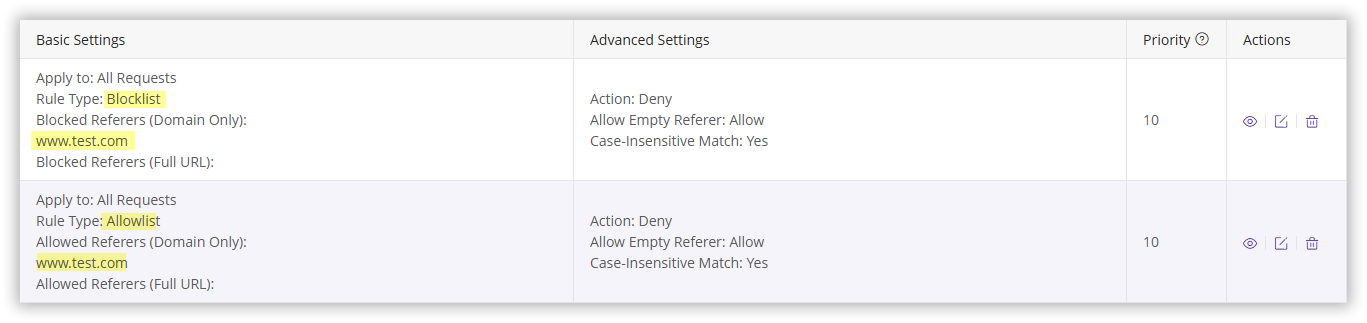
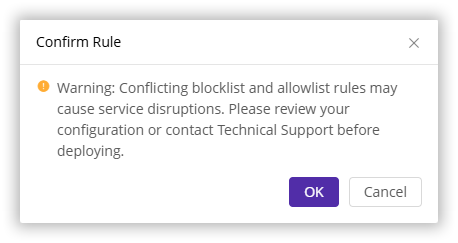
Please DO NOT configure both Referer blocklists and allowlists simultaneously. The Referer is checked against both lists sequentially, which could potentially lead to all CDN access being denied, potentially impacting your business. For example, configuring both a Referer blocklist and allowlist as shown below will result in all accesses being denied by the CDN.
Why would all requests be denied?
- Requests with a Referer containing
www.test.comwill be denied access by the CDN due to matching the blocklist rule. - Requests without
www.test.comin the Referer, although not denied by the blocklist, will also be denied because they do not match the allowlist criteria, which only allows access for requests with a Referer ofwww.test.com.
If you need to configure both a blocklist and an allowlist, please contact our technical support for assistance to ensure proper setup.