
Using IAM for Permission Management of CA
Last update:2026-03-25 15:15:20
Scenario
A certain enterprise has purchased Content Acceleration services from CDNetworks to meet business requirements. There are multiple functional teams within the company, each responsible for different business permissions. The IAM configuration is required as follows:
- Xiao Zhu, Xiao Zeng, and Xiao You from Operations Department 1 require statistics and analysis permissions.
- Xiao Huang from Operations Department 2 needs permission to add and disable domains, as well as resource permissions for why.test44.com .
All Members of Operations Department 1, Including usertest01, usertest02, and usertest03, Require Statistics and Analysis Permissions
Operation Steps
The overall steps are: Log in to IAM --> Create Sub-Account --> Create Custom Policy --> Assign the Policy to the Sub-Account
1. Log In to IAM
Access Method 1: Access the IAM portal directly at https://iam.cdnetworks.com;
Access Method 2: Go to User Center in the top right corner -> IAM
2. Create Custom Policy
The required permission is for Content Acceleration Usage Analysis, which involves Log Download operation permissions and permissions for all domains.
- Click Permission Policy Management --> Create Permission Policy Management.

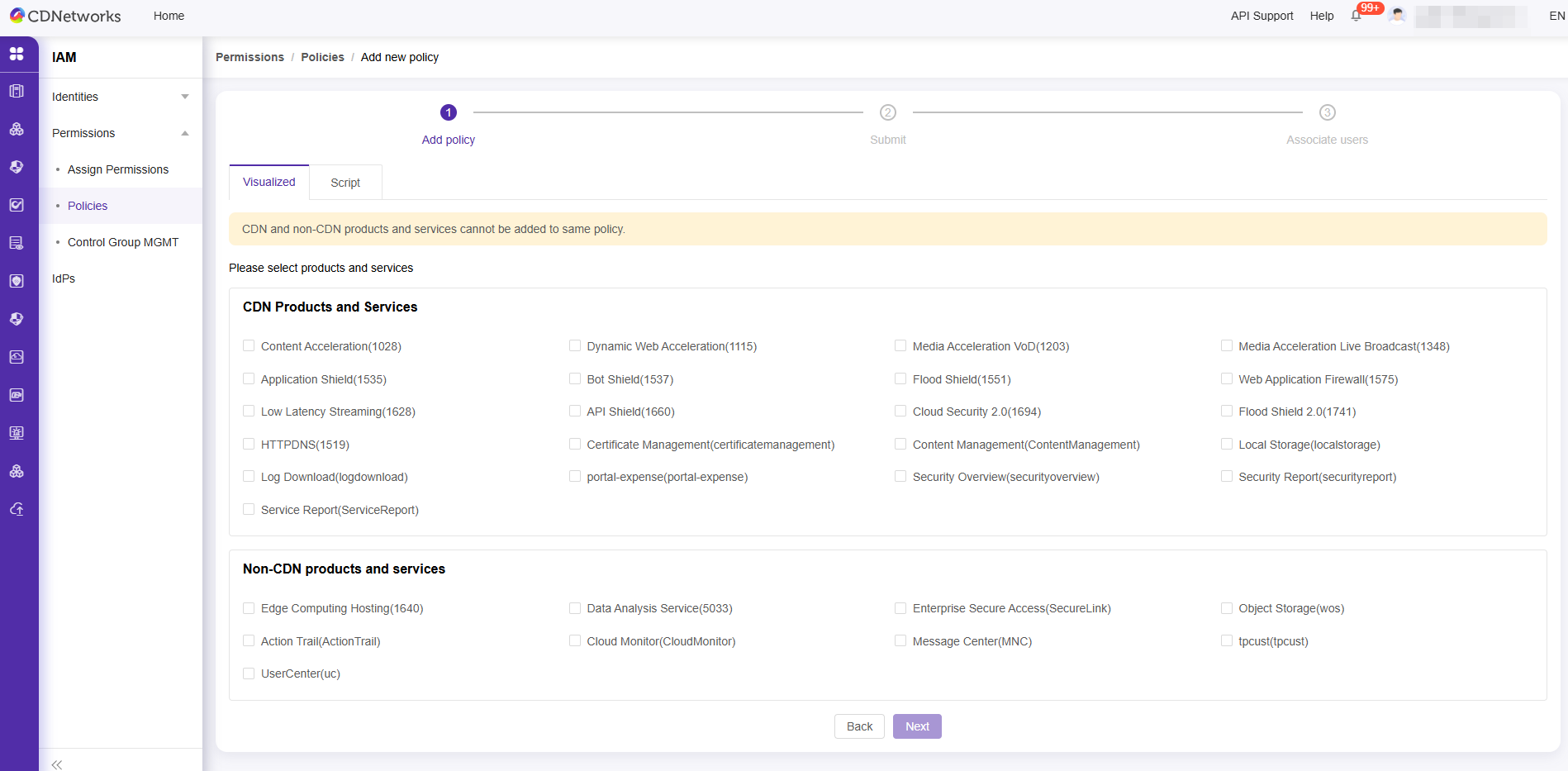
- Select the service to authorize: Content Acceleration, and click ‘Next’.
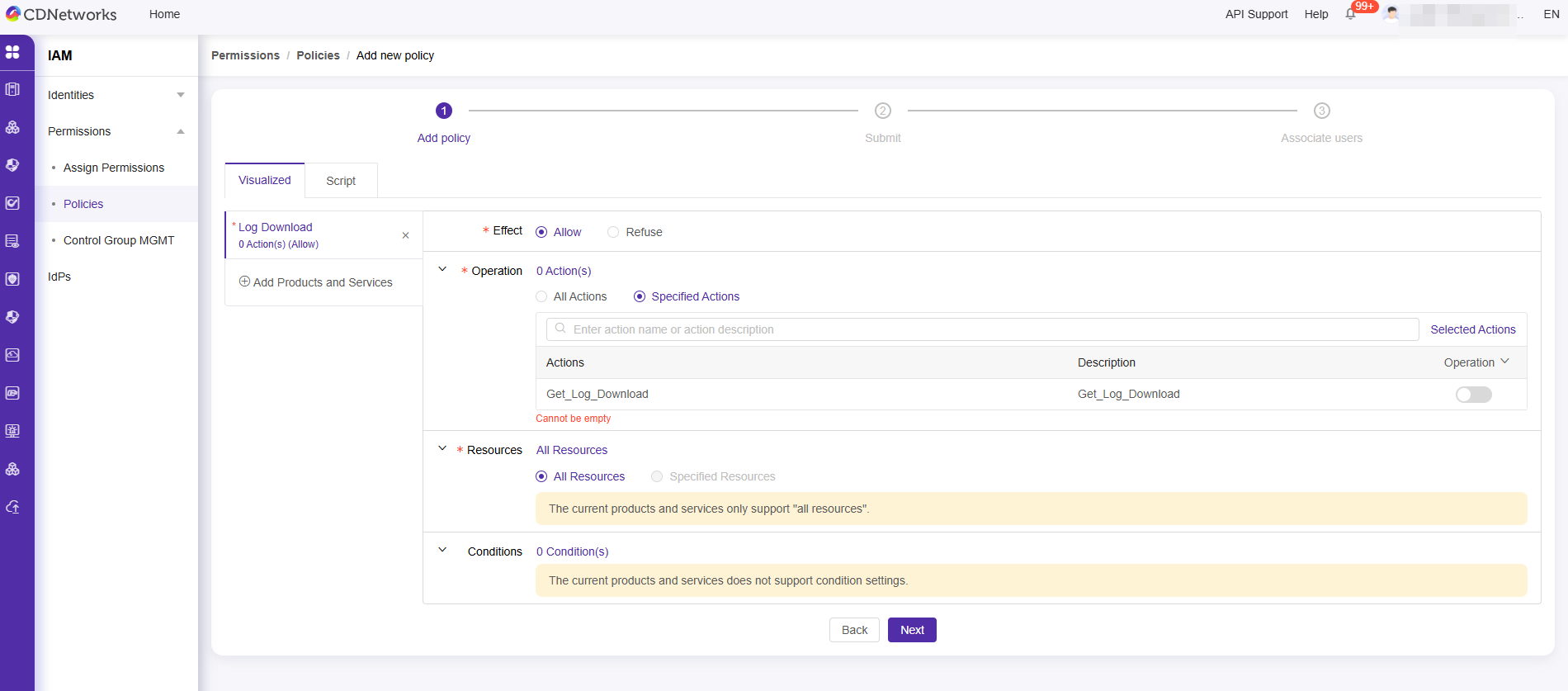
- Locate the Log Download related feature, turn the switch on, and click ‘Next’.
- Enter the policy name and description, then submit. The policy will be created successfully. This completes the creation of a policy with Log Download permissions.
3. Create User
- Click on User --> Create New User
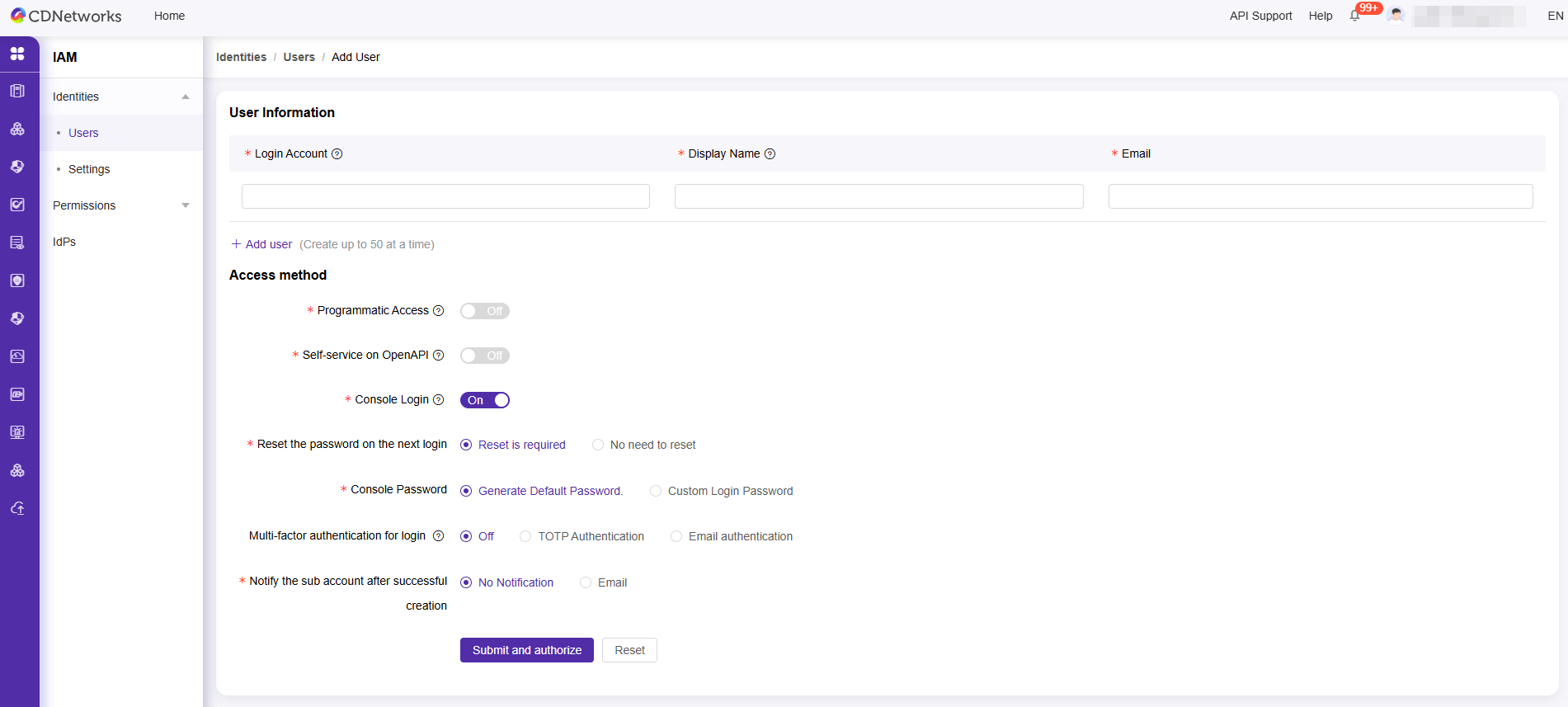
- Edit the sub-account information and submit. The account will be created successfully.
- Assign the Log Download policy to this user.
- Follow the above steps to create the sub-accounts usertest01, usertest02, and usertest03, and grant Log Download permissions to them.
Configure Xiaohuang from Ops Department 2 to Add and Disable Domains, and Grant Resource Permissions for why.test44.com.
Operation Steps
The overall steps are: Log in to IAM --> Create a Sub-Account --> Create a Custom Policy --> Assign the Policy to the Sub-Account
1. Log In to IAM
Access Method 1: Directly visit the IAM address https://iam.cdnetworks.com;
Access Method 2: Go to the User Center in the upper right corner → IAM.
2. Create a Custom Policy
The target permissions require the ability to add and disable domains for Web Acceleration, as well as resource permissions for why.test44.com. This can be broken down into: permissions to view the actions of adding and disabling domains, as well as all resource permissions for why.test44.com. Therefore, you need to first create a custom policy that includes the permissions to view, add, and disable domains.
- Click Policy Management → Create Policy Management
- Select the product service Web Acceleration for authorization and click [Next Step].
- Locate the relevant features for adding and disabling Domains, enable the toggles, and save. Then click [Next Step].
- Enter the policy name EditDomian and description. After submitting, the policy will be successfully created. At this point, a policy with permissions to view, add, and disable Domains has been defined.
3. Create User
- Click User --> Create New User.
- Edit the sub-account information and submit. At this point, the sub-account xiaohuang1 has been created.
- Select the Domains to authorize: why.test44.com.
- Select the policy EditDomian and submit. Authorization is now complete.