Login with Multi-Factor Authentication
Last update:2026-03-19 14:42:13
Concept of Multi-Factor Authentication
Multi-factor authentication (MFA) provides an additional layer of security for your account. After enabling two-factor authentication, the next time you log in to the console, you will be required to enter both your username and password, as well as a time-based one-time password (TOTP) generated by a 2FA application or an email verification code.
Currently, two types of multi-factor authentication are supported: TOTP two-factor authentication and email verification code authentication.
Enable TOTP Two-Factor Authentication
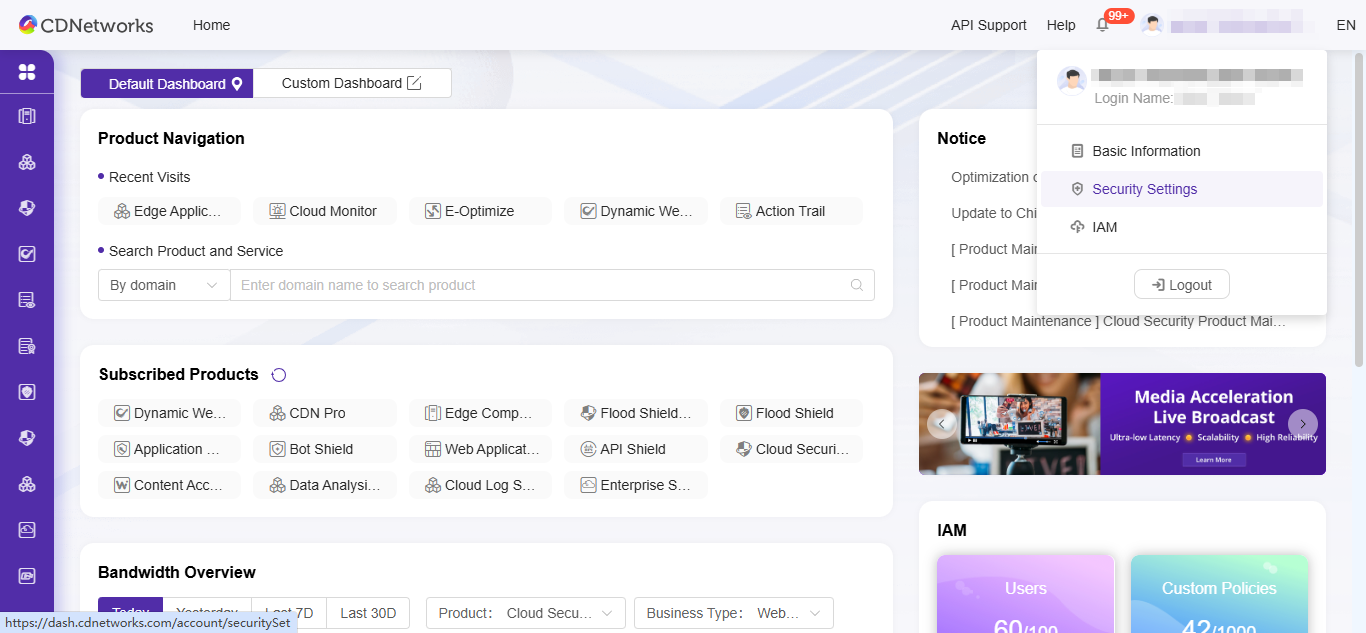
Click the [Security Settings] button in the user section to enter the security settings page.
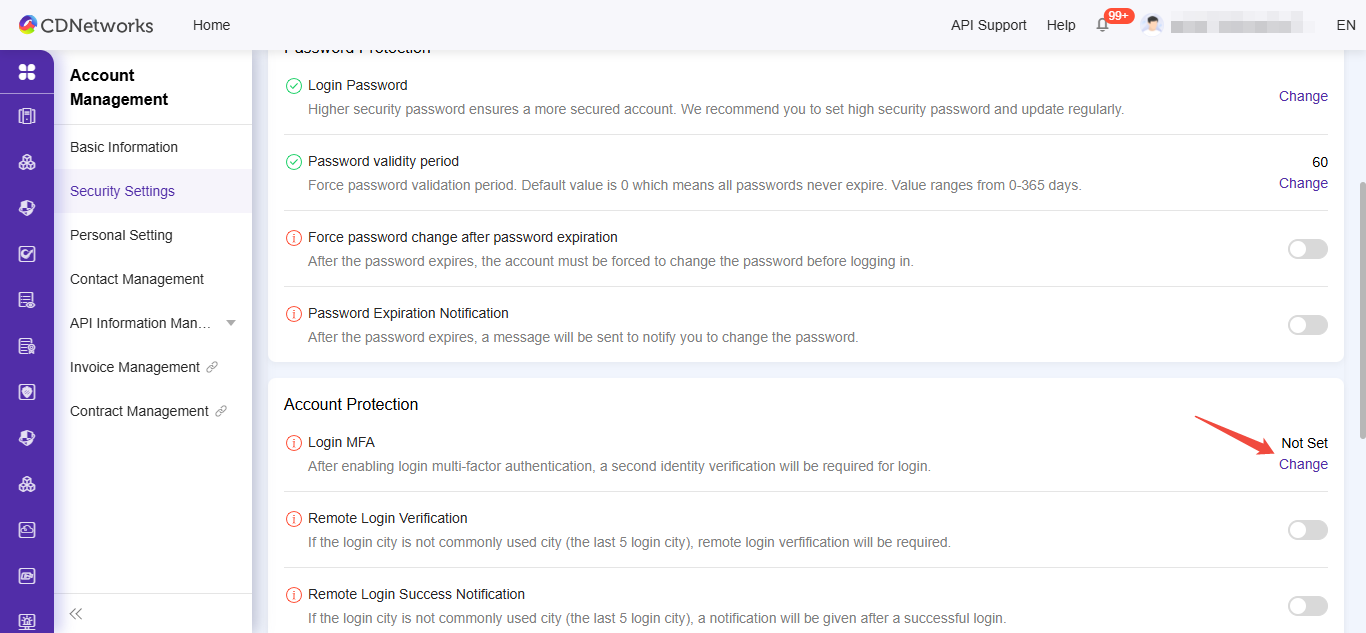
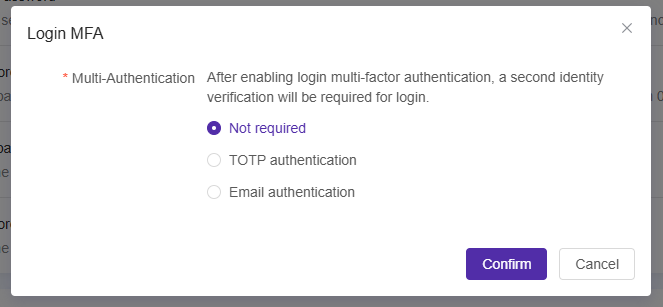
In the [Account Protection] section, click to modify login multi-factor authentication:
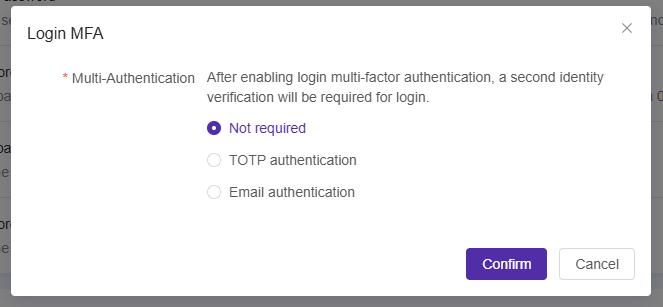
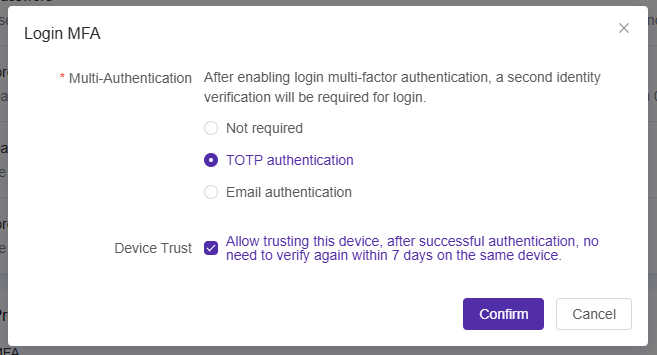
Select Enable TOTP Two-Factor Authentication
Due to the requirements of the SHA-256 algorithm, the platform only supports WeChat Mini Programs and apps compatible with SHA-256, as shown in the diagram:
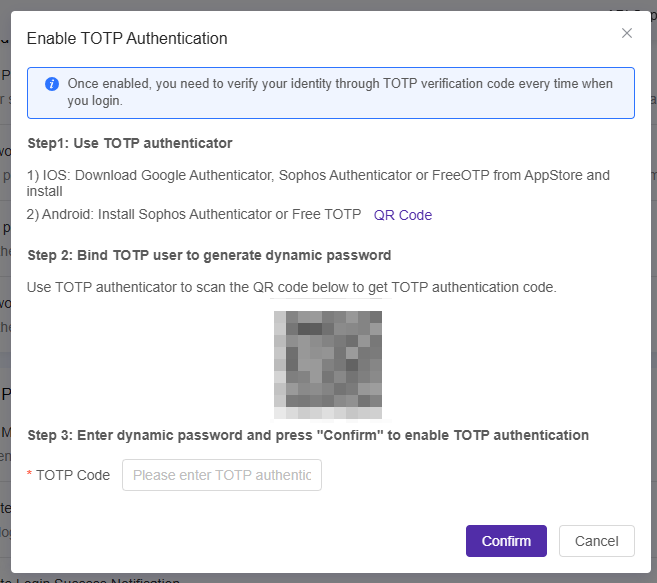
After clicking Confirm, follow the instructions in the pop-up window to bind TOTP.
TOTP Secondary Authentication Login
After enabling TOTP secondary authentication, the next time you log in to the console, in addition to entering your correct username and password, you will also need to enter the dynamic code generated by your 2FA application within the current timeframe.
Disable TOTP Secondary Authentication
If you no longer want to use TOTP secondary authentication, you can disable it by going to Security Settings and setting Login Multi-Factor Authentication to Disabled. In the popup window, enter the current dynamic passcode generated by your 2FA application. Click Confirm and if the verification is successful, TOTP secondary authentication will be disabled…
Enable Email Verification Code for Secondary Authentication
Click the User Bar and Select the Security Settings Button to Enter the Security Settings Page
In the Account Protection section, click to modify login multi-factor authentication:
Select to enable email verification code as secondary authentication
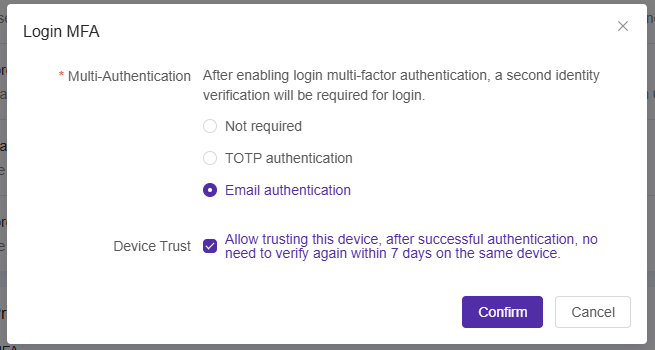
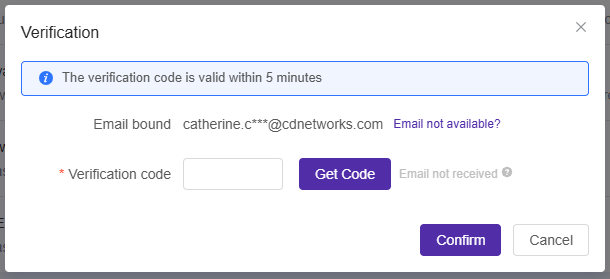
Click Confirm and complete email verification code authentication in the pop-up window. Upon successful verification, email verification code as secondary authentication will be enabled.
Disable Email Verification Code as Secondary Authentication
If you no longer wish to enable email verification code as secondary authentication, you can disable it by going to Security Settings and setting login multi-factor authentication to Disabled. In the pop-up window, complete the email verification code authentication; once verified successfully, email verification code as secondary authentication will be disabled.