
Users
Last update:2026-03-25 15:09:20
A user is a type of identity in IAM. A user corresponds to a specific operating entity, such as an employee of an enterprise or an application. By creating a new IAM user and granting permissions, the IAM user can access relevant resources.
Prerequisites for Creating an IAM User
Log in to the IAM Console as the primary user (or as an IAM user with IAM operation permissions).
Create IAM User
The steps to create an IAM user are as follows:
- Log in to IAM Access Control.
- Click Personnel Management > Users > Create New User.
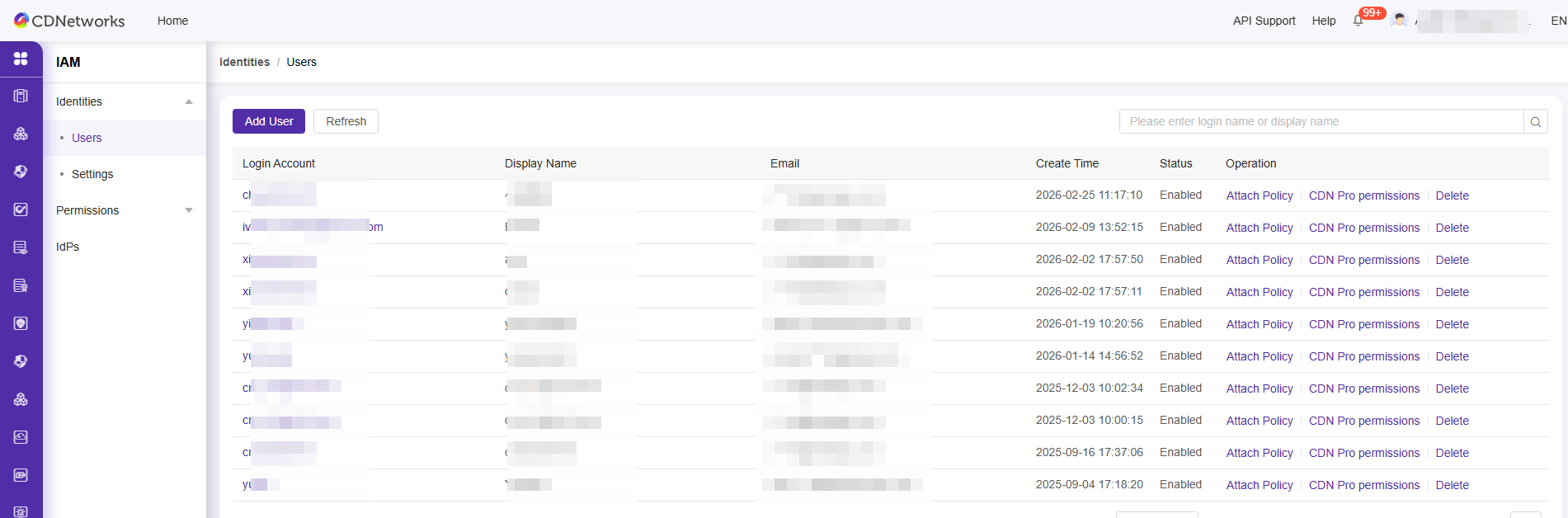
- Follow the prompts on the page to enter the user name and display name, then click Add User.
- Manage IAM Users
- You can manage and adjust the configuration of existing IAM users based on your requirements.
Modify User Basic Information
The steps to modify a user’s basic information are as follows:
- On the Users page of the IAM Console, locate the user whose basic information you want to modify, then click the username.
- In the Basic Information section, click Edit Basic Information.

- In the pop-up Edit Basic Information window, you can modify the user’s username, display name, and remarks.
- You may optionally enter the user’s mobile phone number and email address.
Create AccessKeys
The steps to create an AccessKey are as follows:
- On the user page in the IAM console, locate the user for whom you want to create an AccessKey, and click their username.
- In the user’s AccessKey section, click Create AccessKey.
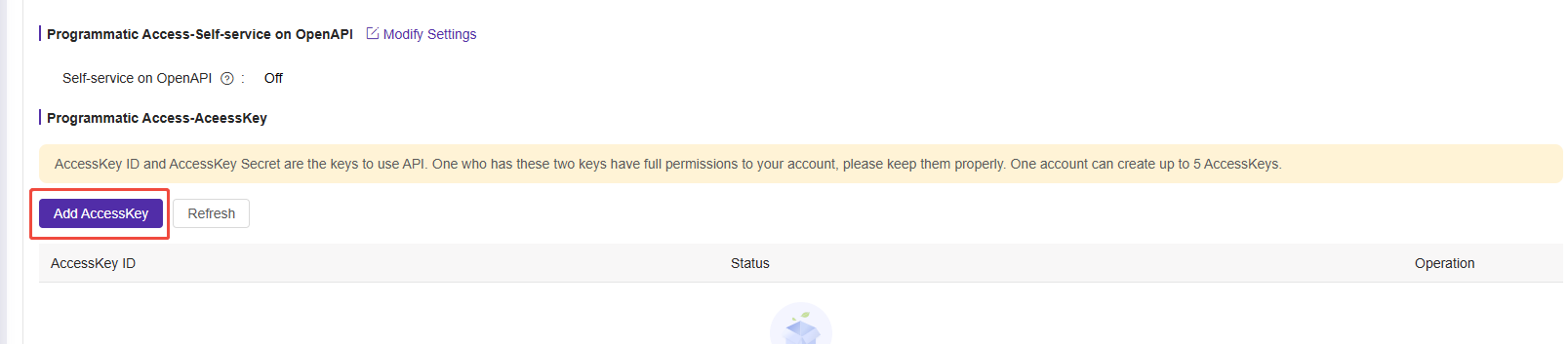
- In the pop-up dialog, complete the verification using the verification code, then view the information for the newly created AccessKey and save it promptly.
Note: The AccessKeySecret is only displayed during creation and cannot be queried later. Currently, only the following information can be queried: AccessKeyID and status. If the AccessKey is leaked or lost, you need to create a new AccessKey.
Disable and Activate Access Keys
On the User AccessKey page, click Disable to disable the AccessKey, or click Activate to reactivate the AccessKey.
Delete Access Keys
On the User AccessKey page, click Delete to remove the AccessKey.
Note: Deleting an access key should be done with caution. If an AccessKey in use is deleted, it may cause failures in customer application systems. If you need to delete an AccessKey, you can confirm its usage status by checking its last used time.
Assign Permissions to IAM Users
After the user is created, click Add Authorization to continue configuring user permissions:
- Select the user to authorize and click Add Permission to open the permission configuration panel. The authorized principal will be filled in automatically.
- Select the permission policy you want to assign to the user and click OK.
Delete IAM User
The steps to delete an IAM user are as follows:
- On the IAM console Users page, locate the IAM user you want to delete and click Delete.
- In the pop-up Delete User dialog box, click OK.
Note: Deleting an IAM user should be performed with caution. If any business system is running under this user identity, it may cause service disruptions for the customer.