
Set Alert Rules
Last update:2026-03-18 16:47:18
Create a New Alert Rule
You can use the Cloud Monitoring Console to gain insight into the usage and operation status of various cloud product resources, create threshold alert rules, and enable the system to automatically send alert notifications when a monitoring item exceeds the preset threshold, notifying you in time to take necessary action in case of an exception.
Procedure
- Log in to the Cloud Monitoring Console.
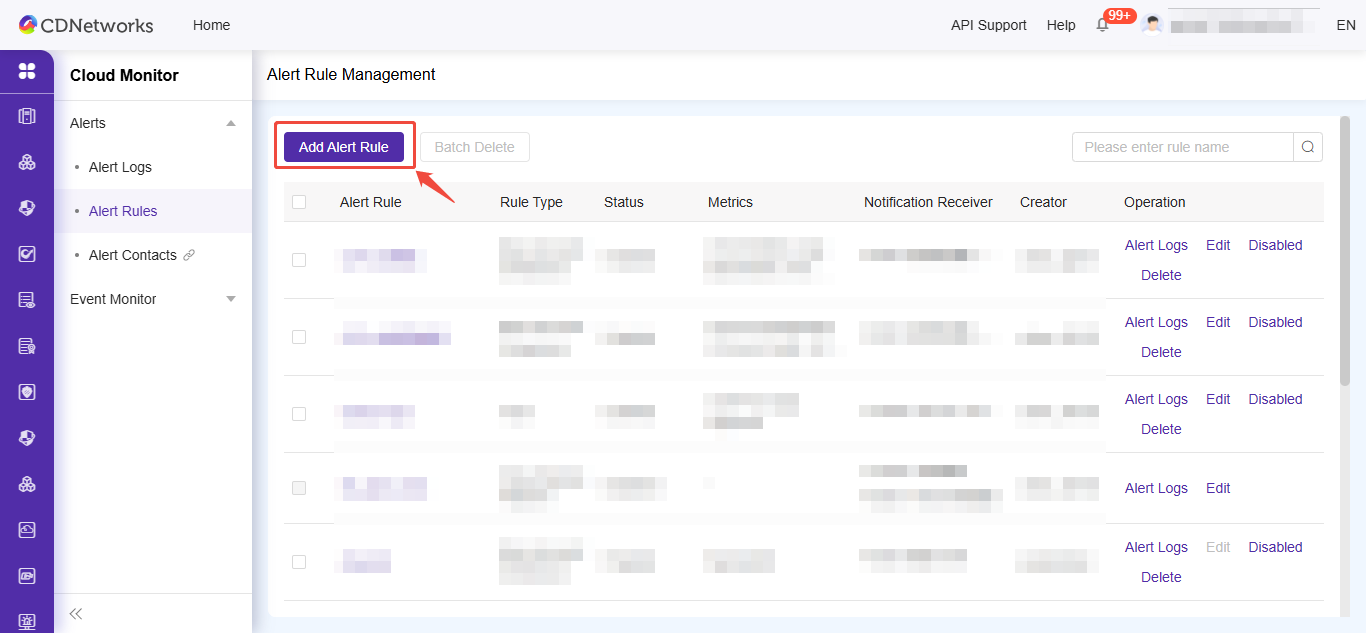
- Click [Alerts] > [Alert Rules] to enter the Alert Rules page.
- Click [Add Alert Rule] to configure the alert policy. Configuration details are as follows:
| Configuration Type | Configuration Item | Description |
|---|---|---|
| Basic Information | Rule Name | The name of the alert rule. |
| Alert Rule | Alert Object | You can choose to monitor objects either by user dimension or by specifying the object under a particular business type. |
| Statistics Method | Consolidated statistics: Perform consolidated monitoring based on the selected objects. Individual statistics: Monitor each selected object one by one. |
|
| Trigger Condition | Conditions that trigger alert notifications. Multiple trigger conditions can be configured, and you can choose to trigger alerts when any or all conditions are met. In real-time monitoring, graded alert notifications can be enabled, meaning each monitoring item can have separate alert thresholds for emergency/severe/normal levels. When the corresponding threshold is reached, an alert notification at that level will be triggered. | |
| Alert Frequency | You can set to send only the first alert or specify the interval between each alert notification. | |
| Effective Time | The effective time of the monitoring rule. If you need to monitor during a specific period, you can set the corresponding time. | |
| Alert Clearance Notification | If no new alerts occur within 20 minutes after an alert is triggered, it is considered cleared. You can choose whether to receive a notification when the alert is cleared. | |
| Notification Method | Notification Recipient | The recipient of alert notifications. |
| Notification Method | Notifications can be sent via SMS, email, webhook, or bot. |
- Click Finish to activate the alert rule.
Modify Alert Rule
You can adjust and modify the alert rule according to your business requirements.
Procedure
- Log in to the Cloud Monitor Console.
- In the left navigation pane, click [Alerts] > [Alert Rules] to enter the Alert Rules page.
- Click [Edit] in the Actions column of the corresponding alert rule.

- On the Edit Alert Rule page, configure the relevant parameters for the alert rule.
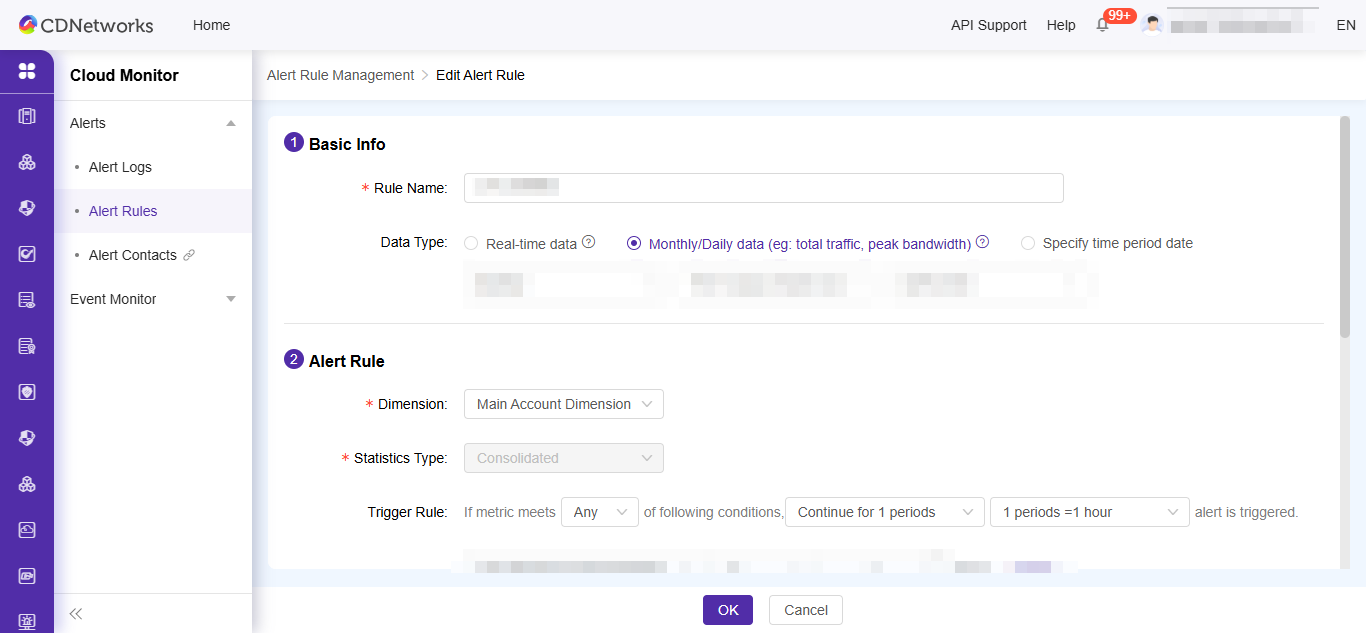
- Click [OK] to save the modified rule.
Disable Alert Rule
If you temporarily do not need to receive alert notifications, you can disable the alert rule. After enabling the alert rule, alert notifications will automatically resume.
Steps
- Log in to the Cloud Monitoring Console.
- In the left navigation panel, click [Alerts] > [Alert Rules] to enter the alert rules page.
- On the alert rule page, click [Disabled] in the operation column corresponding to the alert rule.
- In the confirmation dialog for disabling the alert rule, click OK.

Delete Alert Rule
If you do not need to monitor the metrics of a specific monitoring item, you can delete the corresponding monitoring alert rule.
Procedure
- Log in to the Cloud Monitoring Console.
- In the left navigation bar, click [Alerts] > [Alert Rules] to enter the alert rules page.
- Click [Delete] in the Actions column corresponding to the alert rule.
- In the confirmation dialog box for deleting an alert rule, click Confirm.
- Additional note: You can select multiple alert rules and click the [Batch Delete] button in the upper left corner to delete multiple alert rules at once.

View Alert History of Alert Rules
You can view all alert details under a specified alert rule, which helps you quickly identify and resolve issues.
Procedure
- Log in to the Cloud Monitoring Console.
- In the left navigation pane, click [Alerts] > [Alert Rules] to enter the Alert Rules page.
- Click on [Alert Logs] in the corresponding action column of the alert rule to view all alert details under the current rule.
