
Set Event Alert Rules
Last update:2026-03-19 16:03:52
Create Event Monitoring Rule
You can create event monitoring rules in the Cloud Monitor console, enabling the system to automatically send alert notifications when a specified account performs a specified event, so you will be notified in time to take action if an unexpected event occurs.
Steps
- Log in to the Cloud Monitor console
- Click [Event Monitoring] > [Alert Rules] to enter the alert rule page.
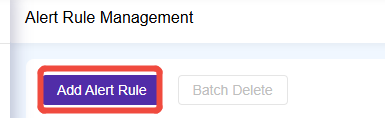
- Click [Create Alert Rule] to configure the alert policy. See the following configuration details:
| Configuration Type | Configuration Item | Description |
|---|---|---|
| Basic Information | Rule Name | You can define the name of the rule here, making it easier to identify the rule during alerts. |
| Alert Rule | Product Service | If you want to monitor events under a specific product, you can select the designated product or service here. If you wish to monitor events across all products and not limit monitoring to a specific product or service, you can select the "All Products" option. |
| Trigger Conditions | You can choose to trigger an alert on any event or all events. You can also set the monitoring frequency, which determines how often monitoring is performed. For example, if the monitoring frequency is set to 5 minutes: - If "Any" is selected: When monitoring multiple events, monitoring is performed every 5 minutes. If any event occurs within these 5 minutes, an alert will be triggered. - If "All" is selected: When monitoring multiple events, monitoring is performed every 5 minutes. An alert will be triggered only if all selected events occur within these 5 minutes; otherwise, no alert will be sent. |
|
| Event | You can select the events to monitor here. Each rule can include up to 10 events at the same time. | |
| Alert Frequency | Alert Frequency refers to the system triggering an alert notification when the specified conditions are met. You can configure how frequently alert notifications are sent here. If you select 'Only First Alert,' only the first alert will be sent before alert resolution. If you select 'Alert Every 2 Minutes,' the system will send an alert notification every 2 minutes until alert resolution. (Alert resolution: If the alert condition is not triggered again within 20 minutes, the alert is considered resolved.) |
|
| Monitoring Account | - If you are a main account user, you can choose to monitor only the current account, all main and sub-accounts, or events performed by specified sub-accounts. - If you are a sub-user, you can only monitor the operations of your own current account. |
|
| Notification Method | Alert Method | You can choose from four notification methods: Email,webhook or Bot. |
| Notification Recipient | Select the recipients for the specified notification. You can choose your account contacts or contact groups. You may also choose to simultaneously notify your dedicated technical support and sales representatives. If you select Bot as the alert method, you can also choose bots for multiple platforms here.
|
- Click OK to activate the alert rule.
Edit Alarm Rule
You can adjust and modify alarm rules according to your business requirements.
Steps
- Log in to the Cloud Monitor Console.
- In the left navigation bar, click [Event Monitoring] > [Alarm Rule] to enter the alarm rule page.
- On the alarm rule page, click [Edit] in the operation column for the corresponding alarm rule.

- On the Create Alarm Rule page, configure the relevant parameters for the alarm rule.
- Click [Confirm] to save the modified rule.
Disable Alarm Rule
If you do not need to receive alarm notifications temporarily, you can disable the alarm rule. After enabling the alarm rule again, alarm notifications will resume automatically.
Steps
- Log in to the Cloud Monitor console.
- In the left navigation pane, click [Event Monitoring] > [Alarm Rule] to go to the Alarm Rule page.
- On the Alarm Rule page, click [Disable] in the Actions column corresponding to the alarm rule.
- In the Disable Alarm Rule confirmation dialog box, click Confirm.
Delete Alarm Rule
If you no longer need to monitor the metrics of a specific monitoring item, you can delete the corresponding monitoring alert rule.
Steps
- Log in to the Cloud Monitor Console.
- In the left navigation bar, click Event Monitor > Alert Rules to enter the Alert Rules page.
- On the Alert Rules page, click Delete in the Actions column corresponding to the alert rule.
- Note: You can select multiple alert rules and click Batch Delete in the upper left corner to delete alert rules in bulk.
- In the Delete Alert Rule confirmation dialog box, click OK.
View Alert Rule History
You can view all alert details under the specified alert rule, which helps you quickly identify and resolve issues.
Step-By-Step Instructions
- Log in to the Cloud Monitor Console.
- In the left navigation bar, click Alarm Service > Alarm Rules to enter the Alarm Rules page.
- On the Alarm Rules page, click Alarm History in the corresponding Actions column for the alarm rule. You can view all alarm details under the current alarm rule.