
Static Page Settings
Last update:2025-08-06 11:04:51
A static web page refers to a webpage with fixed content that does not require server-side dynamic processing. Typically, static pages are composed of HTML, CSS, JavaScript, and other static assets such as images and fonts. Whenever a user accesses a static page, its content remains unchanged regardless of the user or request parameters—the server simply returns the original content as-is. Common examples of static web pages include company websites, product landing pages, blogs, documentation sites, and statically generated personal homepages.
The static page feature of Object Storage allows users to upload HTML webpages and related assets (such as images, audio and video files, stylesheets, etc.) to an object storage bucket, making them publicly accessible over the internet. This means you no longer need to set up or maintain your own web server. By configuring static page entry points via the console or API, you can instantly make your web content available online. With just a few simple steps, you can use Object Storage as a highly available and scalable web hosting platform to distribute and serve your web content externally.
Typical Use Cases
- Corporate Websites/Brand Showcase Pages: Host static homepages for companies, brands, or products without the need for backend logic—deploy directly to Object Storage.
- Campaigns/Marketing Pages: Rapidly launch or retire promotional marketing or campaign (H5) pages.
- Technical Documentation/Blogs/Knowledge Bases: Publish content generated using static site generators such as Hexo, Hugo, VuePress, or Docusaurus.
- Frontend Development and Testing: Demonstrate new website or mini-program frontend code without relying on backend environments.
How to Set Up Static Page
- Log in to the CDNetworks Console and select Object Storage Service.
- Click the Name of the bucket you want to manage, or click Manage on the far right of the corresponding bucket.
- On the details page, click Basic Settings in the upper section.
- In the Basic Settings page, find Static Page Setting and click the blue Edit button.
- Complete the configuration in the corresponding page as required.
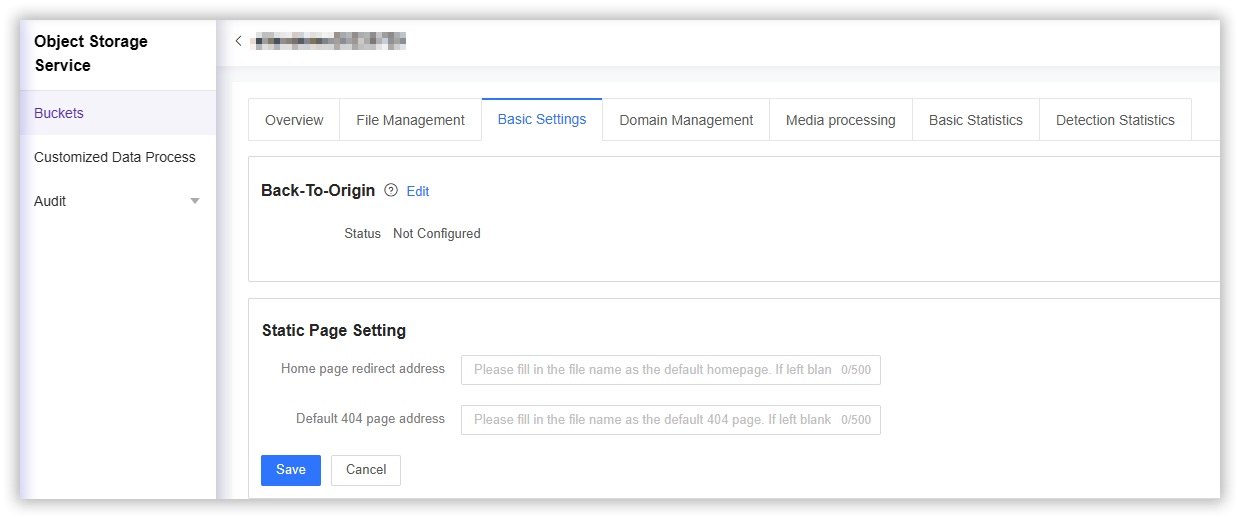
Home page redirect address
Please fill in the file name as the default homepage.If left empty, this feature will not be enabled.
Default 404 page address
Please fill in the file name as the default 404 page.If left empty, this feature will not be enabled.