
Upload Target Authorization
최신 업데이트:2026-07-08 14:13:16
Introduction
Upload target authorization allows you to grant the upload targets you have created to other sub-accounts under the same main account for use. Once authorized, the authorized account can view and select the target in the upload target dropdown menu when creating data upload-type consumption tasks.
The main account has default permission to use all upload targets and does not require authorization. Sub-accounts are isolated by default and must be explicitly authorized to share upload targets using this feature. The authorization only covers usage permissions; it does not grant editing rights to the upload targets themselves.
This feature is suitable for scenarios where you want team members to reuse your pre-configured upload targets when creating new upload tasks, helping to avoid the need for each sub-account to create duplicate targets.
Core Module:
| Module | Description |
|---|---|
| Scope of Authorization | Determines who can access the upload target; options include ‘Target Creator Only’ (default) and ‘Specified Account’ |
| Add User | Select the object to be authorized from the sub-accounts under the main account |
| Revoke Authorization | Delete or clear the authorized account. Ongoing upload tasks using this target are not affected |
Before You Begin
Entry Point:
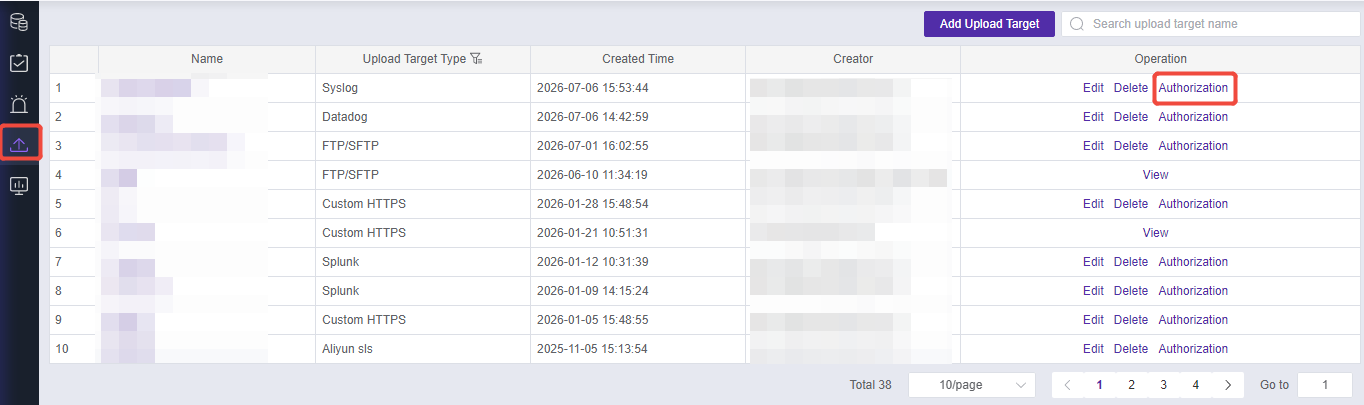
- After logging into the Cloud Log Service platform, in the left menu, go to Upload Target Management → Upload Target List.
- In the operation column for the upload target, click Function Authorization.
Prerequisites:
- You are the creator of the upload target.
- The Upload Target Management feature requires that the main account’s subscription includes it (included in Basic, Standard, and Advanced editions).
Expected Result: After authorization is completed, the authorized account will be able to view and select the target in the upload target dropdown menu when configuring data upload tasks.
Use Cases
Team Reuse of Upload Targets: After you have configured an upload target (such as a specific OSS storage path), you can allow team members to directly reuse this target when creating upload tasks, without needing to reconfigure it individually. You can achieve this by authorizing and sharing the upload target with the corresponding sub-accounts.
Reclaim Permissions as Needed: If a sub-account no longer needs access to the upload target, you can revoke its permission by deleting the account from the authorization settings. Existing upload tasks will not be affected; only new tasks will be impacted.
Steps
Core Steps Summary: 1. Go to Upload Target List → 2. Enable Feature Authorization → 3. Select the Specified Account → 4. Add User → 5. Save
Step 1: Access the Upload Target List
In the left menu of the Cloud Log Service platform, click Upload Target Management to enter the upload target list page. The list displays all upload targets that you have created or been authorized to access.
Step 2: Open Feature Authorization
In the upload target list, locate the row of the desired upload target and click Feature Authorization in the action column to access the upload target authorization configuration page.
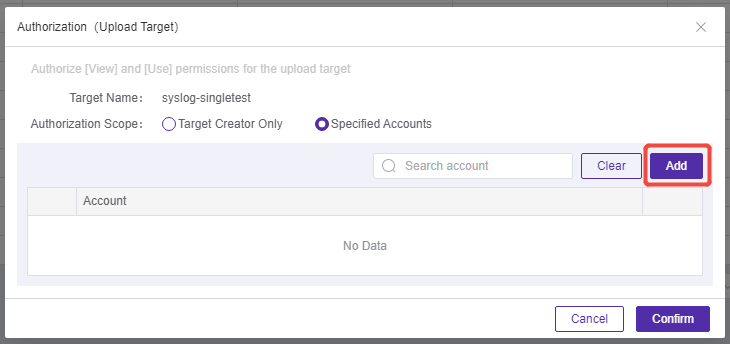
The name of the upload target is displayed at the top of the page to help you confirm whether the authorized object is correct.
Step 3: Select Authorization Scope
Within the authorization scope section, Only the Target Creator is selected by default, which means only you can use this upload target. To grant access to other sub-accounts, select Specified Accounts; the selectable user area will then be displayed at the bottom of the page.
Step 4: Add Authorized Accounts
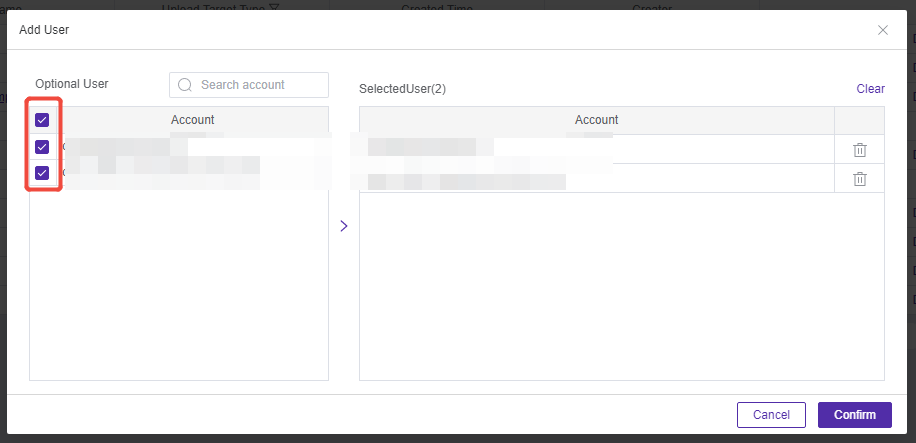
In the selectable user area, you can perform fuzzy searches by account name or ID, and the search keywords will be highlighted. The selectable user list displays all accounts under the main account. After selecting the target account(s), the selected user area will show the number of selected users.
Note: Upload target authorization only grants usage permission and does not distinguish between permission types. Selecting it indicates authorization for use.
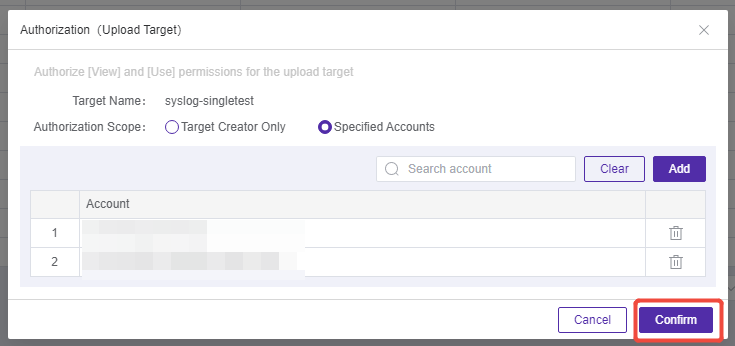
After configuration is complete, click OK at the bottom of the page to save the authorization settings. The authorized account will then be able to select this upload target from the target dropdown when creating the next upload task.
Frequently Asked Questions
Q1: Will Ongoing Upload Tasks Be Affected After Deleting or Clearing the Authorization?
A: No, deleting or clearing the authorization only affects newly created upload tasks going forward. Existing tasks will continue to run normally and use the upload target as usual.
Q2: Where Can Authorized Accounts Use This Upload Target?
A: Authorized accounts, after logging in, can see and select this upload target from the dropdown when configuring data upload-type consuming tasks. Users can only select upload targets that they created themselves or have been authorized to use.
Q3: Does the Main Account Need to Be Authorized?
A: No, it is not required. The main account has default permission to use all upload targets. The authorization feature is designed for sharing resources between sub-accounts.
Q4: Can Authorized Accounts Modify the Configuration of This Upload Target?
A: No, it is not possible. Authorization only grants permission to use the resource, while the editing rights of the original upload target remain with the creator. The authorized account can only select and use this target when creating a new task.