
Data Consumption Authorization
최신 업데이트:2026-07-08 14:13:15
Introduction
Data consumption authorization allows you to grant the data consumption tasks you create to other accounts under the same main account. You can configure three types of permissions separately during authorization: view/edit permissions for the task itself, data permissions for the corresponding data table of the task (available only when the consumption type is ‘dashboard’), and view/edit permissions for dashboards under the task (available only when the consumption type is ‘dashboard’).
Task permissions determine whether the authorized party can view and operate the consumption task itself; data permissions determine whether the authorized party can view and use the data table in Dashboard - Data Source - Log Analysis Data Source; and dashboard permissions determine whether the authorized party can view and edit dashboards created under the task. The three types of permissions are configured independently, and you can grant any one or more of them as needed.
This feature is suitable for scenarios where team members need to collaboratively view and edit consumption tasks or dashboards. It helps you securely allocate consumption tasks and related data resources among accounts.
Core Modules:
| Module | Description |
|---|---|
| Task Permissions | Controls Whether the Authorized User Can View, Edit, Pause, or Enable This Consumption Task |
| Dashboard Permissions(Available Only When Consumption Type = Dashboard) | Controls Whether the Authorized User Can View/Edit Dashboards Created Under This Task; Also Grants Viewing/Usage Permissions for the Associated Tables |
| Data Permissions(Available Only When Consumption Type = Dashboard) | Controls Whether the Authorized User Can View and Use the Tables Associated With This Task in [Dashboard - Data Source - Log Analysis Data Source] |
Concept Description
| Term | Description |
|---|---|
| Consumption Task | A data consumption task created based on logs, including data upload, data download, and Dashboard types |
| Task Permissions | Permissions for operations on the consumption task itself, including View and Edit/Pause/Start options |
| Dashboard Permissions | Permissions to view or edit dashboards under the task. Edit permissions automatically include view permissions and grant corresponding table view/use permissions |
| Data Permissions | Usage permissions for data tables associated with the consumption task, which determine whether you can create Datasets, Dashboards, and query data |
| Log Analysis Data Source | Entry point for selecting a data source when creating a Dataset or Dashboard. Data permissions determine the visible data tables within |
Before You Begin
Feature Entry:
- After logging in to the Cloud Log Service platform, go to the left menu → Task Management → Data Consumption tab
- In the operation column of the target task, click Authorize Feature
Prerequisite:
- You are the creator of the consumption task
- To configure data or dashboard permissions, the consumption type of this task must be dashboard
Expected Result: After authorization is completed, the authorized account can view and use the consumption task, data table, or dashboard within their own account, according to the authorized scope.
Usage Scenarios
Delegate Maintenance Tasks to Colleagues: If you have created a dashboard consumption task and want a colleague to help you edit, pause, or activate it, you can grant them task permissions by selecting ‘View’ and ‘Edit/Pause/Activate.’ Your colleague will then be able to take over these operations.
Share Data Tables With the Team for Dashboard Creation: If a data table associated with your dashboard task needs to be used by team members to create their own datasets and dashboards, you can authorize data permissions. After authorization, the data table will be visible to them in the Log Analysis data source.
Allow Colleagues to View/Edit Your Dashboards: If you have created several dashboards and want your colleagues to view or edit them, you can individually configure dashboard permissions. Once set, they will see the corresponding dashboards in their own dashboard list.
Operation Steps
Key Steps Summary: 1. Go to the Data Consumption List → 2. Enable Feature Authorization → 3. Configure Task/Data/Dashboard Permissions → 4. Save
Step 1: Access the Data Consumption List
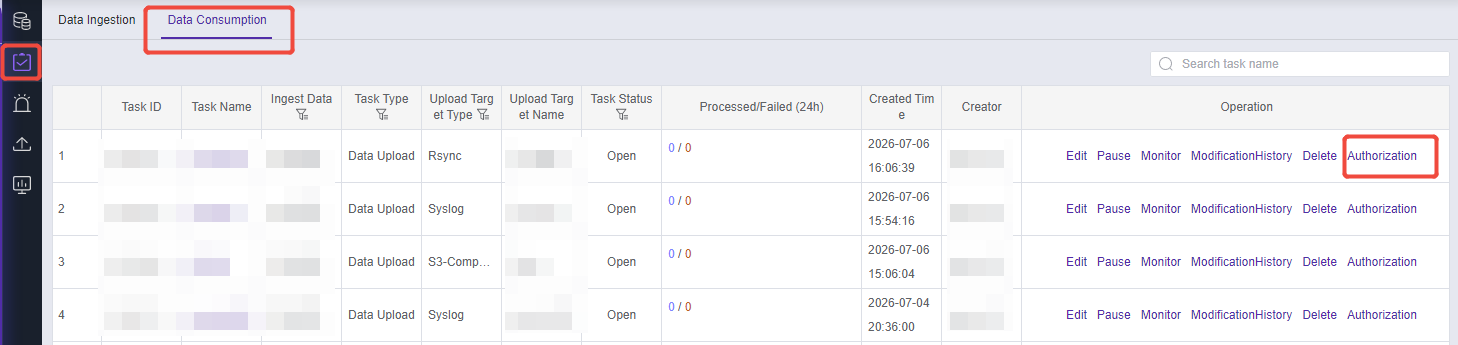
In the left-side menu of the Cloud Log Service, click Task Management to enter the Data Consumption tab. This page displays all consumption tasks you have created or have been authorized to access.
Step 2: Enable Feature Authorization
In the list of consumption tasks, locate the row of the target task and click Function Authorization in the action column to enter the data consumption authorization configuration page.
In the basic information section at the top of the page, the task name is displayed (and for dashboard-type tasks, the table name is also shown) to help you confirm the authorization target.
Step 3: Configure Task Permissions
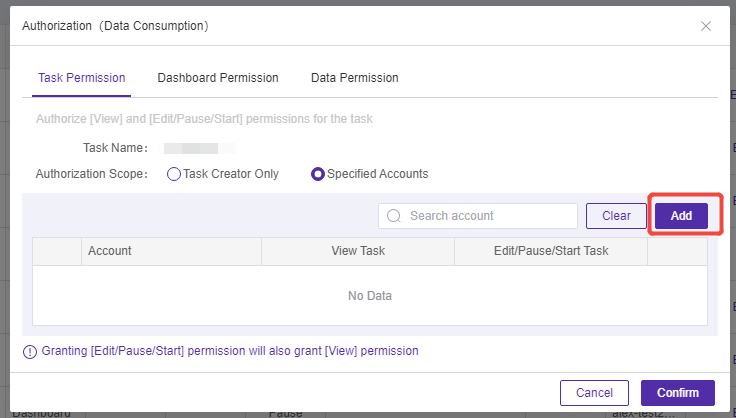
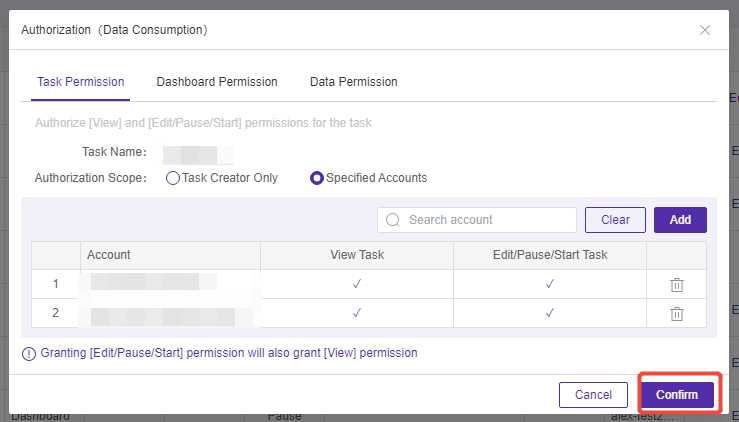
In the task permission section, the authorization scope is set to Only the Task Creator by default. To grant permission for the task to other sub-accounts, select Specified Accounts; the authorization list will be displayed below.
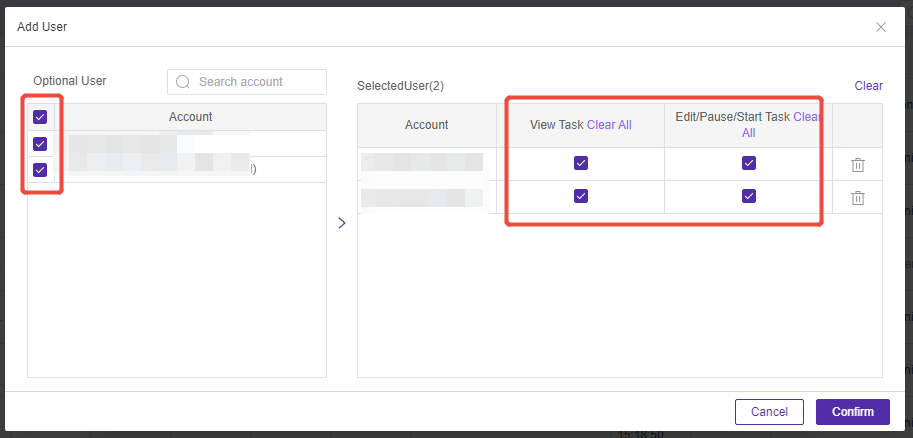
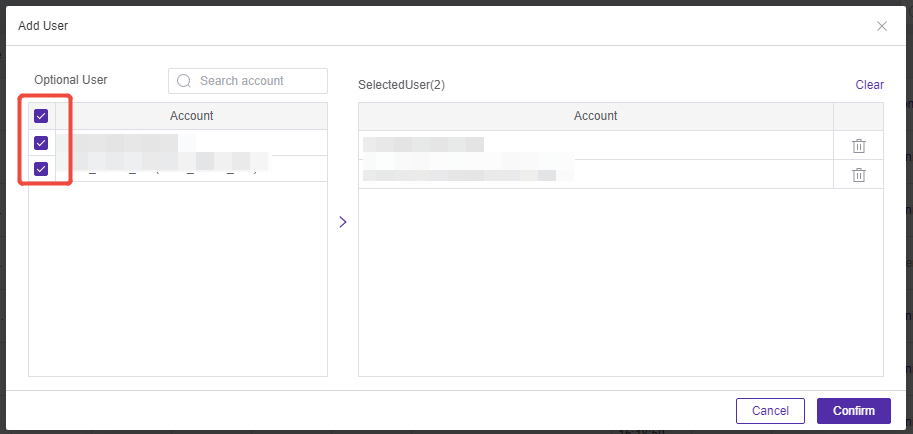
Click Add in the authorization list to open the [Add User] pop-up window. The selectable users on the left support fuzzy search by account name or ID (with keyword highlighting). After selecting the target account, the right panel displays the number of selected accounts. By default, after choosing an account, the “View” and “Edit/Suspend/Enable” permissions are checked. You can select or deselect all permissions of a certain category as needed.
Note: When you check “Edit/Pause/Enable,” the “View” permission will be automatically selected and cannot be deselected—being able to view the task is required to edit it. If neither permission is selected for an account, that account will not be added.
After completing the configuration, click OK to return to the authorization list. The newly added account and its permissions will be displayed in the list.
| Field | Description |
|---|---|
| Optional Users | All accounts under the main account. Fuzzy search by name or ID is supported. |
| View | The authorized party can view this task. |
| Edit/Pause/Enable | The authorized party can edit, pause, or enable the task; selecting this automatically grants the view permission. |
Step 4: Configure Data Permissions
Prerequisite: This configuration is only available for tasks with Dashboard as the consumption type.
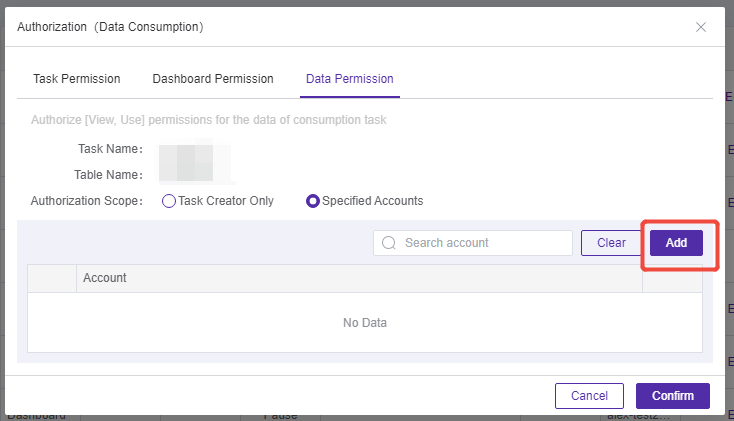
Under the Data Permissions tab, the default authorization scope is Task Creator Only. After selecting Specify Account, the authorization list will be displayed below.
Click Add to bring up the [Add User] pop-up window. The operation method is the same as for task permissions.
After adding, click OK to return to the Authorization List. Added accounts can be deleted individually or cleared all at once.
Note: After revoking data permissions, the authorized party will no longer be able to see the corresponding data table in [Dashboard - Data Source - Log Analysis Data Source]; if this data table is used in their dashboard, the relevant charts will be unable to query data.
Step 5: Configure Dashboard Permissions
Prerequisite: This configuration only appears for tasks with Consumption Type set to Dashboard, and authorization is available only for dashboards that you have created yourself.
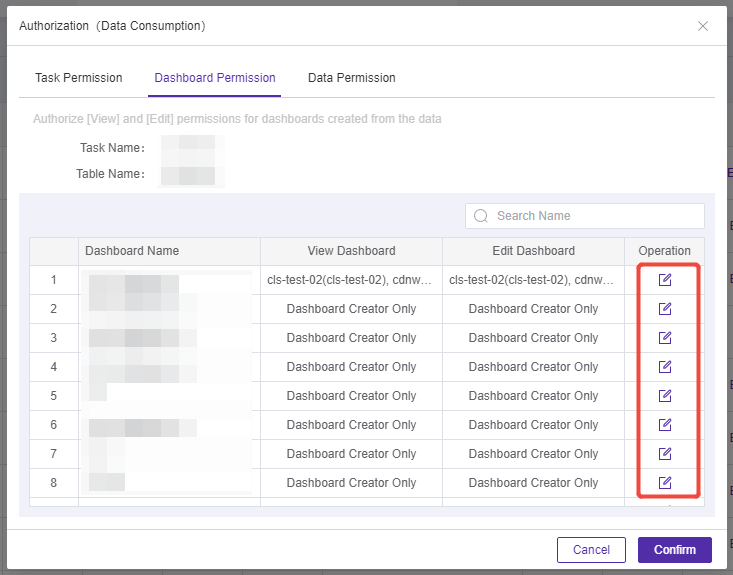
Under the Dashboard Permissions tab, a list of dashboards created by the creator of the consumption task will be displayed. Each row includes the dashboard name, View Dashboard, Edit Dashboard, and Actions columns. The default authorization status is ‘Dashboard Creator Only.’
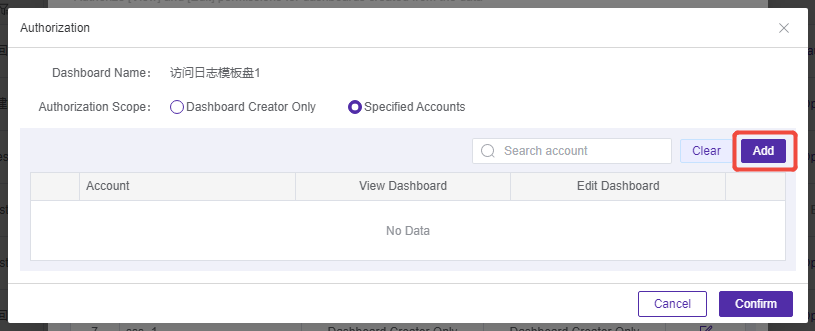
Click Edit in the row of the target dashboard to open the ‘Dashboard Authorization’ pop-up window, and select the authorization type:
- Dashboard Creator Only: This is the default value; only you can view this dashboard.
- Specified Account: In the Authorization List, select the account through the ‘Add User’ pop-up window, and check the permissions for ‘View Dashboard’ and ‘Edit Dashboard’ for each account. Both permissions are selected by default once an account is chosen, and you can select/deselect all permissions for a specific category.
Note: After selecting “Edit Dashboard,” “View Dashboard” will be automatically selected and cannot be deselected. If an account has neither permission selected, the account will not be added.
After completing the configuration, click OK to return to the dashboard list. The authorization status of the dashboard will be updated to the corresponding type.
| Column | Description |
|---|---|
| Dashboard Name | Name of the Dashboard Created Under This Task |
| View Dashboard | Authorization Status for Viewing Permissions of This Dashboard |
| Edit Dashboard | Authorization Status for Editing Permissions of This Dashboard |
| Action | Click Edit to Open the Dashboard Authorization Pop-Up |
Step 6: Save Authorization Settings
After confirming that all three types of permissions have been configured correctly, click Confirm at the bottom of the page to save the authorization settings. The authorized user will be able to view or operate the corresponding tasks, datasets, and dashboards in accordance with the granted permissions during their next login.
Frequently Asked Questions
Q1: Why Can’t the ‘View’ Permission Be Unchecked After Selecting the ‘Edit’ Permission?
A: Edit operations require visibility of the task or dashboard; therefore, selecting ‘Edit’ automatically enables ‘View’ and this cannot be unchecked. This is a unified permission constraint enforced by the platform and applies to both task and dashboard permissions.
Q2: What Is the Relationship Between Dashboard Permissions and Task Permissions?
A: The two are independent. Task permissions control whether a user can view or manipulate the consumption task itself, while dashboard permissions determine whether a user can view or edit dashboards created under that task. You may grant only task permissions without granting dashboard viewing rights, or grant only dashboard permissions without allowing the user to operate the task.
Q3: Why Can’t Data Be Displayed on Dashboard Charts After Data Permissions Are Revoked?
A: Data permissions determine whether the authorized party is able to access and use the specified data table. Once permissions are revoked, any dashboard chart that utilizes that data table will no longer be able to retrieve data due to lack of access rights. To restore visibility, data permissions must be re-granted.
Q4: If an Authorized Dashboard Contains Multiple Data Tables, Can the Other Party See All the Data?
A: No, it is not possible. Dashboard permissions only grant access to the specific data table associated with the current consumption task. Access to other data tables is controlled independently according to their own data permissions. If the dashboard uses multiple tables, any data from tables that have not been authorized will remain inaccessible to the user.