
Example of Using Authing for SAML SSO
最終更新日:2026-03-25 15:22:08
Authing SAML Integration Steps
Log in to Authing to configure the application
1. Log in to the Authing platform
Log in to the Authing platform at https://www.authing.cn/ and open the Console.

2. Protocol Configuration
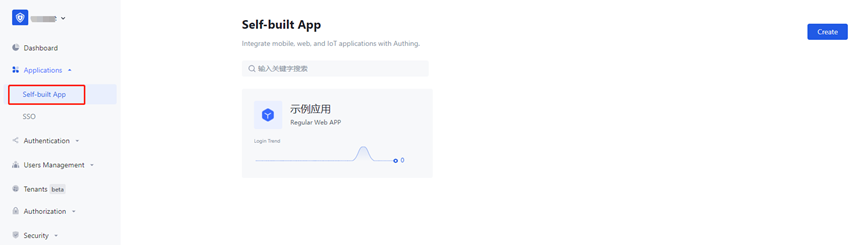
Select [Applications] -> [Self-built App] -> [Create Self-built App] or [Edit Existing App] -> [Protocol Configuration]
“Applications” - “Self-built App” - “Create” - “Protocol Configuration”
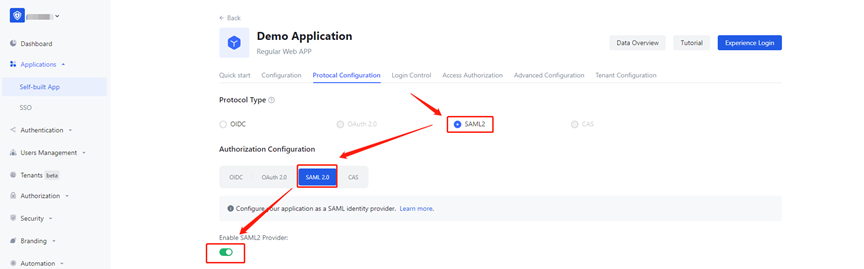
Select the SAML2.0 protocol
Note: The default protocol type can only be selected after enabling SAML2.0 and saving the settings.
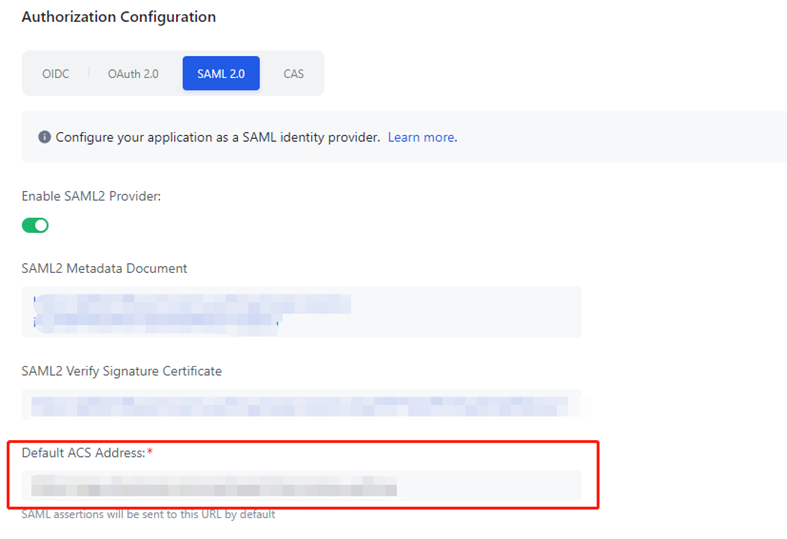
3. Configure the [Default ACS Address], and ensure that the configured address is consistent with the one provided in the documentation.
The address is: https://login.cdnetworks.com/cas/login?client_name=${provider}
Reference documentation: SAML Configuration for Enterprise IdP during SSO
For methods of creating a provider, refer to: SAML Configuration for CDNetworks SP during SSO
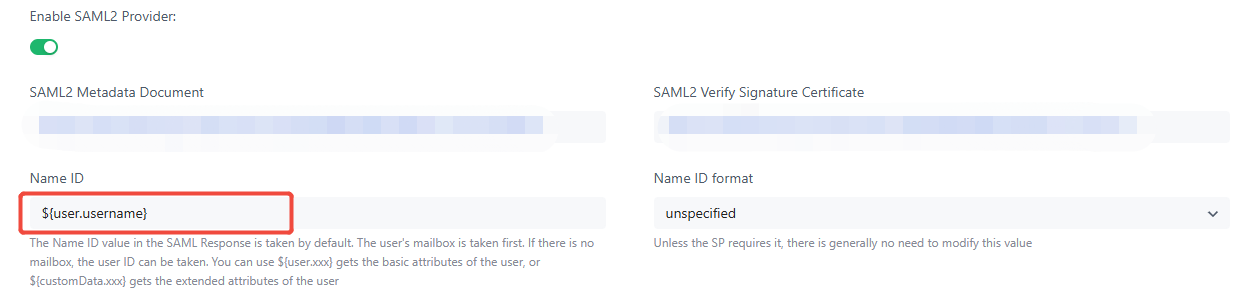
4. Configure the NameID value to be transmitted.
By default, Authing uses the email address as the value. If you need to use another mapped field, you can modify it according to the Authing rules. Make sure that the NameID value being passed matches the login account on the CDNetworks Control Console.
After completing the configuration, click Save to finish.
5. Application Authorization
[Users Management] -> [Users List] -> [Create User]
[Users Management] -> [Users] -> [Create User]
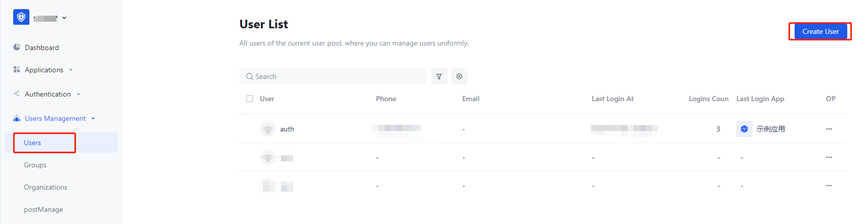
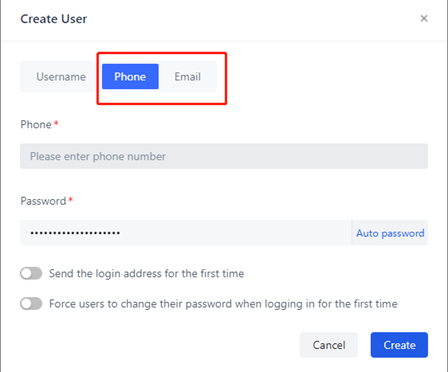
Since the login page only allows login via mobile number or email by default, please use your mobile number or email address to register.
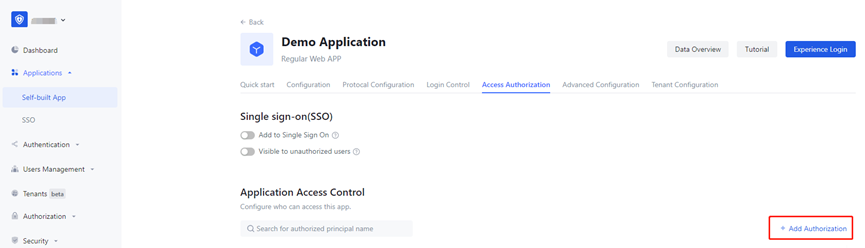
After the user is created, return to the application’s [Access Authorization] page to assign permissions. Set the authorization action to [Allow] so the user can access the specified application.
Provider Information Configuration in the CDNetworks Console
1. Download the metadata file
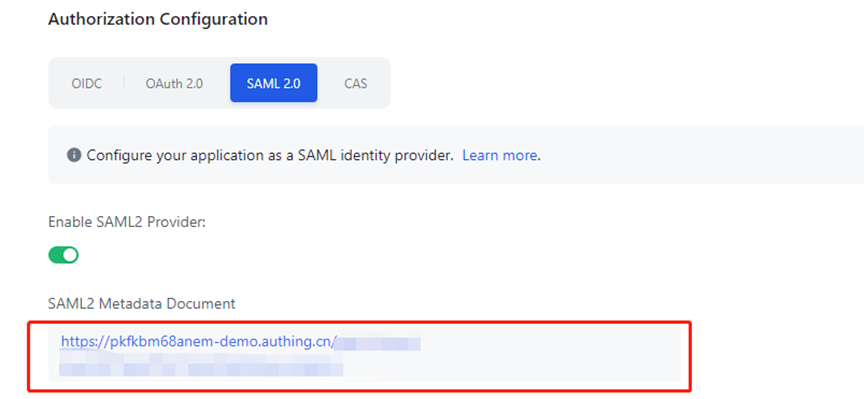
2. Upload the metadata file to the CDNetworks Console
Find the provider name of this configuration, click Edit, and upload the metadata file. At this point, all configurations have been completed.
Access Testing
1. CDNetworks redirects to Authing authentication
Direct browser access URL:
https://login.cdnetworks.com/cas/clientredirect?client_name=Provider Name ,
Confirm whether it redirects to the Authing login page
2. Authing redirects to CDNetworks authentication
After authentication with Authing is completed, the system will redirect to CDNetworks for seamless Single Sign-On (SSO), eliminating the need to enter your account credentials again.