Example of Using Keycloak for SAML SSO
最終更新日:2026-03-25 15:22:18
Keycloak SAML Integration Steps
Keycloak Deployment and Installation
For more details, see: Installation and Deployment Process
Log In to Keycloak to Configure the Application
- Log In to the Keycloak Platform as an Administrator or with an Admin Account

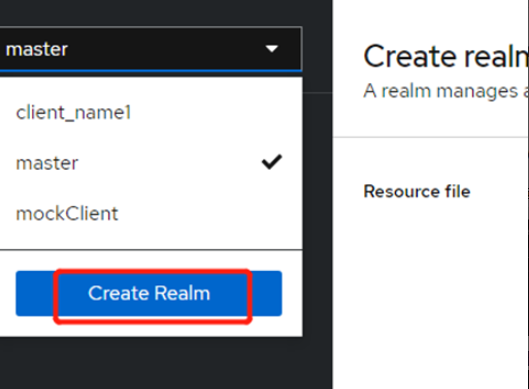
- Create a New Realm
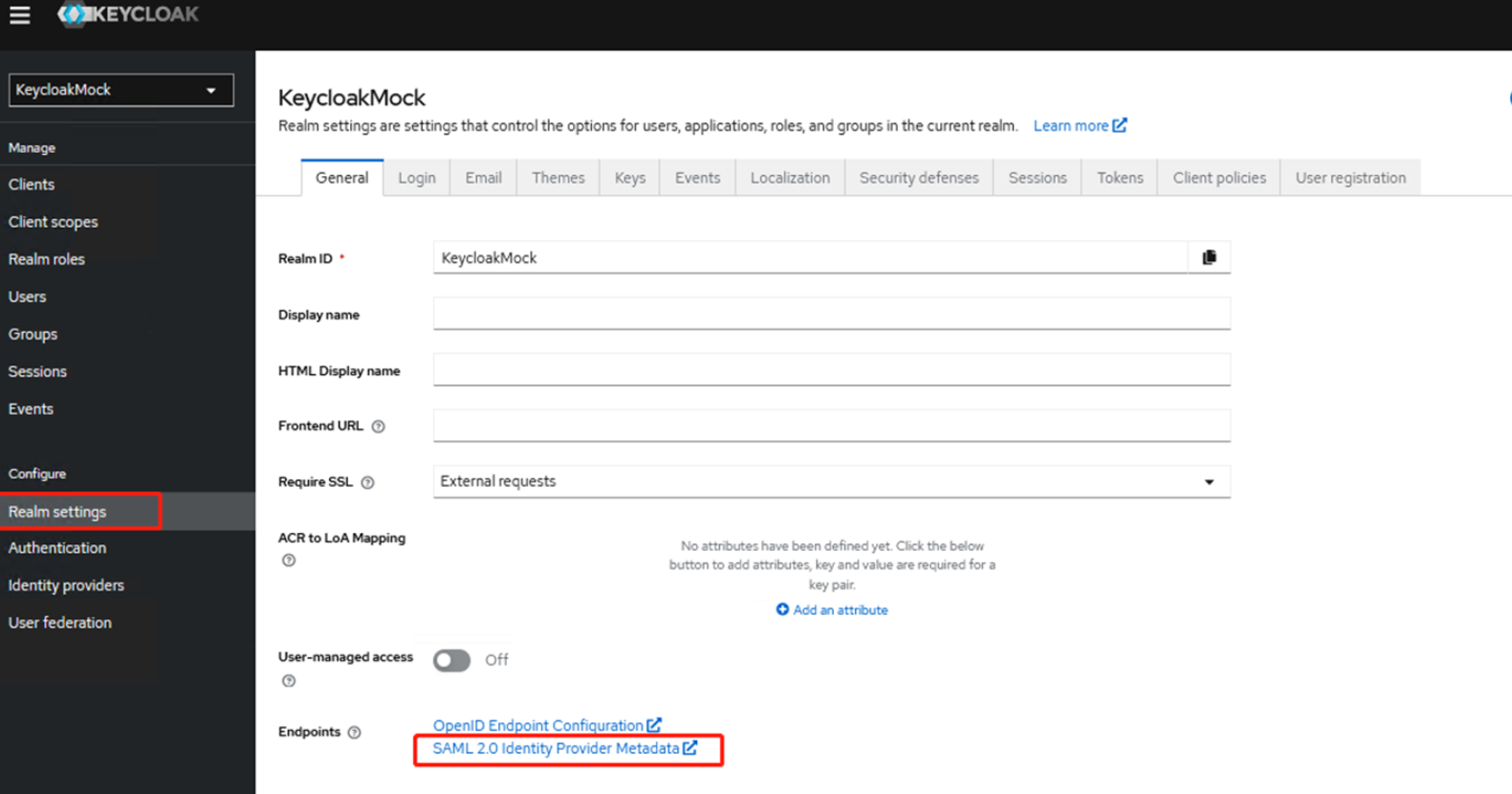
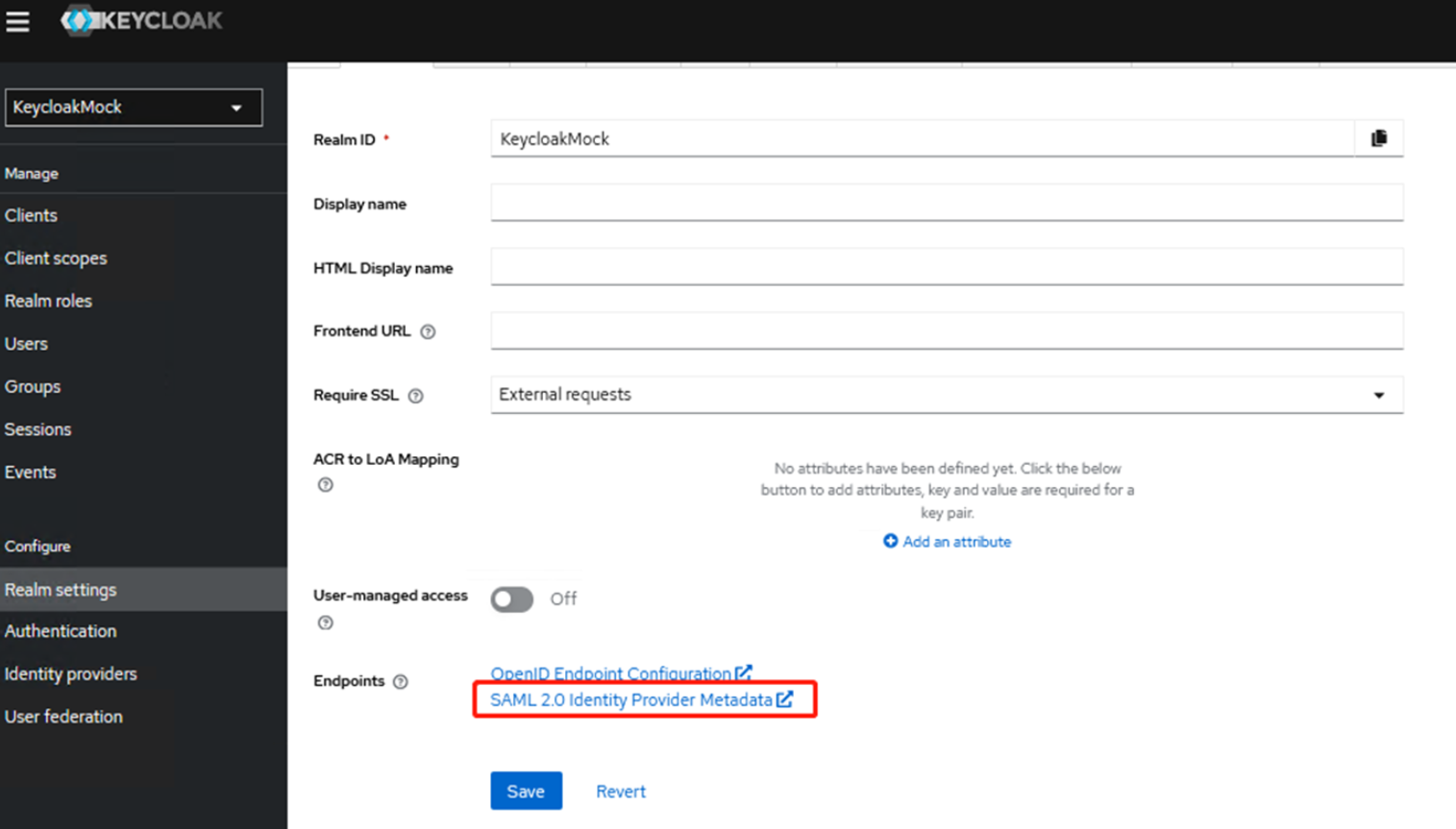
- After the Realm Is Created, Go to Realm Settings and Download the Initial Metadata by Clicking on 【SAML 2.0 Identity Provider Metadata】
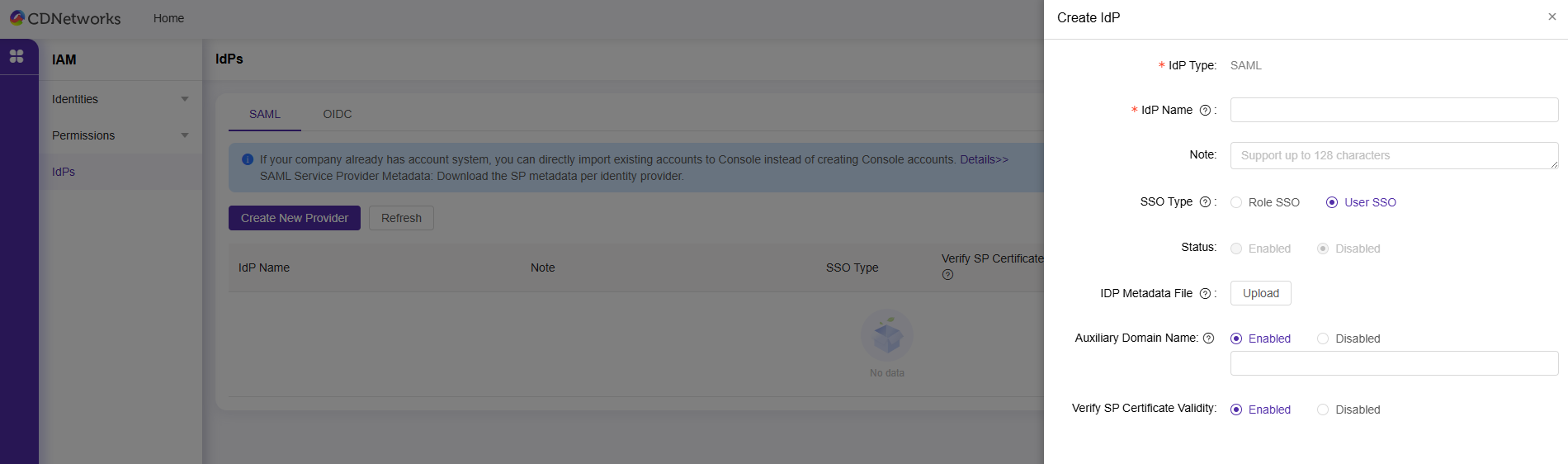
- Log In to the CDNetworks Console to Configure the Service Provider
SSO Type Selection: Select User SSO and Upload the IdP Metadata.
The Uploaded Metadata File Is the Initial File Downloaded in Step 3 (Note: After All Configurations Are Complete, You Will Need to Update the Metadata Document Again)
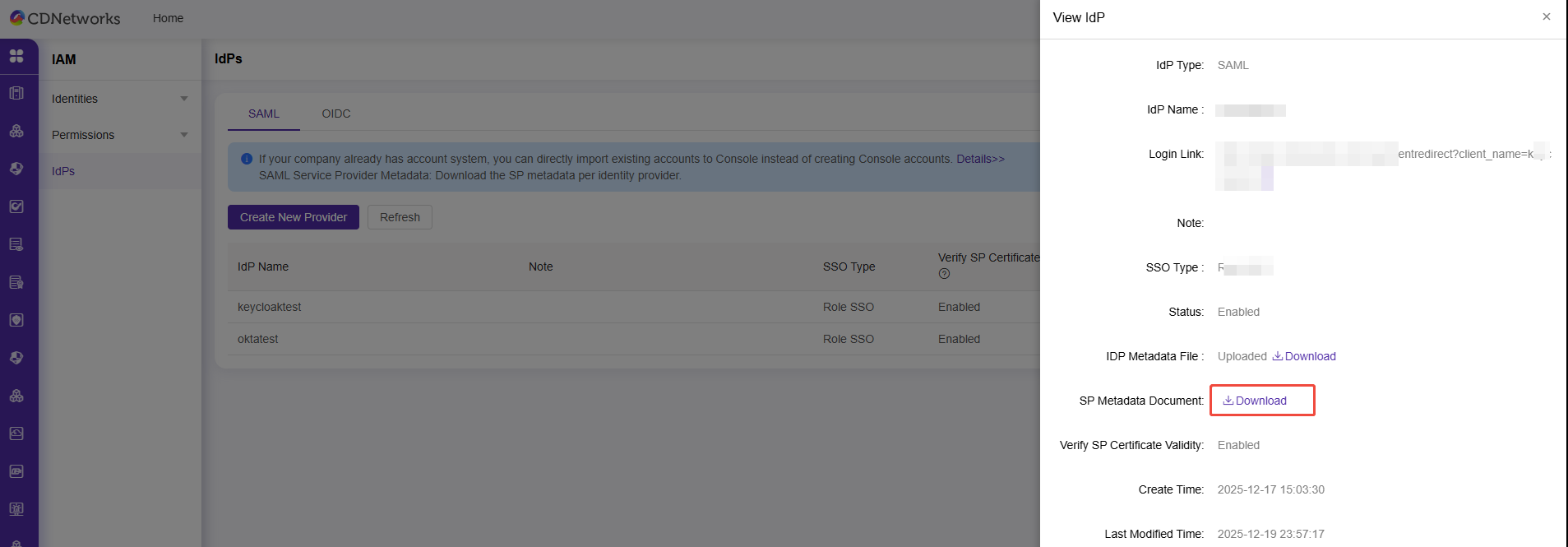
- Obtain the SP Metadata
Through the CDNetworks Console, Click ‘View’ to Enter the Service Provider Details Page, Locate the SP Metadata Document, and Download It
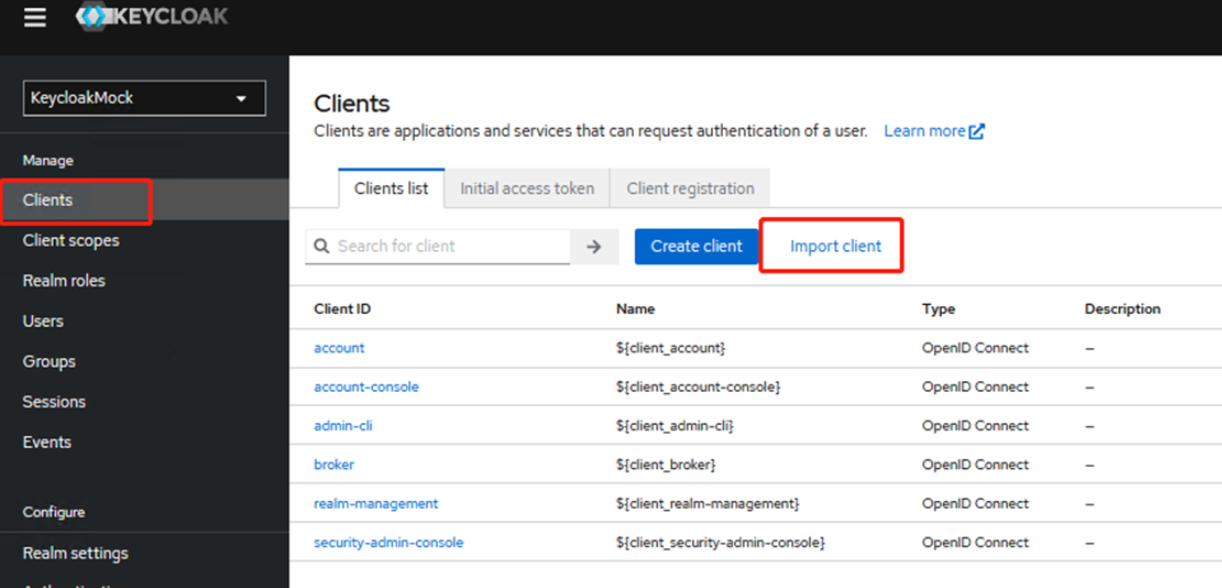
- Create a Client. You Can Quickly Create One Using ‘Import Client’ and Upload the SP Metadata
Note: The ‘Import Client’ feature requires a higher version of Chrome. Otherwise, you may encounter the error ‘Object.hasOwn is not a function’.
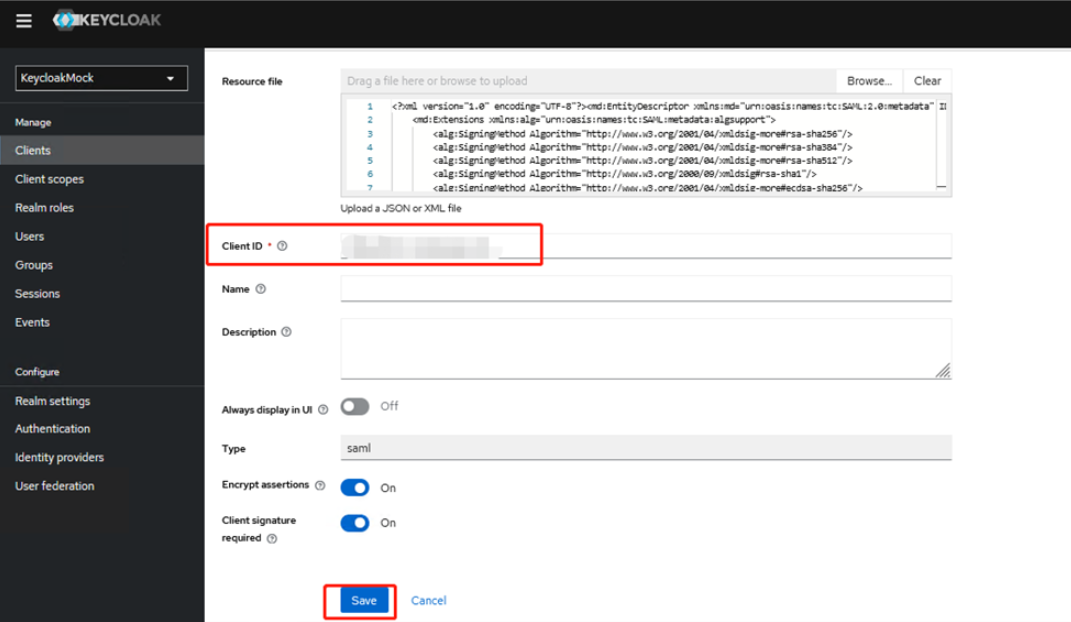
After a successful import, the Client ID will be automatically detected. Then click Save to save the configuration and proceed to the client configuration page.
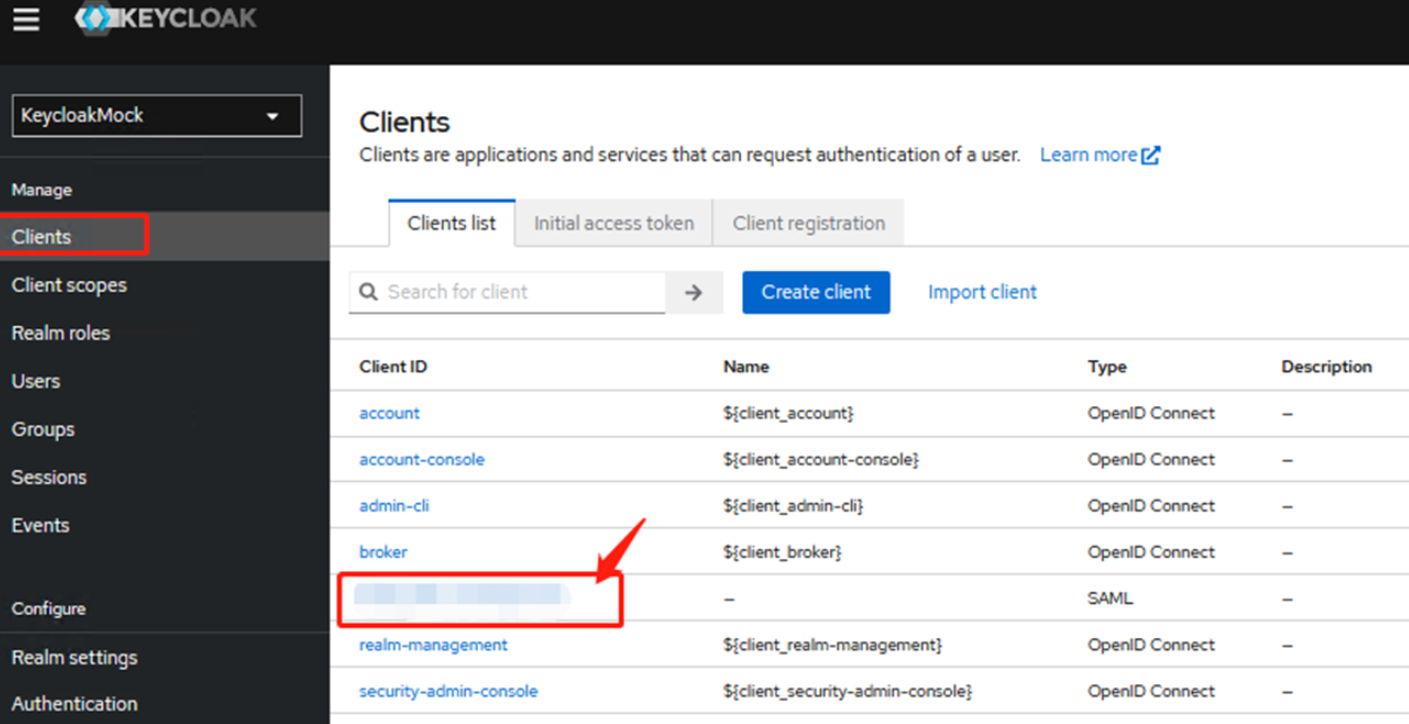
You can also locate the corresponding Client ID from the clients list to access the configuration page.
- Configure Access Settings
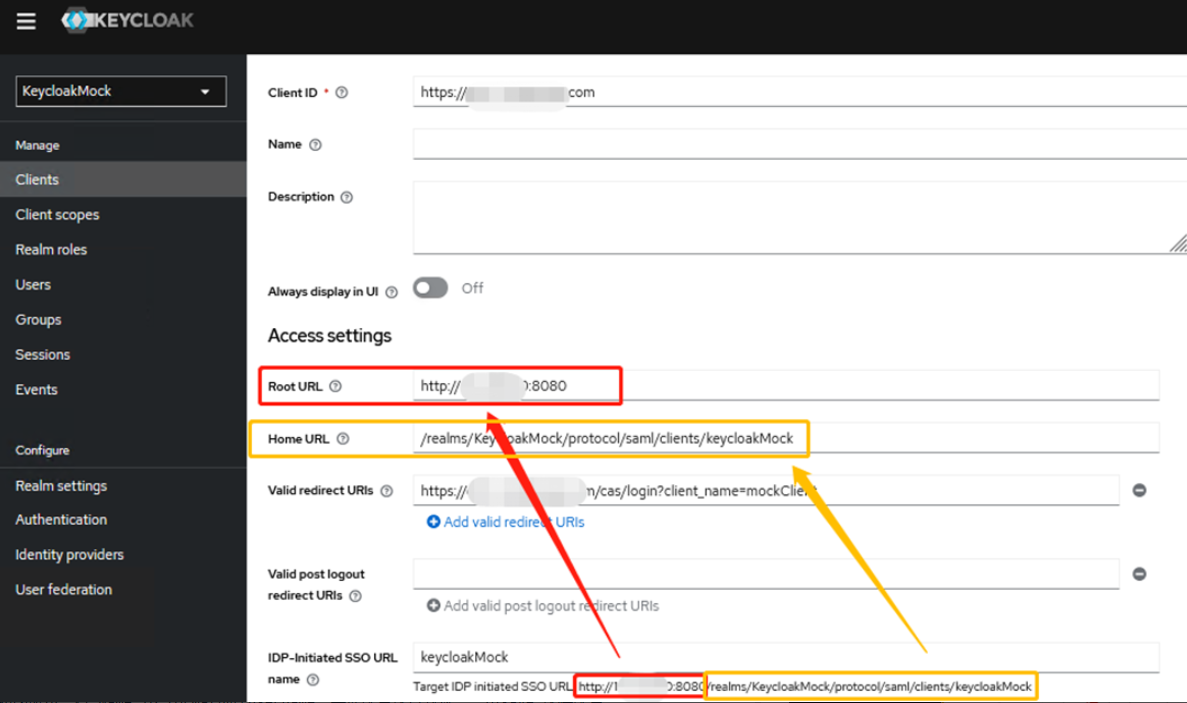
The Client ID and Valid Redirect URIs are automatically generated after importing the XML file. The main configuration items for this page are as follows:
Root URL, Home URL, IDP-Initiated SSO URL Name
Enter the IDP-initiated SSO URL Name: You can directly enter the Realm name, and the complete Target IDP Initiated SSO URL will appear right below.
Enter the main domain part in the Root URL, and enter the URI part in the Home URL, as shown in the figure:
- Configure SAML Capabilities
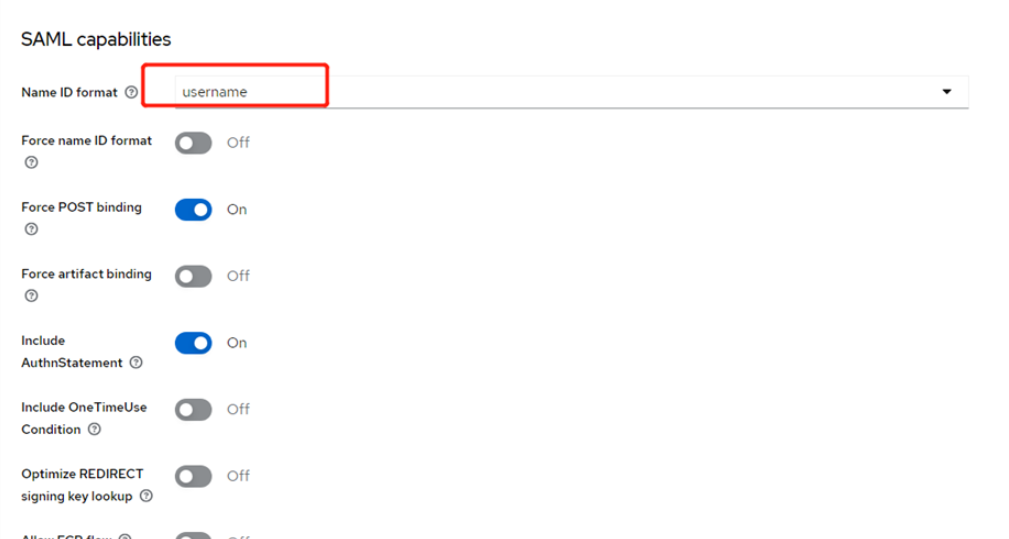
As shown in the figure, set the Name ID Format to ‘username’. Keep the other settings as default and click Save to save the configuration.
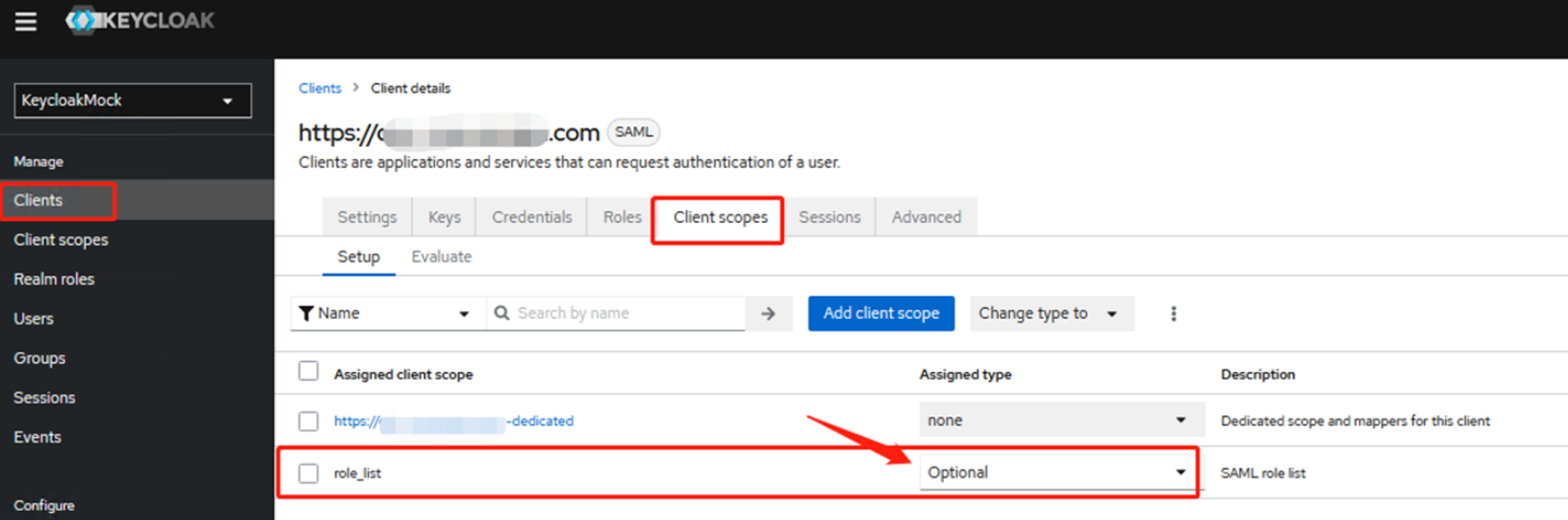
- Go to the Client Scopes Tab to Modify the Configuration
Change the Assigned Type of role_list from Default to Optional.
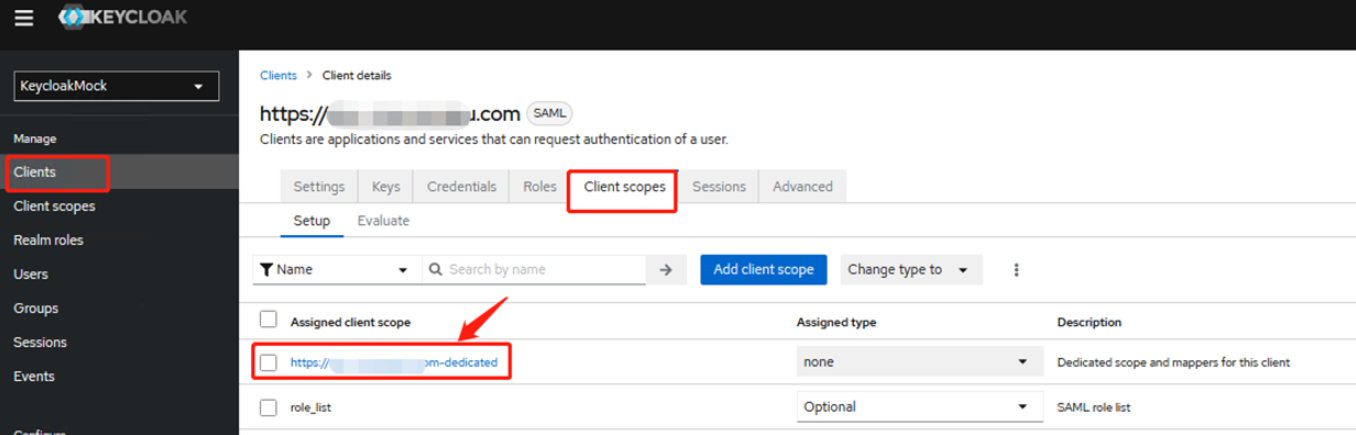
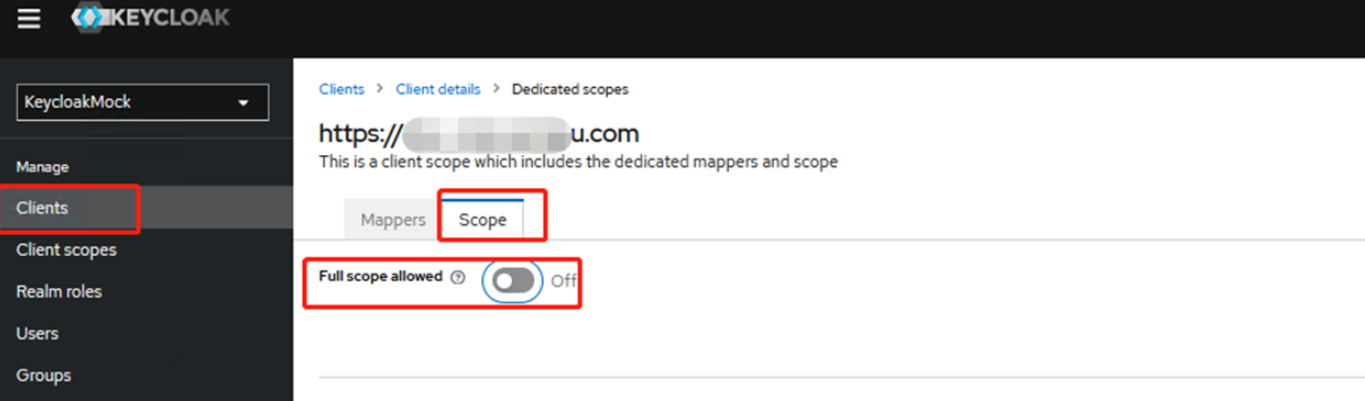
Navigate to the dedicated configuration file for the current client, and set Full Scope Allowed to off, as shown below:
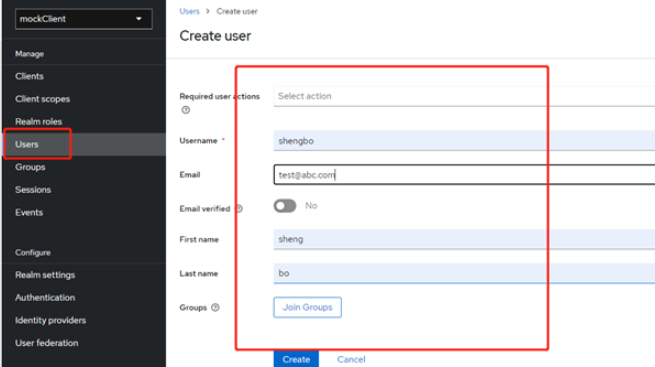
- Create a user for Keycloak login by adding a user in the Users feature and setting a password. The Username created here must match an existing account in the CDNetworks Console.
For instructions on creating a user, please refer to the documentation: Create User
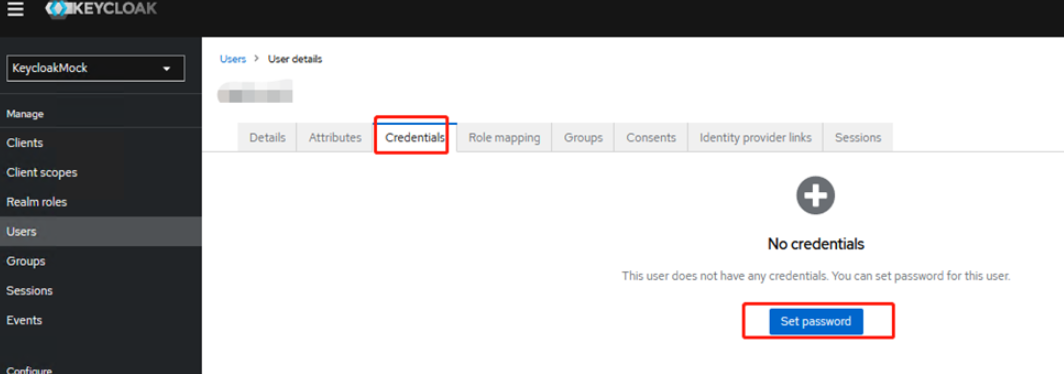
On the Credentials tab, you can set the password.
- After completing all configurations, re-download the metadata file and update it in the CDNetworks Console, as in Step 3.
Access Test
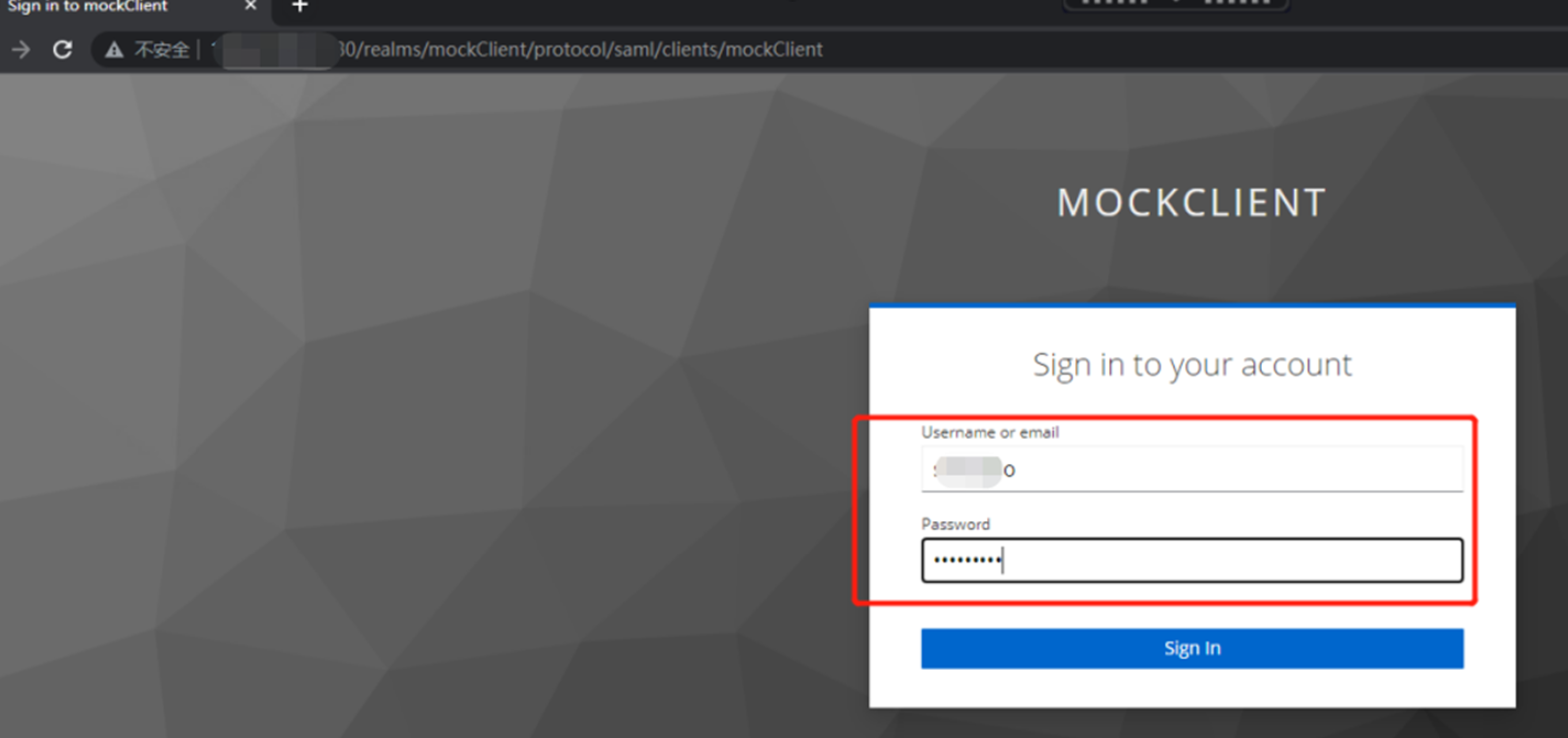
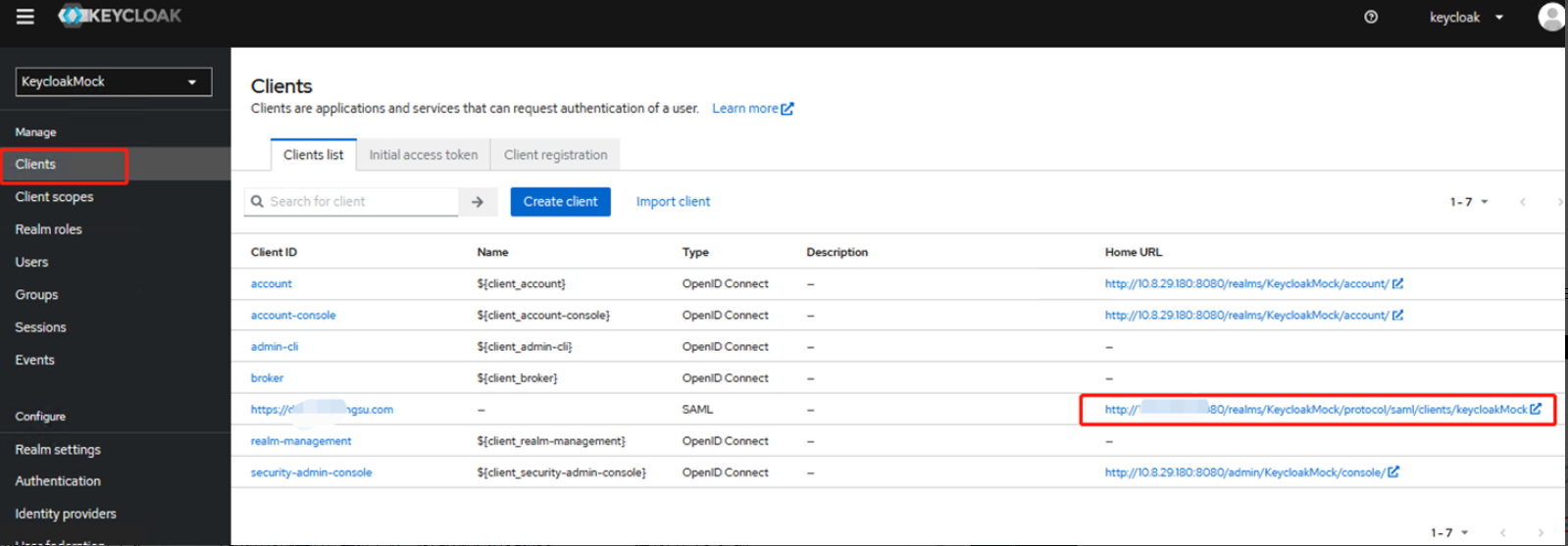
Test login: In the Clients list, locate the Home URL corresponding to the newly added Client ID, and click to access it. This will redirect you to the Keycloak login page.
After entering the created user and password, verify whether the redirection to the CDNetworks Console occurs as expected.