
Manage OS data by WOS Browser
Last update:2025-06-30 17:29:44
WOS Browser is a free Windows/Mac client for CDNetworks Object Storage. It offers a user-friendly and intuitive interface, which allows users to store, retrieve and manage any amount of data from anywhere with the tool at any time.
Note
Applicable API version:This is applicable for API-V1 and SDK-V1.
Prerequisite
- Access the CDNetworks Object Storage service
- Create a bucket within the service
- Obtain the Endpoint, Region Name, AccessKey, and SecretKey required for accessing the service
WOS Browser User Guide
Download The Tool
The download links for different operating system platforms for this tool are as follows:
Install
-
Windows
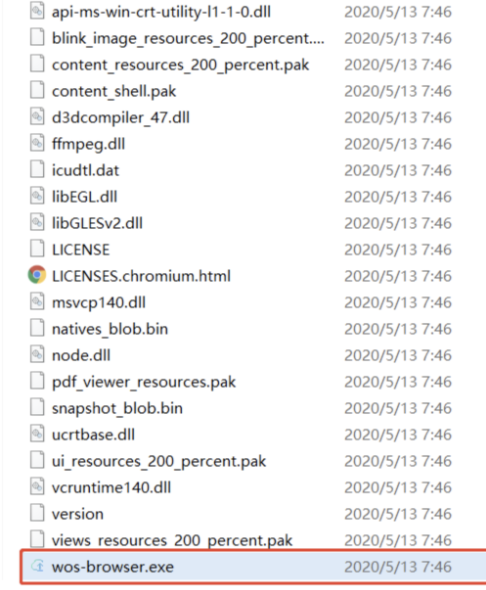
After extracting the downloaded zip file, double-click the wos-browser.exe executable file to launch the program.
Execute wos-browser.exe
-
Mac
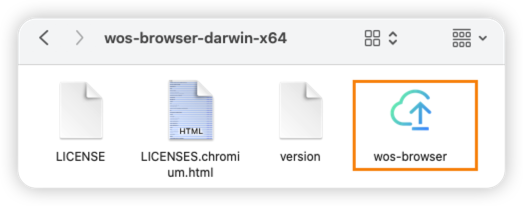
- download the package and decompress it.
- Open the tool by clicking on “wos-browser”.
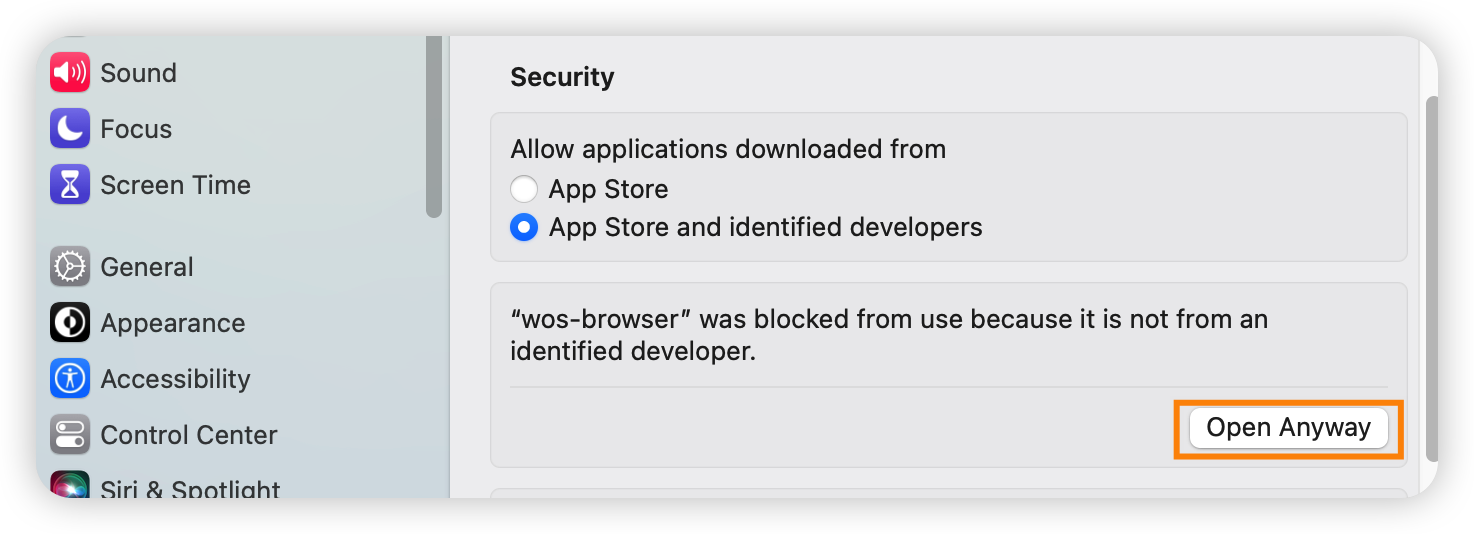
Note:You may encounter a notice stating that the developer cannot be verified. If this happens, you will need to navigate to System Settings > Privacy & Security and grant permission to open wos-browser.
Login
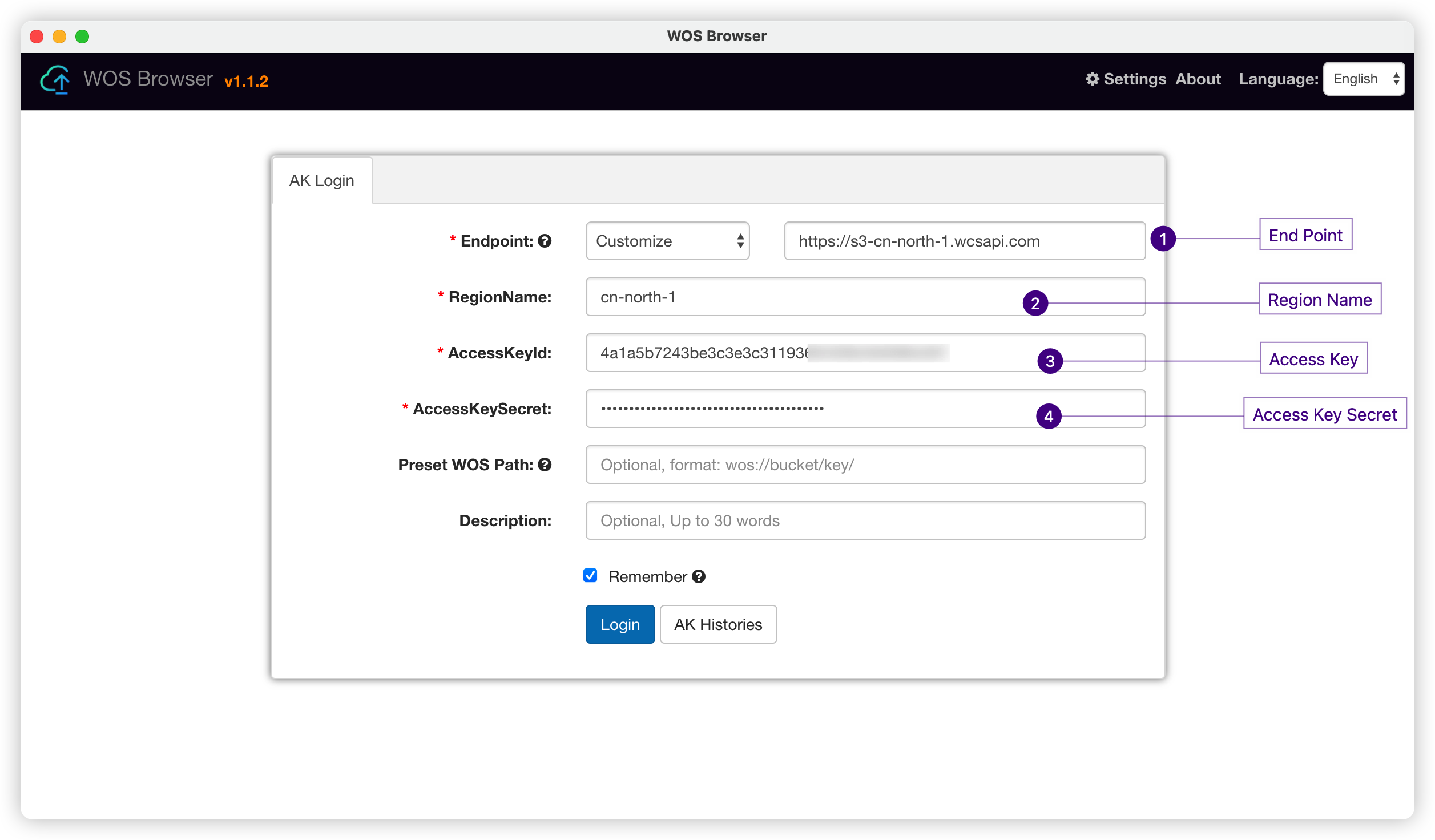
You need to fill at least four fields in the login credential.
- Endpoint of your bucket
- Region Name of your bucket
- Access Key
- Access Key Secret
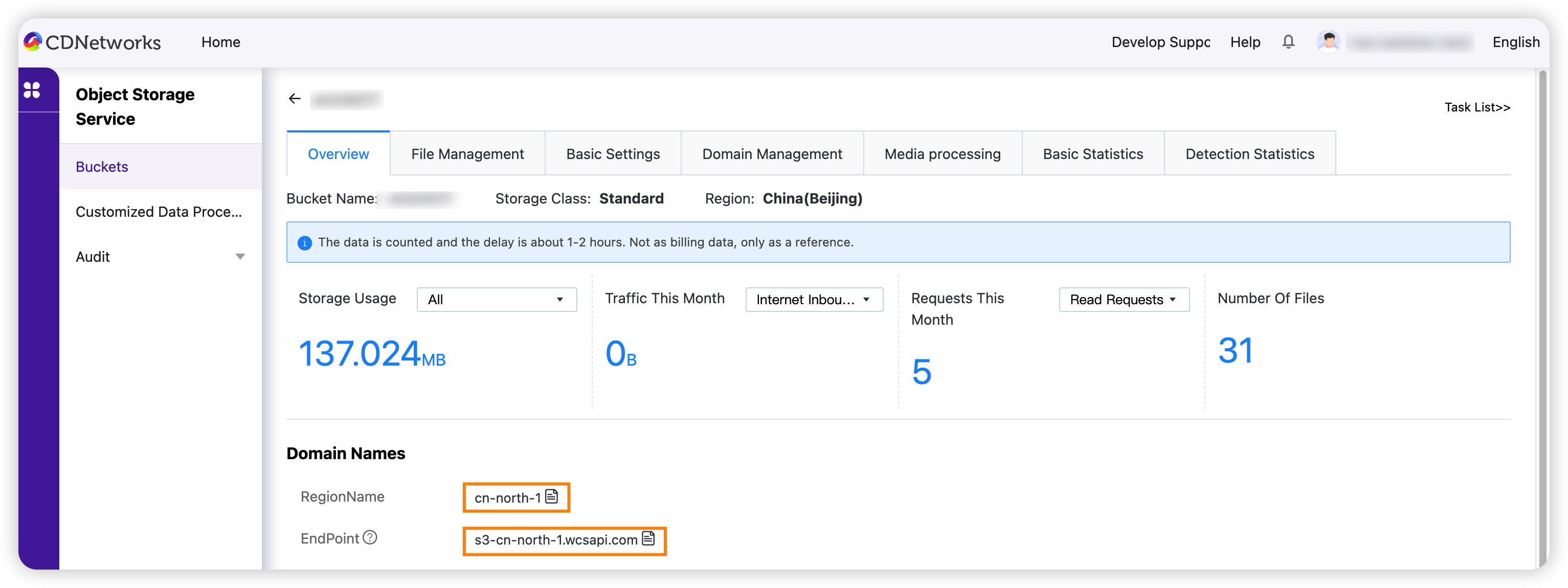
Get Endpoint and Region Name
To find the Endpoint and Region Name, you can simply access the console,You can refer to this document for similar operation steps: Obtain Domains
Get Access Key and Access Key Secret
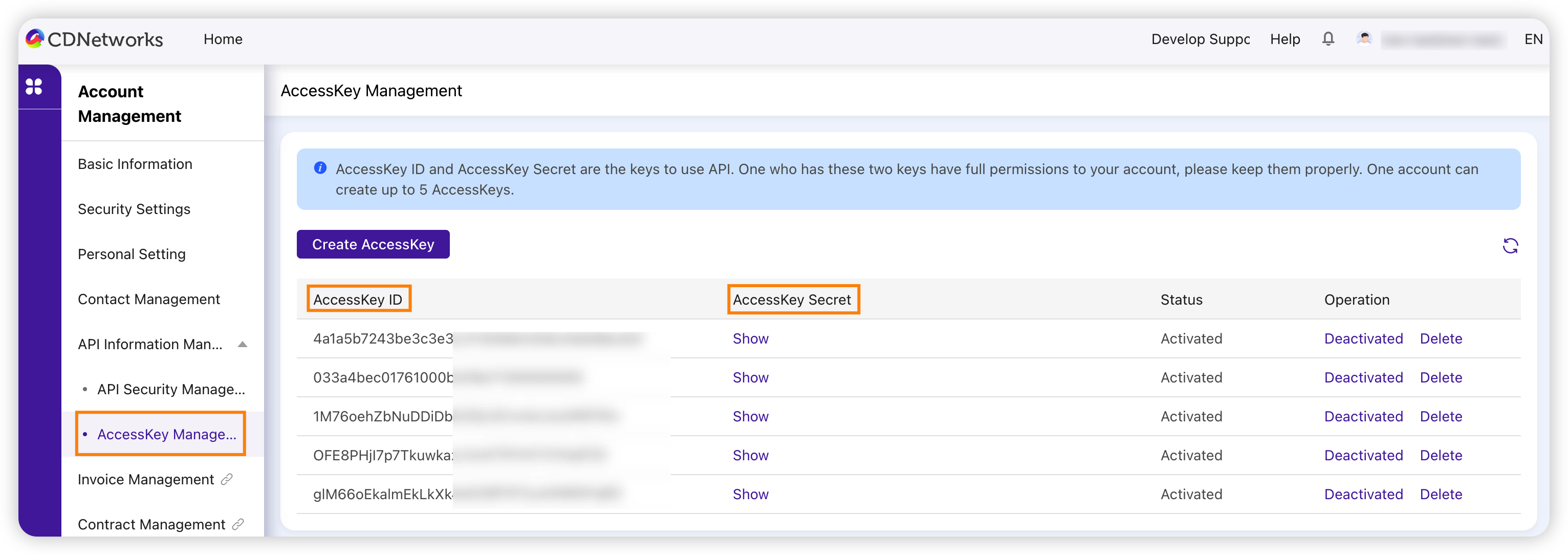
- Log in to the CDNetworks Console and click on your account avatar to find Basic Information.
- You can access your Access Key and Access Key Secret by going to Account Management > API Information Management > AccessKey Management. Alternatively, you may also obtain the pair of keys from our customer service.
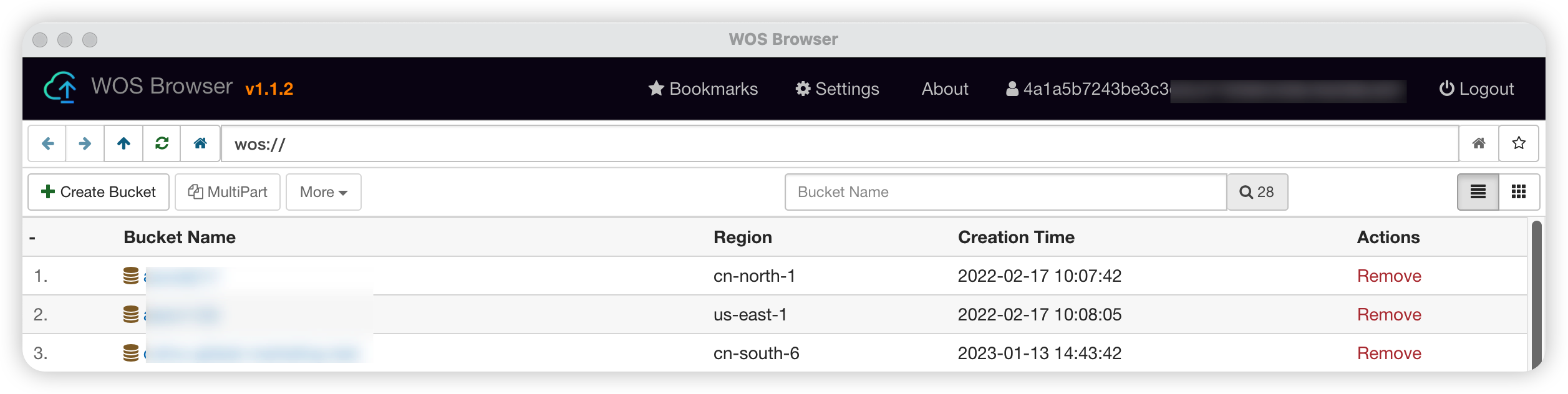
Visit Your Object Storage
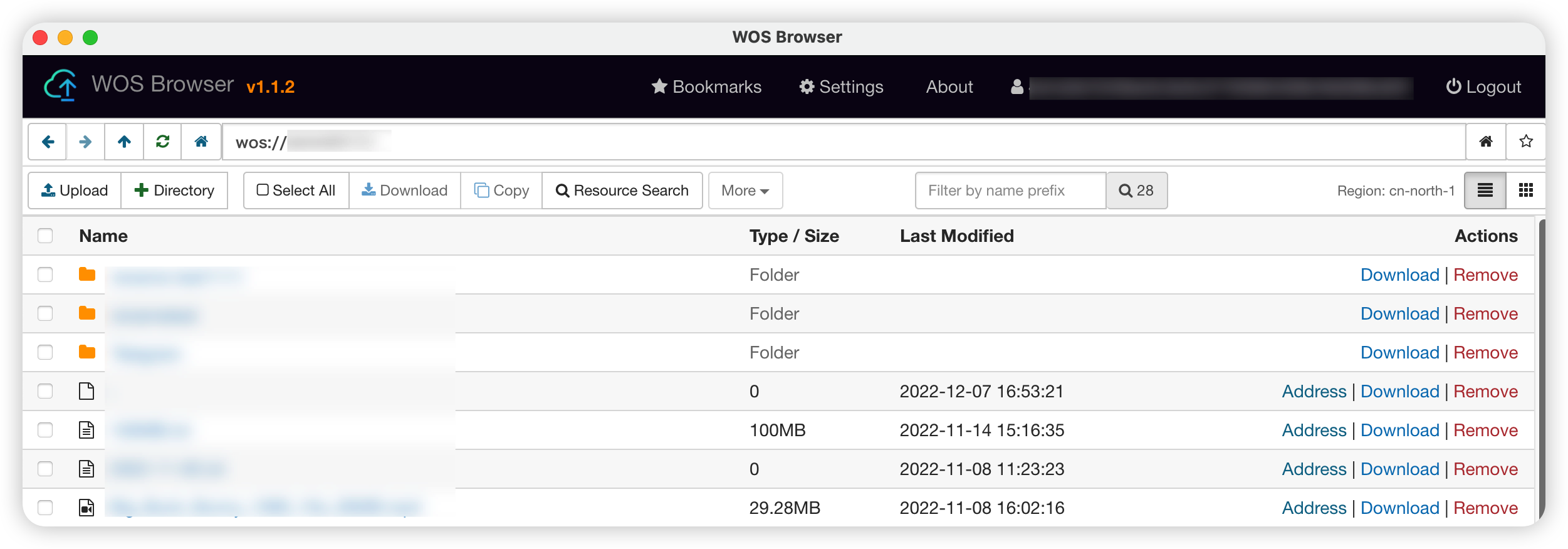
Access Your Bucket
Click on the bucket that you wish to access. This will take you inside the bucket, where you will see a list of your all your content.
Functions of WOS Browser
The following are the main functions of the current version of WOS Browser:
- Upload files or folders to the bucket (drag-and-drop upload is supported).
- Move, rename, copy, remove, get the URL, download, and preview files.
(Note: Currently, the browser does not support video processing functions)