Mirroring Storage
Last update:2025-11-14 17:19:04
The Mirroring Storage feature is primarily designed to migrate data from third-party storage systems or origin servers to the CDNetworks Object Storage platform. This functionality enables seamless website data migration while significantly reducing the back-to-origin request ratio from customer origin servers. During configuration, customers need to specify the mirror source address and redirect the resource access domain to the object storage platform domain.
When the object storage platform receives the first access request for a resource, it automatically retrieves the resource from the configured mirror source through back-to-origin pulling and stores it persistently on the platform. Subsequently, all future access requests for that resource will be served directly by the object storage platform without requiring additional back-to-origin requests, effectively reducing the load on the origin server.
Architecture of Mirroring Storage
After setting it, when there is a new request to object storage, if object storage doesn’t have this object, our storage will do following actions at the same time:
- Respond 302 to user, then the user go to target origin to download the file.
- Go to target origin to fetch file to Object Storage and save it.
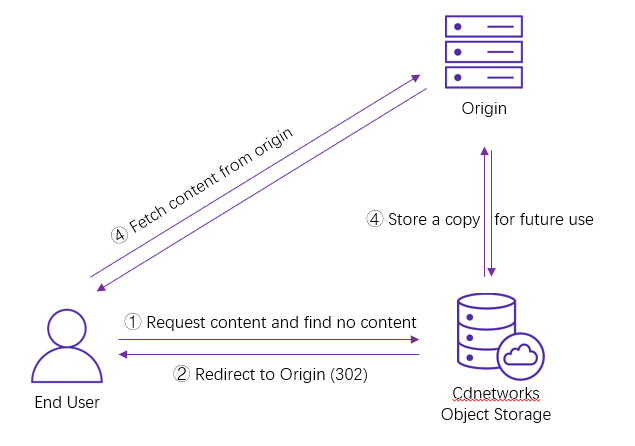
Note: We also support configuring CDN + Object Storage for Mirroring storage simultaneously. After configuration, the tasks of the End user in the diagram above will be handled by the CDN, ensuring that your end users will not notice any 302 redirects. For more details, please consult our technical support.
How to Configure Mirroring Storage
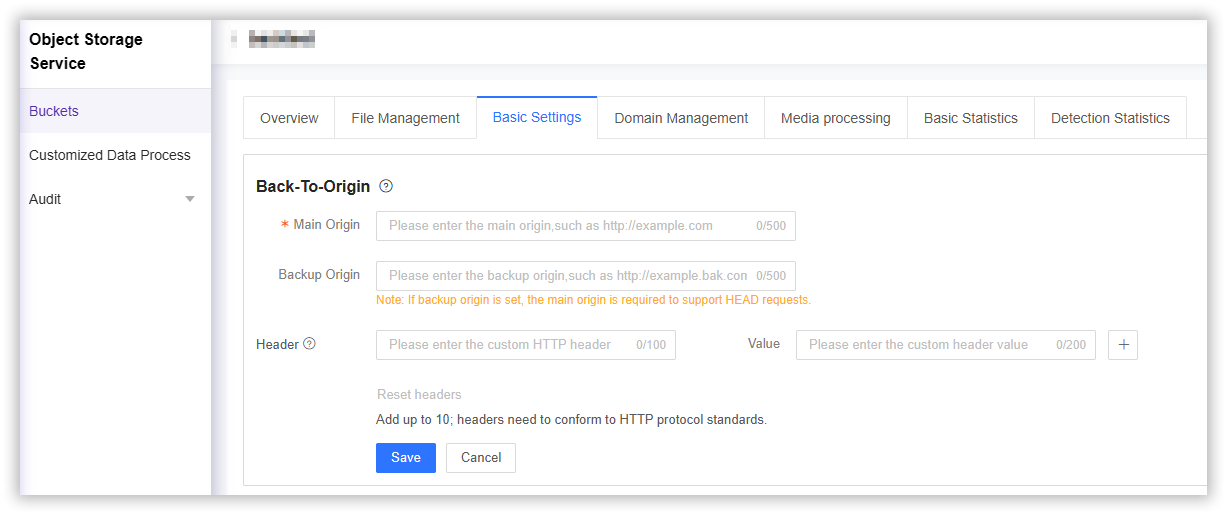
- Log in to the CDNetworks Console and select Object Storage Service.
- Click the Name of the bucket you want to manage, or click Manage on the far right of the corresponding bucket.
- On the details page, click Basic Settings in the upper section.
- In the Basic Settings page, find Back-To-Origin and click the blue Edit button.
- Complete the configuration in the corresponding page as required.