
Status Statistics
Last update:2026-05-11 18:23:29
CDNetworks provides detailed Status Code and Region & ISP Distribution data to support your business analysis and issue troubleshooting.
How to Access Status Statistics
- Log in to the CDNetworks Console, and select the corresponding product.
- Click Statistical Analysis > Status Statistics. You will see two tabs: Status Code and Region & ISP Distribution. Select the tab you want to view and click on it. Filter the query time range and domain, then click Query to see the corresponding data.
- In the upper right corner of the chart, click
 to export detailed data.
Each tab displays status code data from different dimensions. Refer to the detailed introduction below.
Status Code
Provides three reports: Edge, Edge(5 mins), and Origin status codes:
- Edge: Edge status codes. By default, it provides status code data in hourly granularity. Other granularities, such as daily, are also available. If you need to view data in 5-minute granularity, you can click Apply for opening to open the data collection and contact CDNetworks technical support to check the progress. After opening, you can query the 5-minute detailed data of the time after the opening time. You can also click Edge(5 mins) to view 5-minute granularity status code data. Please note that the timeliness of this report is lower than that of the Edge(5 mins) report. For example, if it is 9:48 AM now, you may only see status code data for 9:35 or even earlier. This data delay is more than 10 minutes.
- Edge(5 mins): Edge status codes. By default, it provides status code data in 5-minute granularity and does not support filtering by other granularities. The timeliness of this report is higher than that of Edge report. For example, if it is 9:48 AM now, you can see the status code data for 9:45 and earlier.
- Origin: Back-to-Origin status codes, including status codes from edge servers and relay servers. By default, it provides status code data in 5-minute granularity. Other granularities, such as hourly and daily, are also available.
The data sources and collection methods for the Edge and Edge(5 mins) reports are different, so the data for both may have slight differences. Both can be used for your reference. If you want to view data in 5-minute granularity, it is recommended to prioritize the status code data in Edge(5 mins) report.
Trend
All status code reports provide status code data in two dimensions. You can switch between Aggregated and Details as needed.
- Aggregated: Aggregate different status codes according to the rules set below for display.
- Details: Display status codes directly without aggregation.
| Status Code Type | Status Code |
|---|---|
| Success | 200,210,206 |
| Redirect | 302,301,303,305,307 |
| Not-Modified | 304 |
| Permission | 400,401,403,405,406,407,408,409,410,411,412,413,414,415,416,417,421,422,423,424 |
| Not-Found | 404 |
| Server Error | 500,501,502,503,504 |
| Others | 0,-1 |
Detailed Data
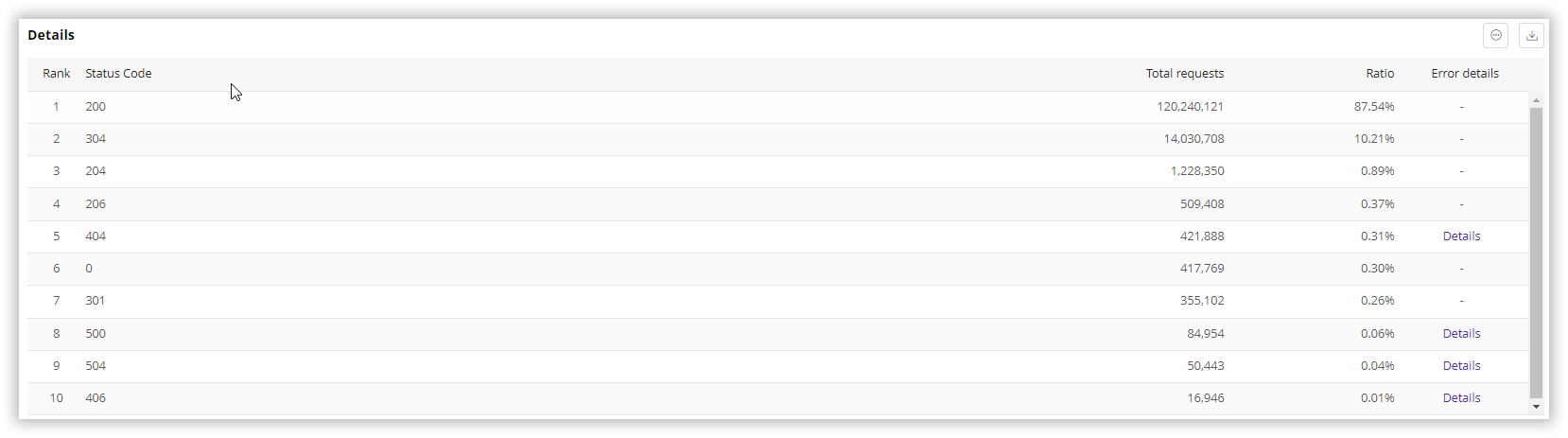
You can check the requests and their proportion corresponding to each specific status code here.
What’s more, the Edge report will additionally display Error Details. Click the Details button corresponding to the status code to view the TOP URLs for that status code and their referrers and requests. You can export more TOP URLs if needed.
Region & ISP Distribution
Displays the region distribution of 404 status codes, including the number of requests for 404 status codes and their corresponding proportions.