
Data Ingestion Authorization
Last update:2026-07-08 14:13:14
Introduction
Data Access Authorization allows you to grant the logs (third-party data) you have created to other sub-accounts under the same main account for use. When authorizing, you can specify which types of consumption tasks each authorized account is permitted to create using the log.
After logging in, the authorized accounts can view the log in their own Data Access list and create consumption tasks according to the consumption types you have authorized. Native platform data is shared by all accounts and does not require authorization.
Core Module:
| Module | Description |
|---|---|
| Authorization Scope | Determines who can view the logs; options include “Only Log Creator” (default) and “Specified Account” |
| Consumption Type | The types of consumption tasks that the authorized account can create using the logs, determined by the main account plan |
| Add User | Select the target sub-account under the main account to authorize, and configure its consumption type |
| Revoke Authorization | Delete or clear the authorized account; if downstream tasks have already been created by the other party, they must be handled first |
Concept Description
| Term | Description |
|---|---|
| Third-Party Data | Log data integrated by the account itself, accessible only to the creator by default, and must be authorized to other accounts via this feature |
| Consumption Type | The categories of consumption tasks that logs can be used to create, including: Data Upload, Data Download, Dashboard |
| Downstream Tasks | Data consumption tasks that have already been created based on these logs by the authorized account; these must be deleted before the authorization is revoked |
Package And Optional Consumption Types Mapping:
The optional consumption types available when authorizing data access depend on the package purchased by the main account:
| Package | Consumable Types That Can Be Authorized |
|---|---|
| Basic Version | Data Upload, Data Download |
| Standard Edition | Data Upload, Data Download, Dashboard (Basic Features) |
| Advanced Edition | Data Upload, Data Download, Dashboard (Advanced Features) |
| Download Edition | Data Download |
Note: Consumption types not included in your purchased plan will not appear on the authorization page and therefore do not require authorization and cannot be authorized.
Before You Begin
Feature Entry Point:
- You have logged in to the Cloud Log Service platform, go to the left menu → Task Management → Data Ingestion tab
- In the Actions column for the target task, click Function Authorization
Prerequisite:
- You are the creator of this log
- This log is third-party data (platform native data does not require authorization)
Expected Result: After authorization is completed, the authorized account will be able to view the log in the data ingestion list and create consumption tasks according to the authorized consumption types.
Use Case
Team Collaboration Across Multiple Accounts: Under your main account, multiple sub-accounts are responsible for different businesses. After integrating a custom log, you want other sub-accounts to be able to create consumption tasks based on this log as well—share the log with corresponding sub-accounts via Data Ingestion Authorization and restrict their available consumption types accordingly.
Reclaim Permissions as Needed: If a sub-account is reassigned and is no longer responsible for a particular business, you want to revoke its log usage permission—go to Authorization Settings to delete the account. If downstream tasks have already been created by this account, handle those tasks first before revoking the permission.
Operation Steps
Key Steps Summary: 1. Go to the Data Ingestion List → 2. Enable Feature Authorization → 3. Select the Specified Account → 4. Add Users and Configure Consumption Type → 5. Save
Step 1: Access the Data Ingestion List
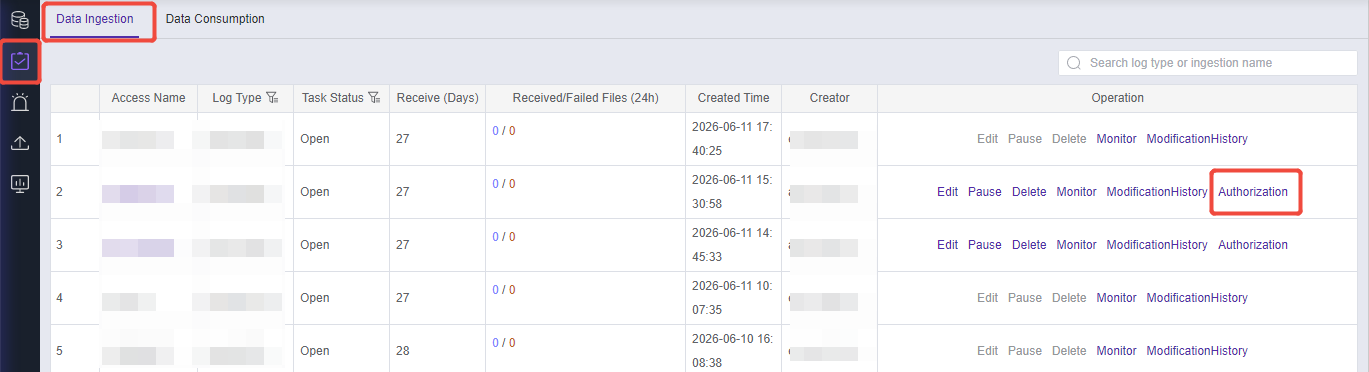
In the left-side menu of the Cloud Log Service, click Task Management to enter the data ingestion list page, where you can view all logs you have created or been authorized to access.
Step 2: Enable Feature Authorization
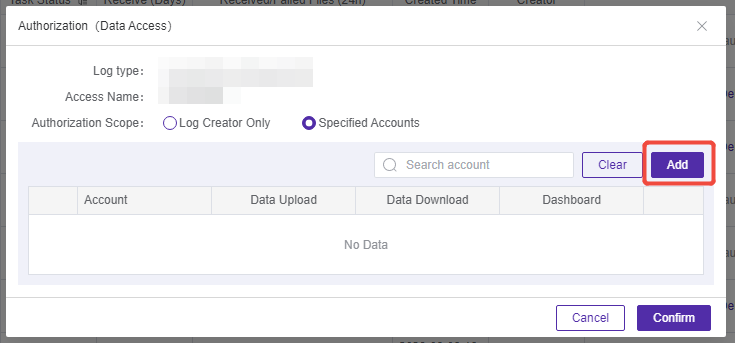
In the data ingestion list, locate the row containing the target log and click Feature Authorization in the Actions column to enter the data ingestion authorization configuration page.
The Basic Information section at the top of the page displays the log type and the access name for this log, making it easy for you to confirm whether the authorized object is correct.
Step 3: Select Authorization Scope
In the Authorization Scope section, Only Log Creator is selected by default, which means only you can view this log. To grant access to additional accounts, select Specified Account. The authorization list and options to add accounts will then be displayed at the bottom of the page.
Step 4: Add Authorized Account and Configure Consumption Type
In the Authorization List section, click Add to bring up the [Add User] pop-up window.
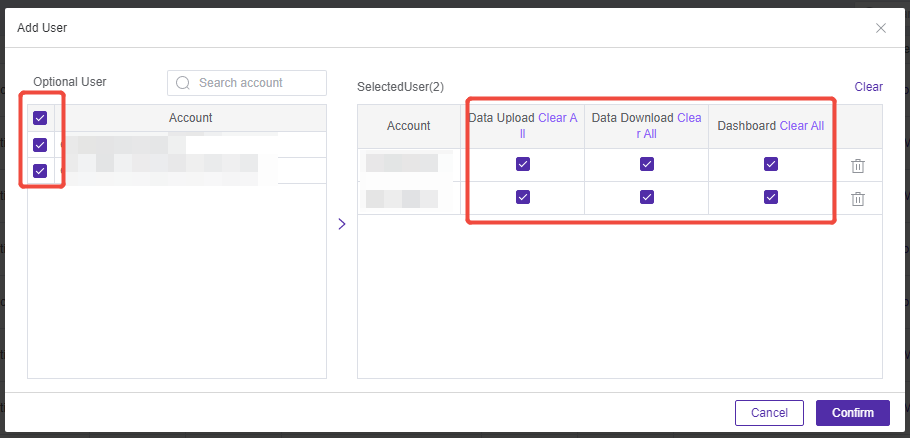
The left side of the pop-up window displays the list of available users, which supports fuzzy search by account name or ID. The search keyword will be highlighted. After selecting the target account, the number of selected users will be displayed in the selected users area on the right.
After selecting an account, all available consumption types under that account will be selected by default. You can choose to select or deselect all consumption types of a specific category as needed.
Note: If none of the consumption types for a given account are selected, that account will not be added to the Authorization List.
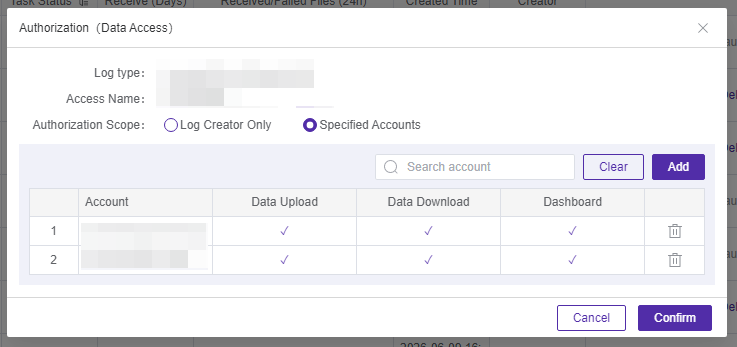
After the configuration is complete, click OK to return to the Authorization List. The newly added account and its consumption types will be displayed in the list.
| Field | Description |
|---|---|
| Available Users | All sub-accounts under the main account, with support for fuzzy search by name/ID |
| Selected Users | The accounts selected for authorization, displaying the number of selections, and can be cleared |
| Consumption Type | The types of consumption tasks that this account can create using this log, which are determined by the main account package |
Step 5: Save Authorization Configuration
After confirming the authorization list is correct, click Confirm at the bottom of the page to save the authorization configuration. The delegated account will be able to see this log in the Data Ingestion list the next time they log in.
Frequently Asked Questions
Q1: What Should I Do If the System Prompts ‘Cannot Be Revoked’ When Deleting or Clearing Authorization?
A: The delegated account has already created data consumption tasks based on this log. To prevent business interruption, the platform does not allow direct revocation. Please have the other party or yourself delete all consumption tasks created from this log first, then return to the authorization configuration to remove or clear this account.
Q2: Why Are Some Consumption Types Not Visible When Adding Users?
A: The available consumption types are determined by the subscription purchased by the main account. Consumption types associated with packages that have not been purchased will not appear on the interface. For example, if the main account is using the Basic Edition, only ‘Data Upload’ and ‘Data Download’ can be authorized.
Q3: Where Can the Authorized Account View This Log After Logging In?
A: After logging into the Cloud Log Service platform, the authorized account can view the authorized logs in the log repository and create corresponding consumption tasks based on the granted consumption types.
Q4: After Authorization, Can the Authorized Account Modify the Access Configuration for This Log?
A: No, authorization only grants usage permissions (the ability to create consumption tasks based on authorized consumption types). The permission to edit log access configurations remains with the original creator. The authorized account can only view and use the logs in the list.