
Purge Cache
Last update:2026-05-09 17:05:19
Purge Cache allows you to force the CDN servers to fetch the latest files from the origin server and cache them, overriding the existing cached files.
Purge Cache is suitable for the following scenarios:
- When the cached files on the CDN are outdated, and you want to immediately purge the outdated files on the CDN servers and fetch new files from the origin server, ensuring that end users no longer access the old resources.
- When the cached files on the CDN violate policies, and you want to immediately remove the cached files from the CDN servers, ensuring that end users no longer access the non-compliant resources.
Purge Cache supports multiple types: URL, Directory, Regex, and Domain.
How to Create a Purge Cache Task
- Before creating a task, make sure you have purchased CDNetworks CDN product, configured the acceleration service for your domain, and contacted CDNetworks technical support to enable Cache Refresh permissions.
- Log in to CDNetworks Console, navigate to “Products” > “Application Services” > “Content MGMT” > “Purge Cache”, and click on Create Task.
- Set up the Purge task according to your needs.
Refresh Types
| Purge Type | Description | Notes |
|---|---|---|
| URL | Purge the cache at the URL granularity, suitable for a small number of files. | 1. The purged URLs need to be case-sensitive; 2. URLs should start with a protocol such as http:// or mms://. For example: http://www.test.com/index.html; 3. One URL per line, multiple URLs separated by line breaks. |
| Directory | Purge the cache at the directory granularity. This is recommended when the URLs that need updating under a directory exceed 100. | 1. The purged directories need to be case-sensitive; 2. Directories should start with a protocol such as http:// or mms://. For example: http://www.test.com/news/ ;3. One directory per line, multiple directories separated by line breaks; 4. If you want to purge all directories under a domain, enter the root directory of the domain, such as: http://www.test.com/;5. If your domain has been configured with cache host or any other rewriting configurations, please contact CDNetworks Technical Support to confirm how to submit purge task, we will evaluate it based on your situation. |
| Regex | Purge the cache using regular expression-based URLs. | One URL per line, starting with a protocol such as http://, supporting protocols include http, https, and mms. For example, to clear the js files under a certain directory, the submitted URL should be http://www.test.com/test/(.*).js(.*). |
| Domain | Purge the cache at the domain granularity. This is strongly recommended to contact technical support for evaluation before proceeding. | 1. You can directly enter the domain that needs to be purged without any protocol; 2. The system will purge the cached files by default using the http:// and https:// protocols. If you need to purge files that use other protocols, please use Directory or URL. |
If your domain has been configured with cache host or any other rewriting configurations, please contact CDNetworks Technical Support to confirm how to submit refresh task, we will evaluate it based on your situation.
After selecting the purge type you want, input the configuration items, and then submit your purge task. Below are the main configuration items.
Please note that different purge types have different configuration items.
Favorite URL/Favorite Directory
Click + Favorite URL or + Favorite Directory to select and add favorite URLs/Directories. Select the favorite URLs/Directories and click Add to Purge List to automatically input them into the text box for initiating the purge task. This function provides management of favorite URLs/Directories, allowing you to add or delete them.
Task Schedule
- Real-time: The task should be executed immediately after submission. If you do not want it to execute immediately, you can set a Delay time to determine when the task will be executed.
- Recurring: The task should be executed repeatedly, supporting the setting of recurrence time and frequency.
Convert to Lowercase
- Yes: Converts each letter in the URI part of the purge content to lowercase.
- No: Does not convert it to lowercase letters.
How to View Purge Tasks
Log in to CDNetworks Console, navigate to “Products” > “Application Services” > “Content MGMT” > “Purge Cache”, and click on Task List. You can query tasks based on a specific time and domain. You will see the following information about the target task.
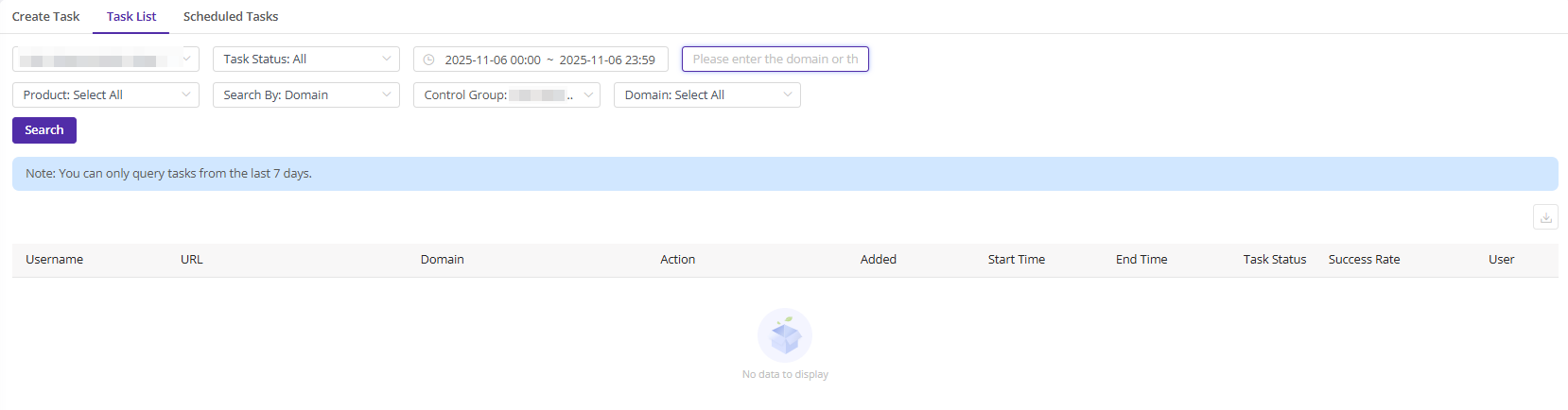
Success Rate
Success Rate = Number of successful executions / Total number of executions
A single task needs to be sent to various CDNetworks CDN servers for execution, meaning the task needs to be executed multiple times.
How to Manage Recurring Purge Tasks
Recurring tasks refer to the tasks set up as recurring tasks when creating a purge task. After a task is successfully submitted, you can query and edit all recurring tasks under Scheduled Tasks.
- Log in to CDNetworks Console, navigate to “Products” > “Application Services” > “Content MGMT” > “Purge Cache”, and click on Scheduled Tasks to display all recurring tasks by default. You can also query based on search criteria.
- Find the recurring task you want to handle, click the
 button on the right to re-edit the recurring task, or click the
  button to delete the recurring task.

Notes
When submitting a purge task for the same URL/Directory/Domain within a short period, please make sure to wait for at least 5 minutes between submissions. For example, if the system has not completed the execution of the first URL task and a same URL task is received at that time, the latter task might be ignored by the system.