
Create Alert Rule
최신 업데이트:2026-03-19 15:40:25
Step 3: Create an Alert Rule
-
Log in to the Cloud Monitoring Console.
-
Click [Alert Service] > [Alert Rules] to access the alert rule page.
-
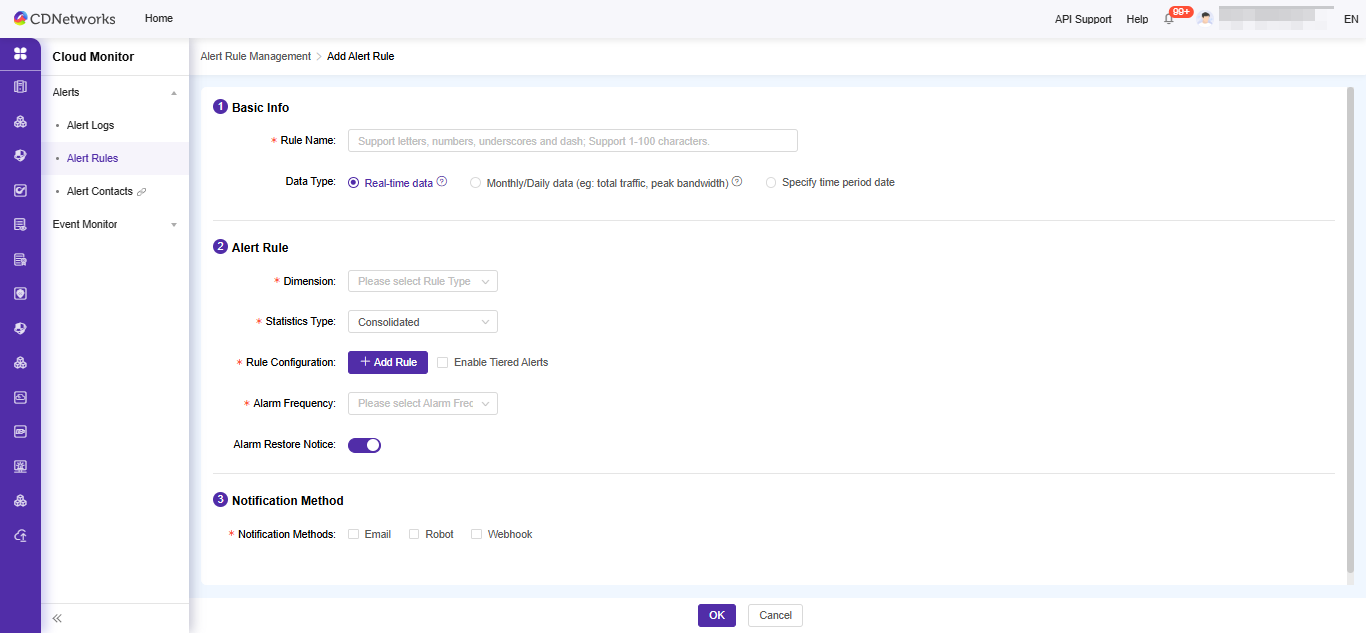
Click [Add Alert Rule] to configure the alert strategy. For configuration details, see below:
Configuration Type Configuration Item Description Basic Information Rule Name Name of the alert rule. Alert Rule Alert Object You can choose to monitor by user dimension or by objects under a specified business type. Statistics Method Combined Statistics: Aggregate monitoring based on the selected objects. For example, if you select 5 acceleration domains under Content Acceleration for monitoring bandwidth, the bandwidth of these 5 acceleration domains is aggregated for monitoring.
Individual Statistics: Monitor each selected object individually. For example, if you select 5 acceleration domains under Web Acceleration for monitoring bandwidth, each acceleration domain is monitored separately and an alert is triggered if any one of them meets the rule.Trigger Condition The condition that triggers an alert notification.
Here, you can configure monitoring items for the alert object as required. Available alert objects may vary depending on the monitored object and statistics method.Alert Frequency You can set to notify only on the first alert or specify an interval for repeated alerts. Effective Time The effective time of the monitoring rule. If you only need monitoring at specific times, you can set the corresponding time period. Notification Method Notification Recipient The recipient who receives the alert notification. Alert Notification Method Notification can be sent via email, robot or webhook. -
Click [OK] to activate the alert rule.
이 문서의 내용이 도움이 되었습니까?
예
아니오