
SAML Configuration for SP
最終更新日:2026-03-25 15:21:49
SP SAML Configuration Procedure
Create Service Provider
You can create a SAML 2.0 identity provider on the IAM (Access Control) of the CDNetworks Console and upload the metadata document provided by your enterprise IdP.
Step 1: Log in to IAM and go to the Service Provider page.
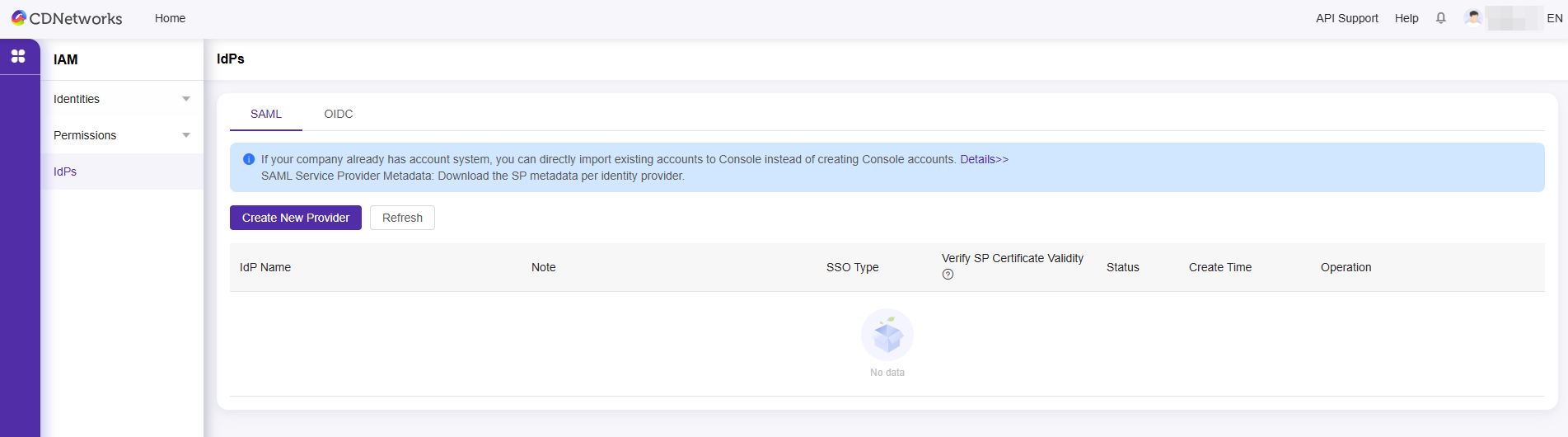
Step 2: Add a Service Provider.
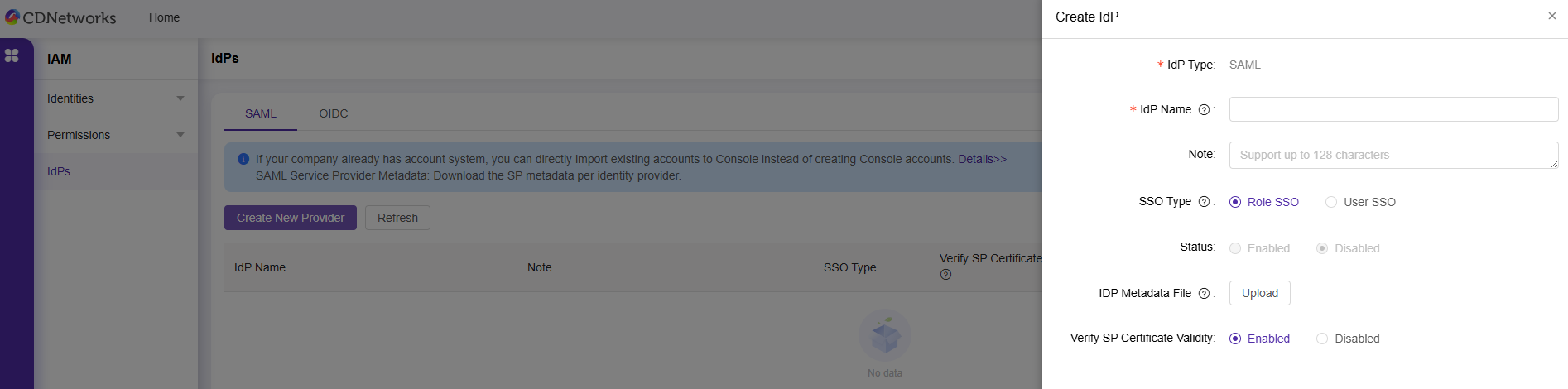
- SSO Type: Select User SSO.
- Metadata Document: Upload the metadata document provided by the enterprise IdP.
The metadata document is provided by the enterprise IdP. It must be in XML format and include information such as the IdP’s login service URL, the public key used to verify signatures, and the assertion format.
Note:
- The validUntil value on the public key should be set to the certificate’s expiration time.
- IDP entityID: The entityID is used to identify the IdP; please ensure that the entityID in your program’s code is consistent with the entityID in the metadata file uploaded to IAM. For example: use the company’s website address in a standardized manner.
- SP entityID: https://login.cdnetworks.com.
-
Secondary Domain
Enabling the Secondary Domain switch allows you to set a secondary domain. If a secondary domain is configured, the platform will compare the NameID with
<loginName@SecondaryDomain>, and login will be successful if they match. -
Validate SP Certificate Validity: When you enable SP certificate validation, the IDP will be notified to update metadata once the SP’s certificate expires. The IDP needs to download the latest SP metadata from the console and, after updating, click [SP Metadata Update Notification] to notify the system.
Step 3: Click to View Service Provider to Check the Login URL for the IdP.