
CLB Monitor
更新时间:2023-10-27 16:06:43
CLB Monitor
“CLB Monitor” menu is used for monitoring your servers assigned to CLB Domains.
1 . Group Management
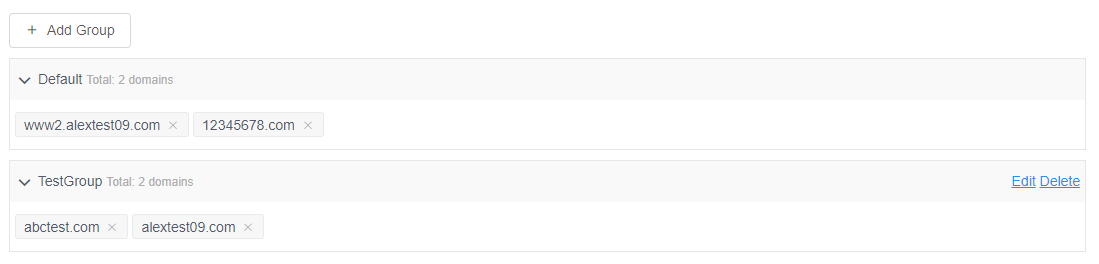
Click on “Group Management” under “CLB Monitor” menu, you will go to the following screen to add, delete and edit CLB domain group.
-
Default Group
There is a default group named “Default”. The “Default” group is undeletable and non-editable. If you create a new CLB domain, it will be assigned to the “Default” group.
-
Add Group
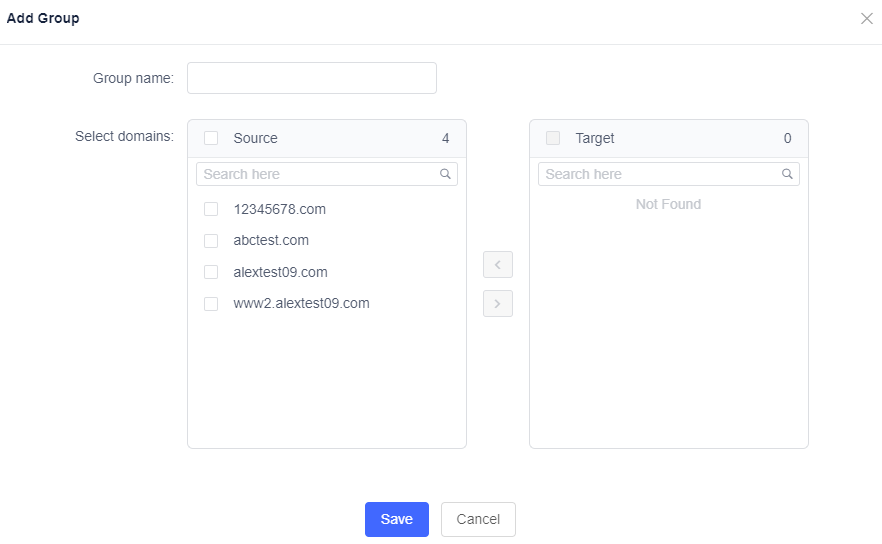
Click on “Add Group” button, and you will get the following pop-up window to add a new group.
-
Specify the group name
-
Select domains.
Check the box of the CLB domain in the “Source” which you want to assign to this new group and click “****” icon to add the selected domain in the “Target”. -
Click “Save” button to save it.
-
Note: One group can only have one CLB domain. If you add one CLB domain to the new group, it will be deleted from the “Default” group or other existing groups.
-
-
Edit group
Click “Edit” button, and you can edit a group. But the “Default” group cannot be edited.
In the pop-up window, you can modify the name of the group, or you can assign/delete CLB domains in this group.
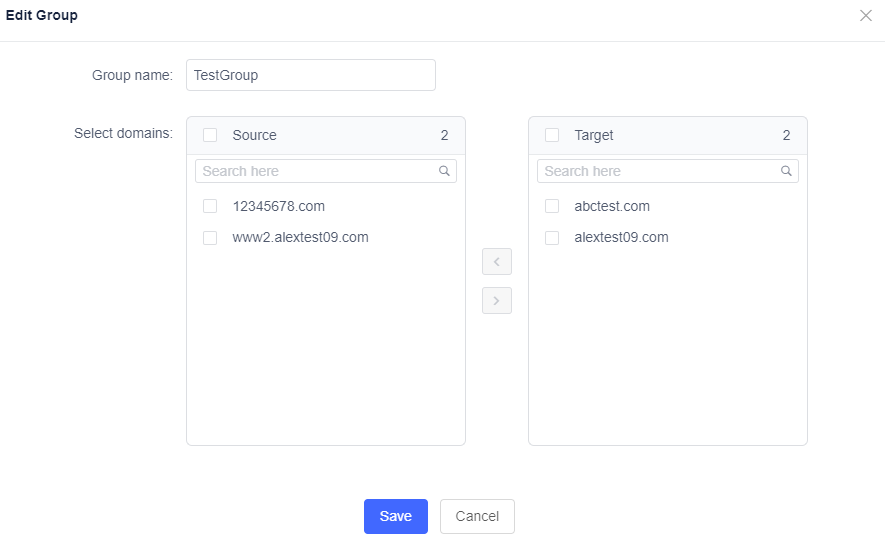
If you delete CLB domains from this group, the deleted CLB domains will be assigned to the “Default” group.
If you assign CLB domains to this group, the assigned CLB domains will be removed from another group.
-
Delete Group
Click “Delete” button, choose “Yes” in pop-up window, and you will delete a group.
-
Alert Management
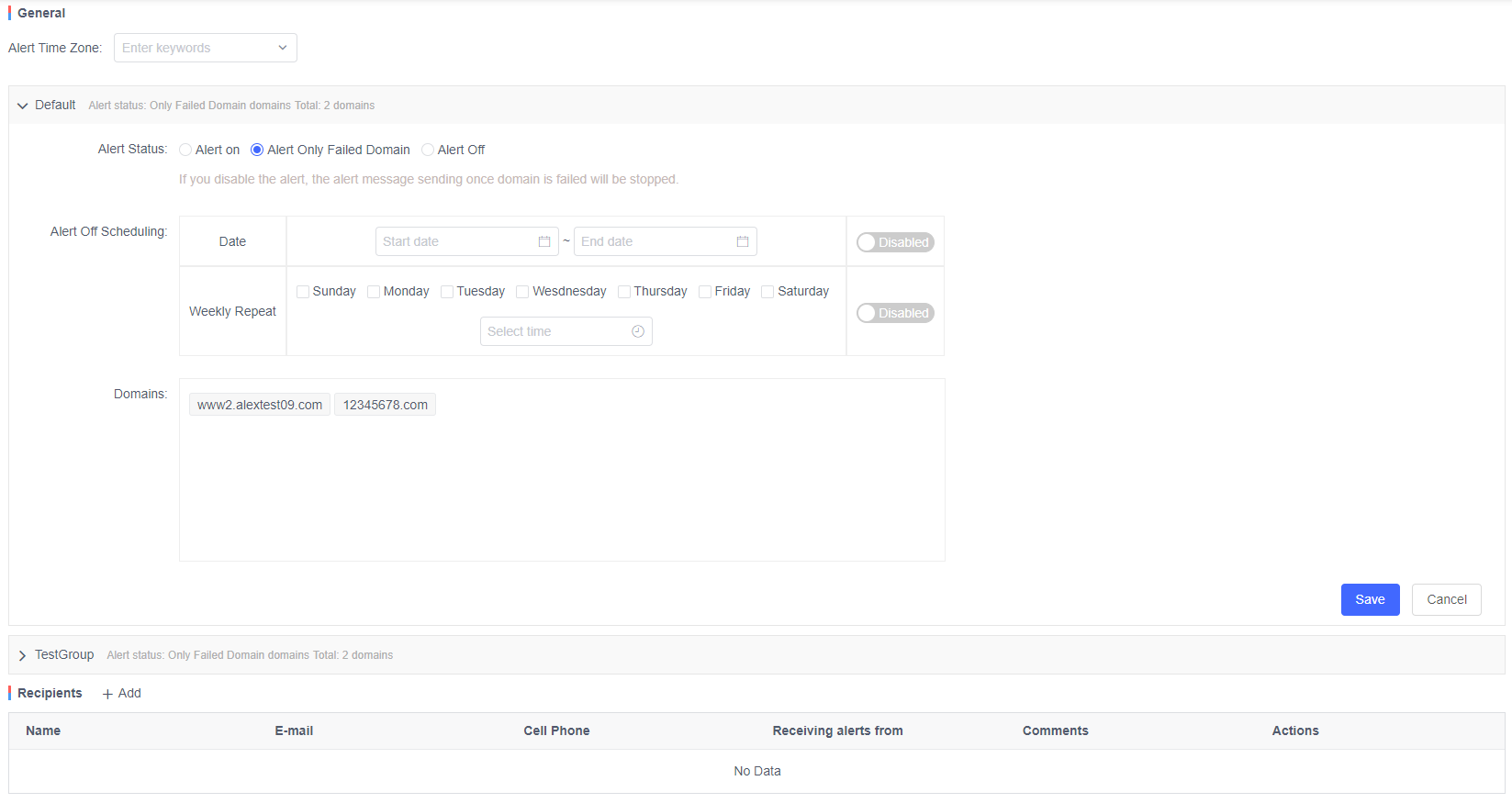
Click “Alert Management” under “CLB Monitor” menu, you will go to the following screen. In this screen, you can manage alert rules for each CLB domain group.
-
Alert Time Zone
Select the time zone for sending the alert email.
-
Alert Status
The default value is “Alert On”.
-
Alert On
In the case of “Failed Domain” or “Warning Domain”, there would be alert sound, and alert display in “Monitoring” screen and alert email sending.
-
Alert Only for Failed Domain
In the case of “Failed Domain”, there would be alert sound, alert display in “Monitoring” screen and alert email sending.
-
Alert Off
Alert display (“Failure Detected”) and Alert functionality (through email) are limited.
The domain assigned to the selected group in the “Monitoring” screen will be disabled.
-
Alert Off Scheduling
You can configure alert-off scheduling for the planned maintenance.
-
Date
The default is set to “Disabled”.
You can specify the start date and end date. But only after the dates are specified, will the configuration work.
-
Weekly Repeat
The default is set to “Disabled”.
You can specify a date and set an hour and minute. But only when the “Weekly Repeat” is enabled, the configuration will work.
-
Domains
It shows the domains assigned in the selected group.
-
Recipients
Click on the “Add” button in “Recipients” part to add a recipient.
3 . Monitoring
Click on “Monitoring” under “CLB Monitor” menu, you will go to the following screen. In this screen, you can view the information for monitoring by CLB Domain group.

-
Status
- Normal
Normal Status means that all the servers assigned are in good status and running properly.
The green bar in Status column represents “Normal Status”.
- Disabled
Disabled means that all servers are in disabled status.
The gray bar in the Status column represents “Disabled”.
- Warning
Warning means that part of the servers assigned is down.
The yellow bar in Status column represents “Warning”.
- Failed
Failed means that all the servers assigned are down.
The red bar in Status column represents “Failed”.
-
Set Monitoring Parameters
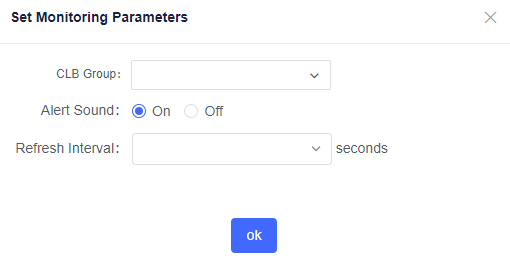
Click “Set Monitoring Parameters” button, there will be a pop-up window for you to configure:
-
CLB Group
You can select the CLB Group whose status you want to show in the monitoring screen.
The default value is all groups.
-
Alert Sound
You can turn on or turn off the alert sound for failure notification.
The default value is “On”.
-
Refresh Interval
You can set the refresh interval for this screen.
The default value is 60 seconds.
-
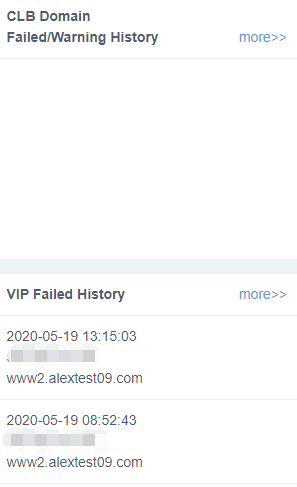
Check History
You can get the CLB Domain Failed/Warning history and the failed VIPs history from the right side of the CLB Monitoring Page.
4 . History
Clicking "**History**" under "**CLB Monitor**" menu, you will go to the following screen to check the CLB Domain Failed/Warning history and VIP Failed History.
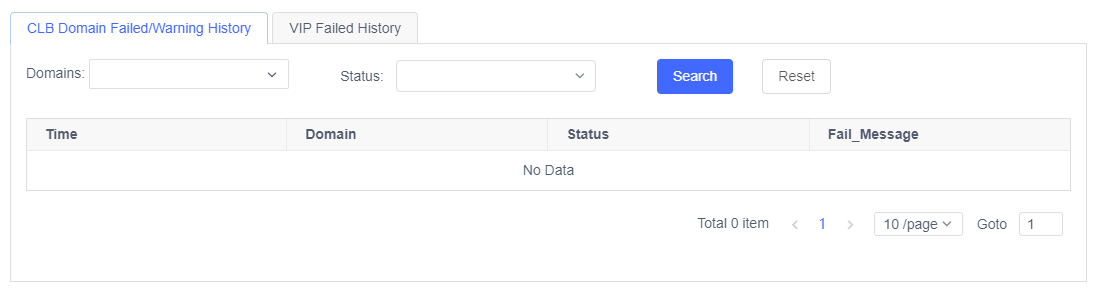
CLB Domain Failed/Warning History
- The screen displays CLB Domain Failed/Warning History by default. You can check the last 30 days history.
You can search the history using “Domains” and/or “Status”.
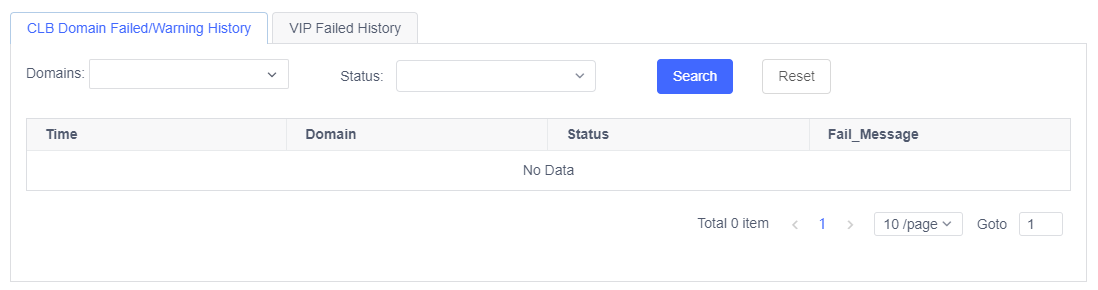
VIP Failed History
- Click “VIP Failed History” tab, and you can check the VIP Failed History. You can check the last 30 days Failed logs.
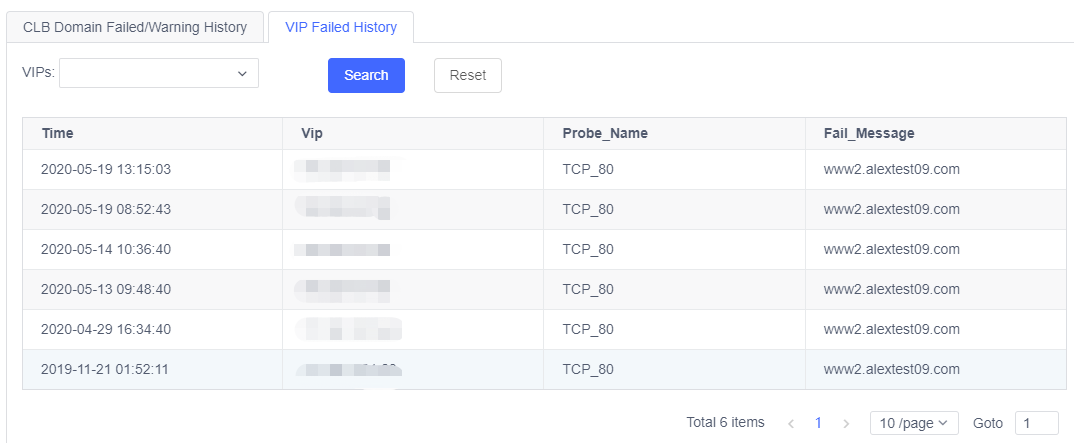
- You can search the history using “VIPS”.