
Create a Scheduled Report
최신 업데이트:2026-03-30 17:30:39
Create Subscription Task
You can create a subscription task to automatically generate reports on a specified schedule and send them to designated contacts via email.
Operating Procedures
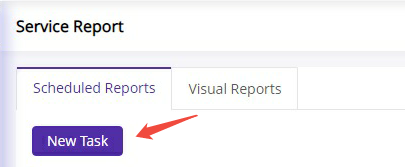
- On the Scheduled Reports page, click New Task.
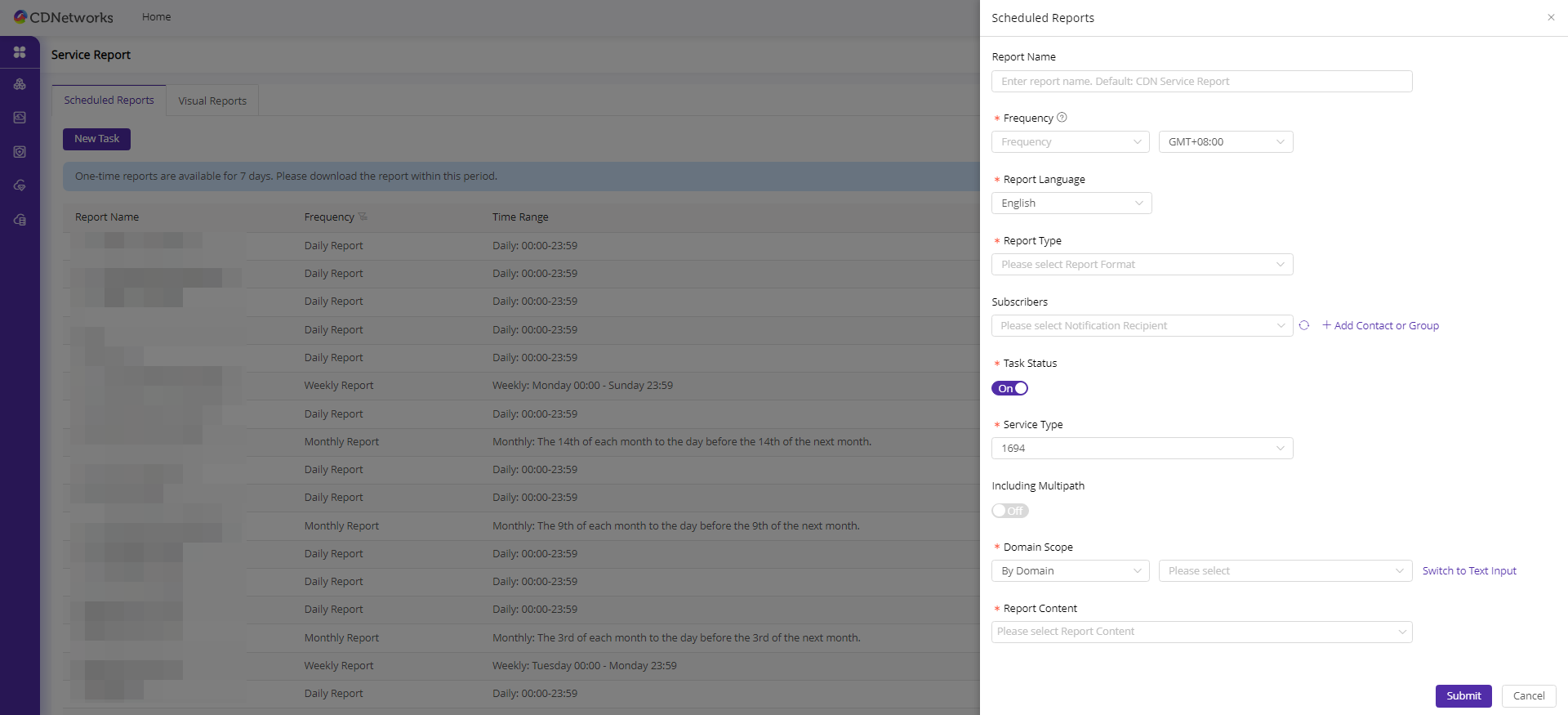
- In the Scheduled Reports panel that pops up on the right, fill in the following configuration information.
- Click Submit to complete the creation.
Parameter Description
| Parameter | Required | Description |
|---|---|---|
| Report Name | Optional | The name of the subscription task. The default is CDN Service Report. |
| Cycle | Required | The report generation cycle. Available options are: - Daily Report: Every day 00:00–23:59 - Weekly Report: Every Monday 00:00–Sunday 23:59 - Monthly Report: Every calendar month, selectable start date for the month - Quarterly Report: Requires specifying the date (X day) of the first month in the quarter; the report will cover from that date to the day before the same date in the next quarter - Annual Report: Every calendar year, selectable start date for the year - One-Time Report (Generated on the Same Day): Requires specifying the start date and end date. The report is generated on the day the task is submitted |
| Time Zone | Required | The time zone used for the report data. The default is GMT+09:00. |
| Report Language | Required | The language of the report file. The default is English. |
| Report Type | Required | The output format of the report. Supported options are: - Service Graphic Report (.docx): Word format report with charts and data explanations - Service Graphic Report (.pdf): PDF format report with charts and data explanations - Report Data Summary (.xlsx): Excel format report containing raw data details - Email Body: Report content sent directly in the email body, no attachment |
| Subscribed Contacts | Optional | The email recipients who will receive the generated report. You can select from existing contacts or contact groups. To add new ones, click Add Contact Group/Contact. |
| Task Status | Required | Controls whether the task is enabled. The default is enabled. When disabled, the task will stop generating new reports. |
| Business Type | Required | Select the business type for which the report needs to be generated. The list displays the business types currently enabled for your account. |
| Domain Range | Required | Select the range of domains covered by the report. You can choose specific domains from the dropdown list or click Switch to Enter Domain to manually input domains. |
| Report Content | Required | Select the data metrics to include in the report. The available options are displayed based on the selected service type and your account permissions. The available metrics are grouped into the following categories: - Bandwidth & Traffic: Edge Bandwidth, Back-to-Origin Bandwidth, Log Bandwidth, Bandwidth Saving Ratio Trend, etc. - Requests: Edge Request, Back-to-Origin Requests Trend, Hit Ratio Of Requests Trend, Request Distribution In Global, etc. - Status Code: Edge Status Code Trend, Origin Status Code Trend, 404 Distribution In Global, etc. - Visitors Statistics: Unique Visitors Trend, Page View Trend, IP Trend, Regional Distribution-Global, Average Download Speed Trend, etc. - Top Ranking: Domain Rank By Peak Bandwidth, URL Rank By Total Traffic, Visitors Rank By Requests, TOP 10 Referrer Website, etc. View Supported Reports |
이 문서의 내용이 도움이 되었습니까?
예
아니오