
Route Traffic to CDN Pro
최신 업데이트:2026-07-24 11:44:43
After completing setup on CDN Pro by creating a hostname and an edge hostname, the next step is to route traffic to CDN Pro. This is done by creating a CNAME record for your hostname with your DNS provider. With the CNAME record, the CDN Pro edge hostname acts as an alias to your hostname. DNS requests to your hostname will be directed to the edge hostname. This allows CDN Pro to manage traffic for your hostname.
Create CNAME record
Head to your DNS provider. Create a CNAME record for your hostname. The interface and the steps vary across DNS providers. When configured, the CNAME record would typically look like this:

In this example, the host “console” represents a subdomain of a DNS zone. The value “h4npp****ctbz.qtlcdn.com” is a CDN Pro edge hostname. The type being CNAME makes the edge hostname an alias of the subdomain.
Verify DNS
After CNAME record is created, wait for the record to be propagated. The wait time differs, depending on your DNS provider. Usually, this should not take more than 30 minutes.
Send a few DNS requests to verify that the DNS works.
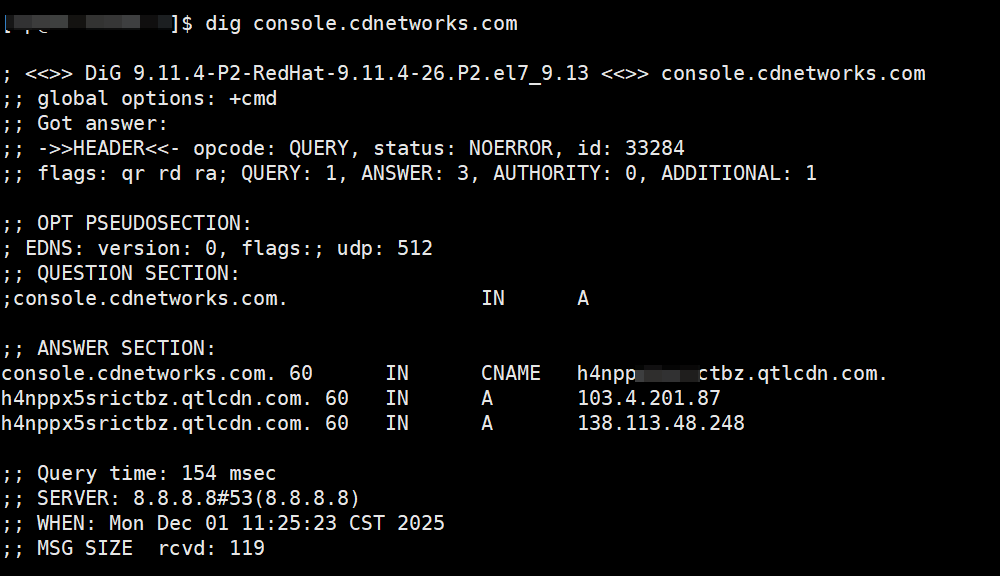
The CNAME record in the DNS result show that the domain “console.cdnetworks.com” is aliased to the edge hostname “h4npp****ctbz.qtlcdn.com”.